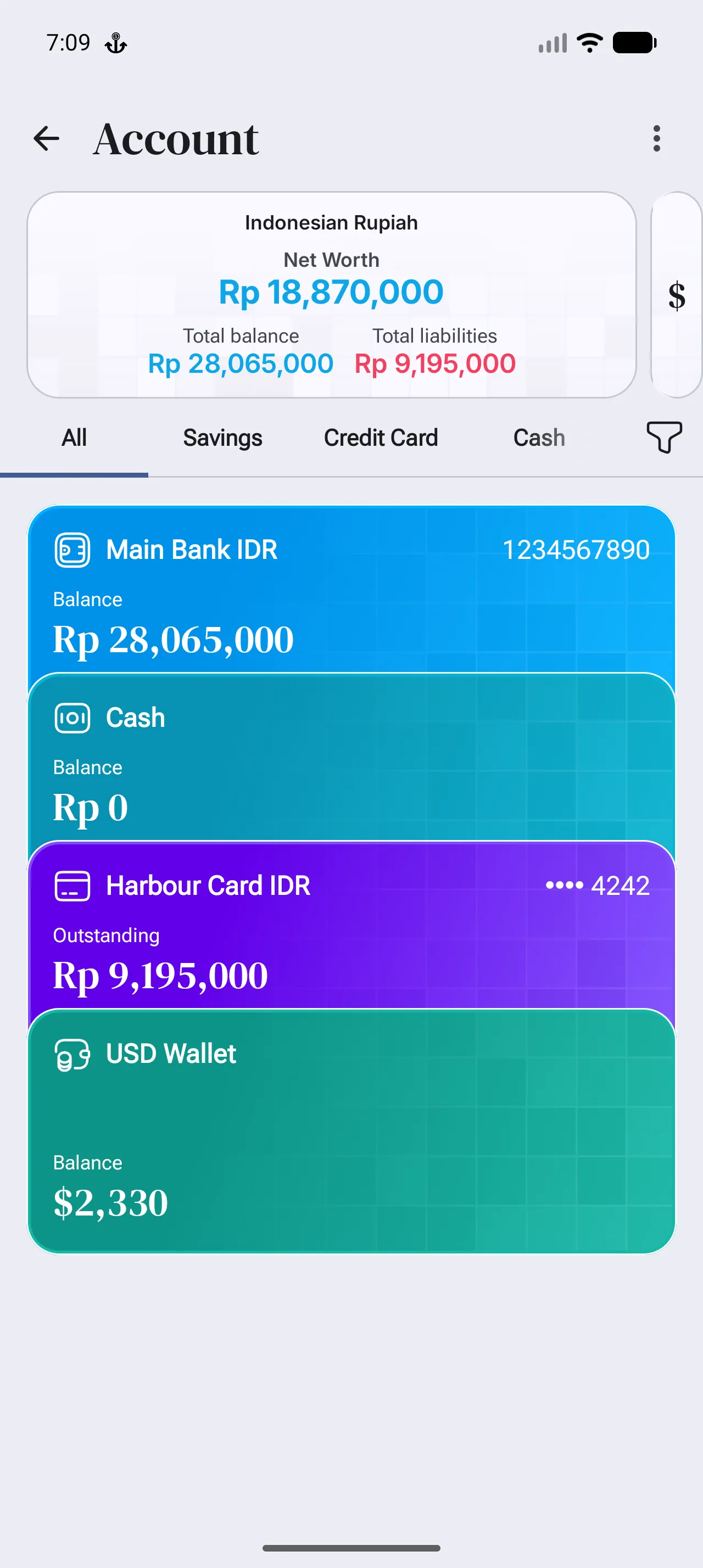
Transfer between accounts.
Start from the plus button or an account’s Transfer button. Both accounts must use the same currency.
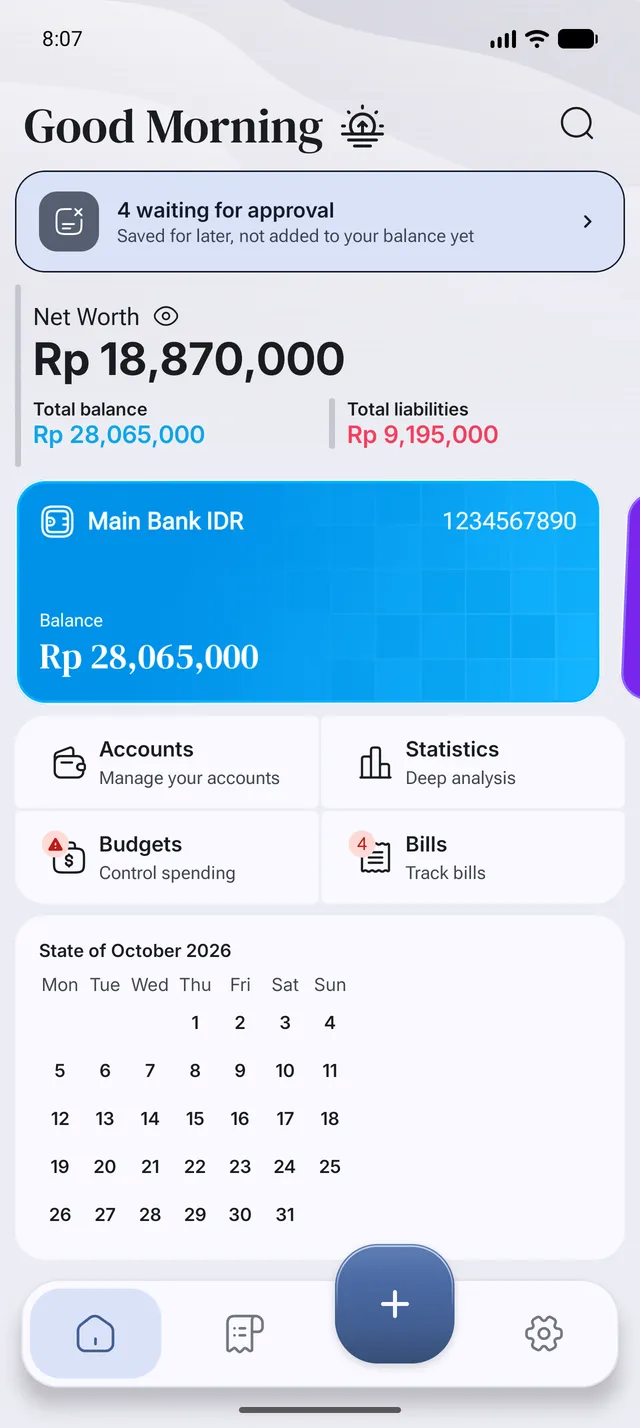
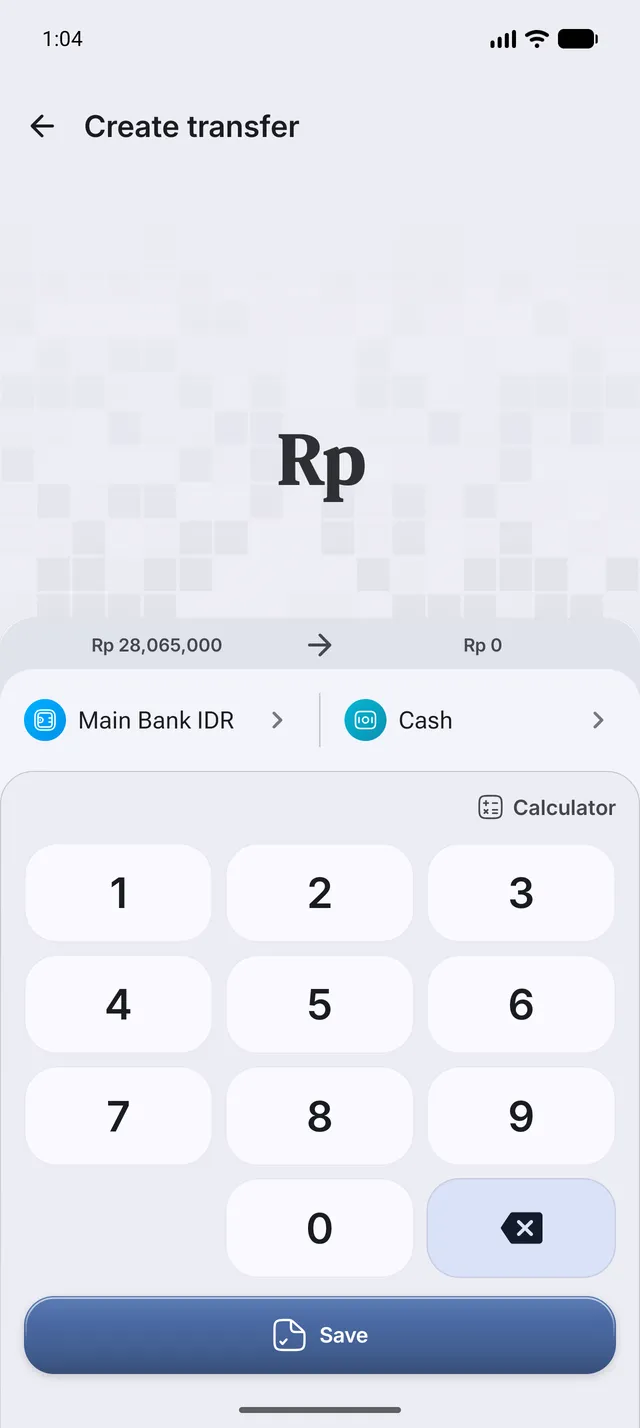
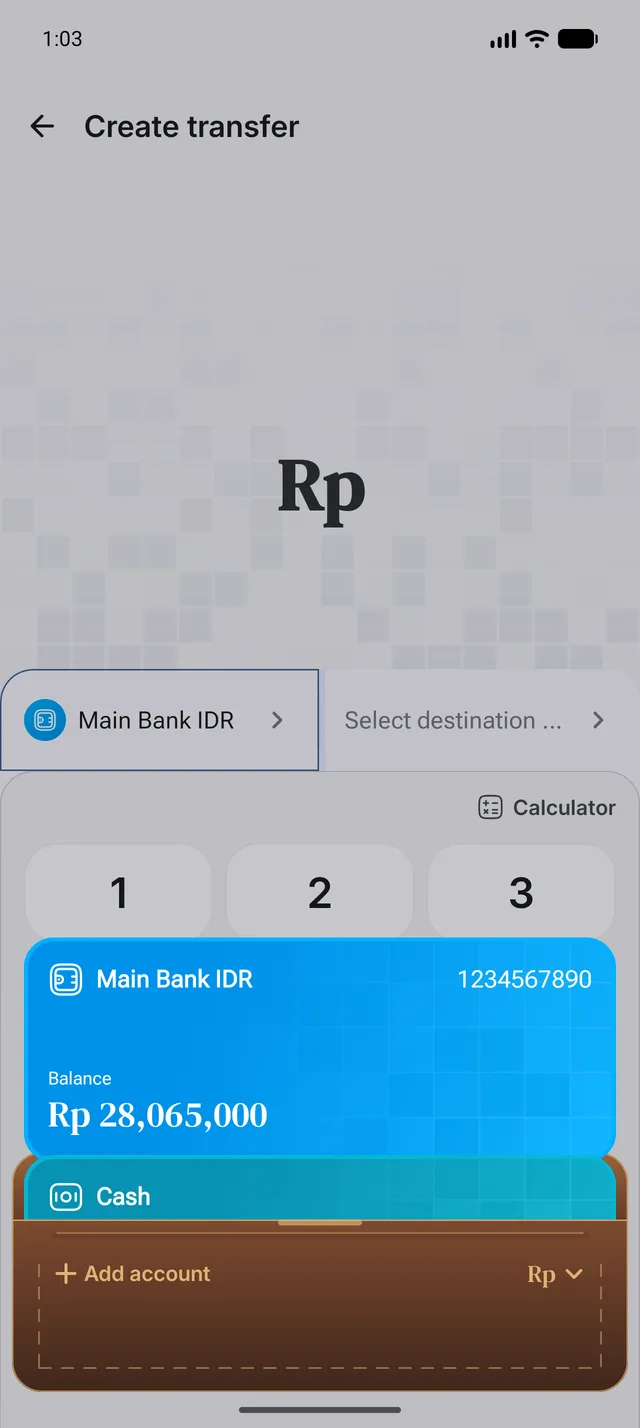
Start from the plus button
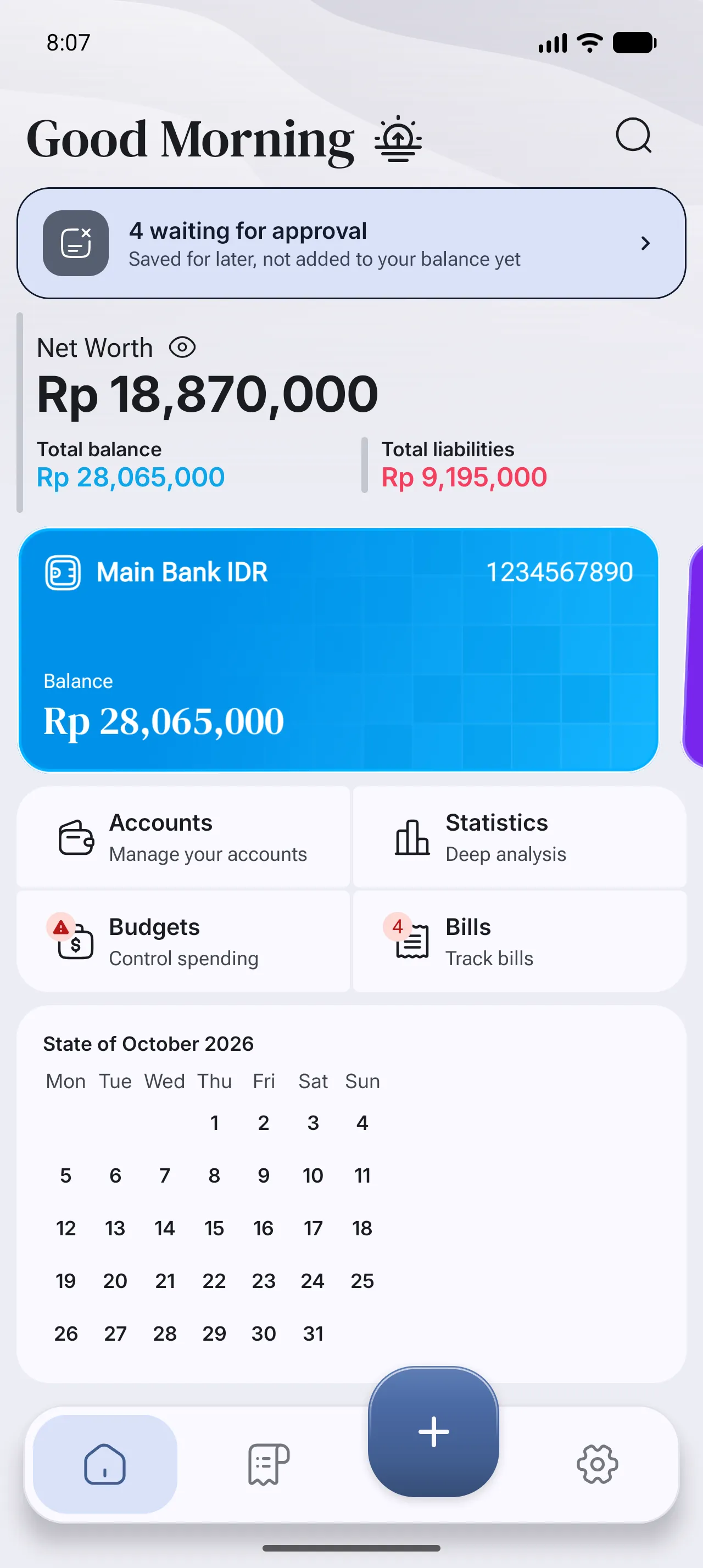
On Home or Transactions, tap the plus (+) button at the bottom to open Add Transaction.
Swipe to Create transfer
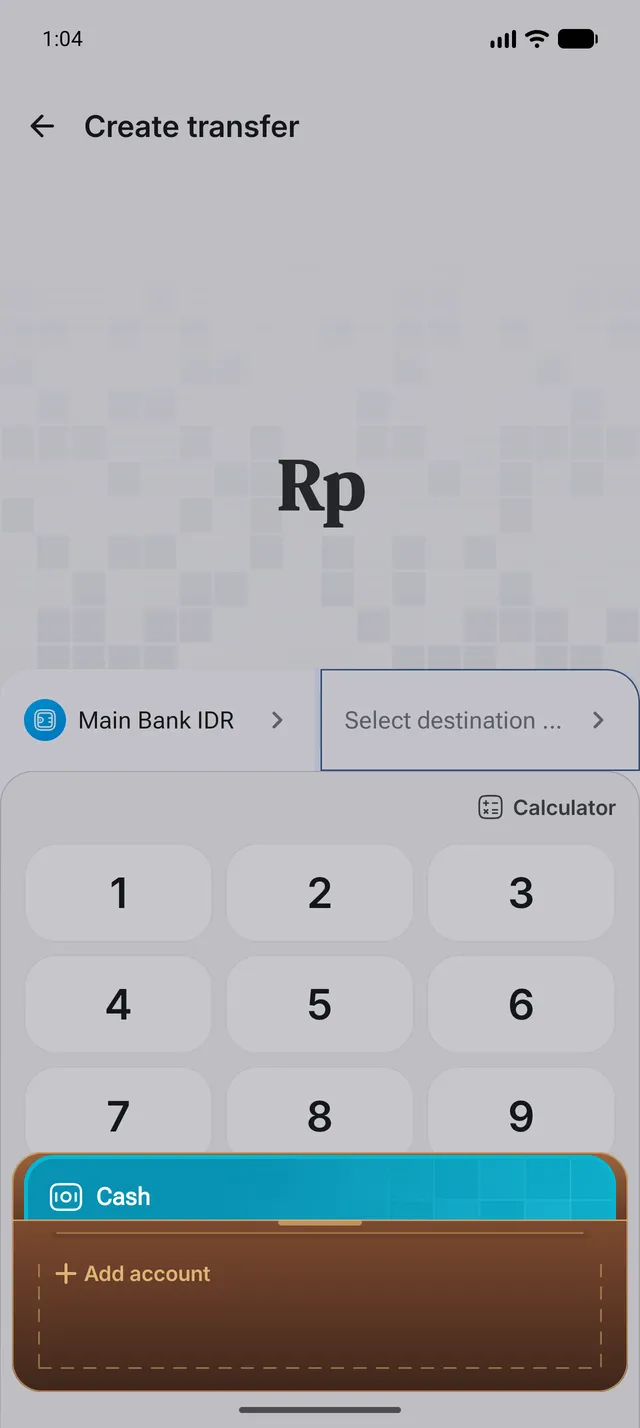
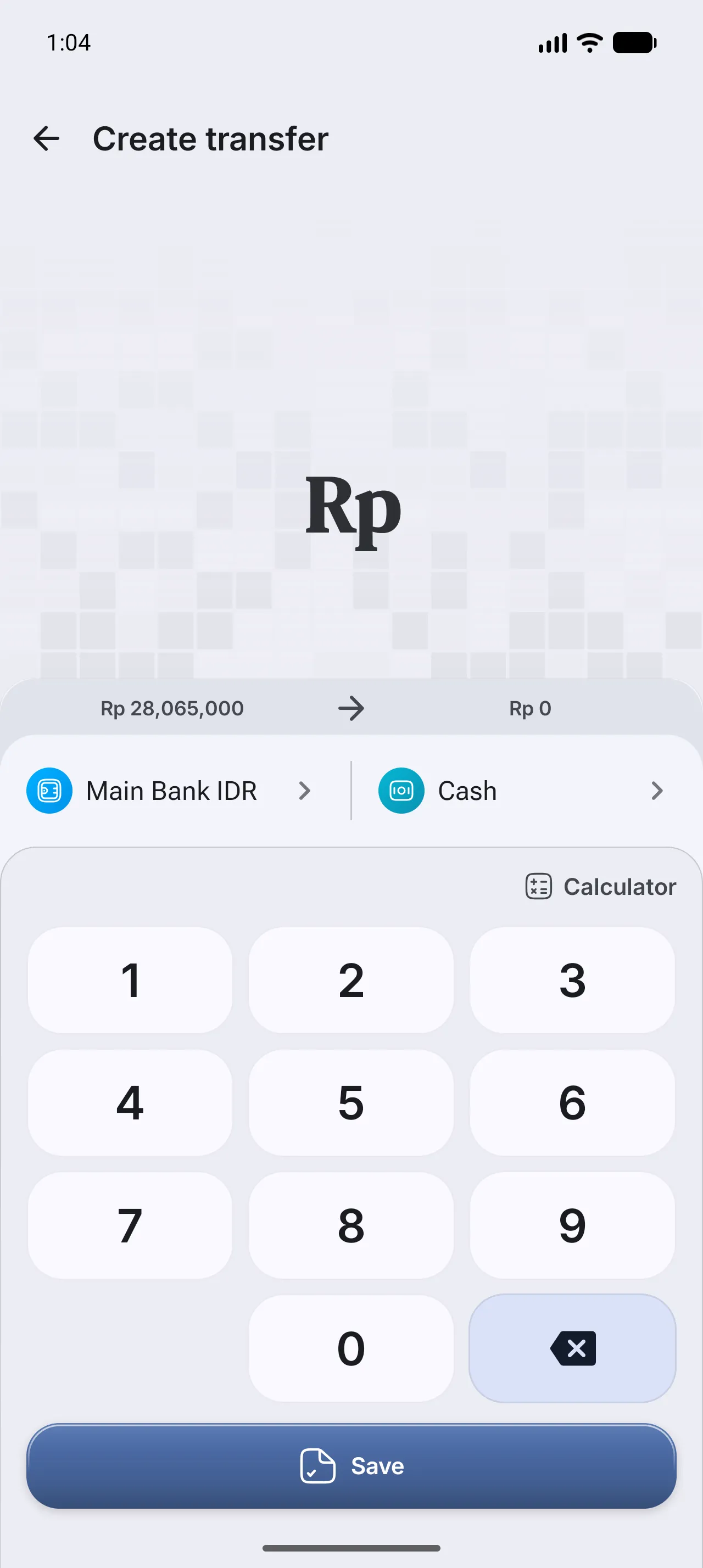
On Add Transaction, swipe right across the large amount area above the account and category controls. Do not swipe the keypad. When the title changes to Create transfer, enter the amount using the keypad.
Choose the source
Tap Select source account and choose where the money came from.
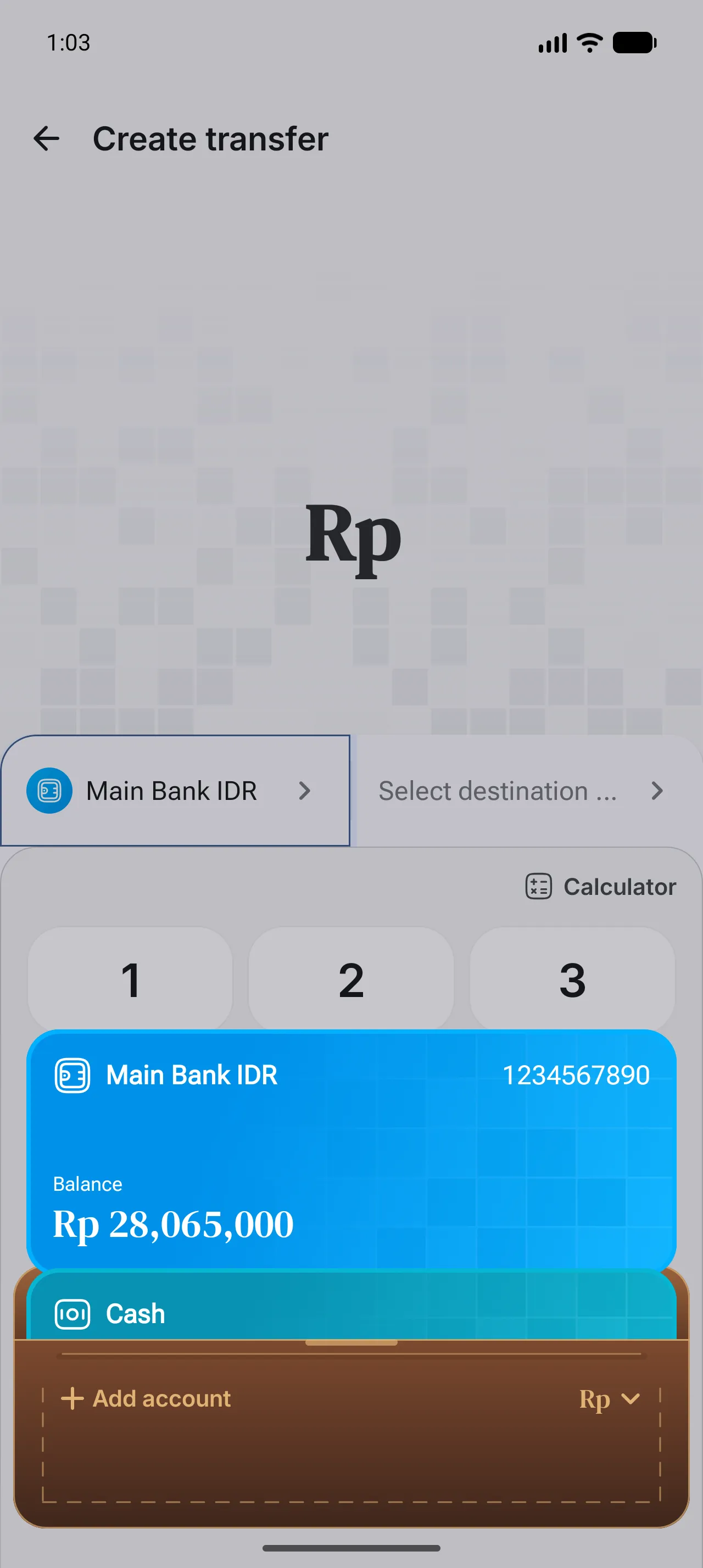
Choose the destination
Tap Select destination account and choose where the money went. The accounts must use the same currency.
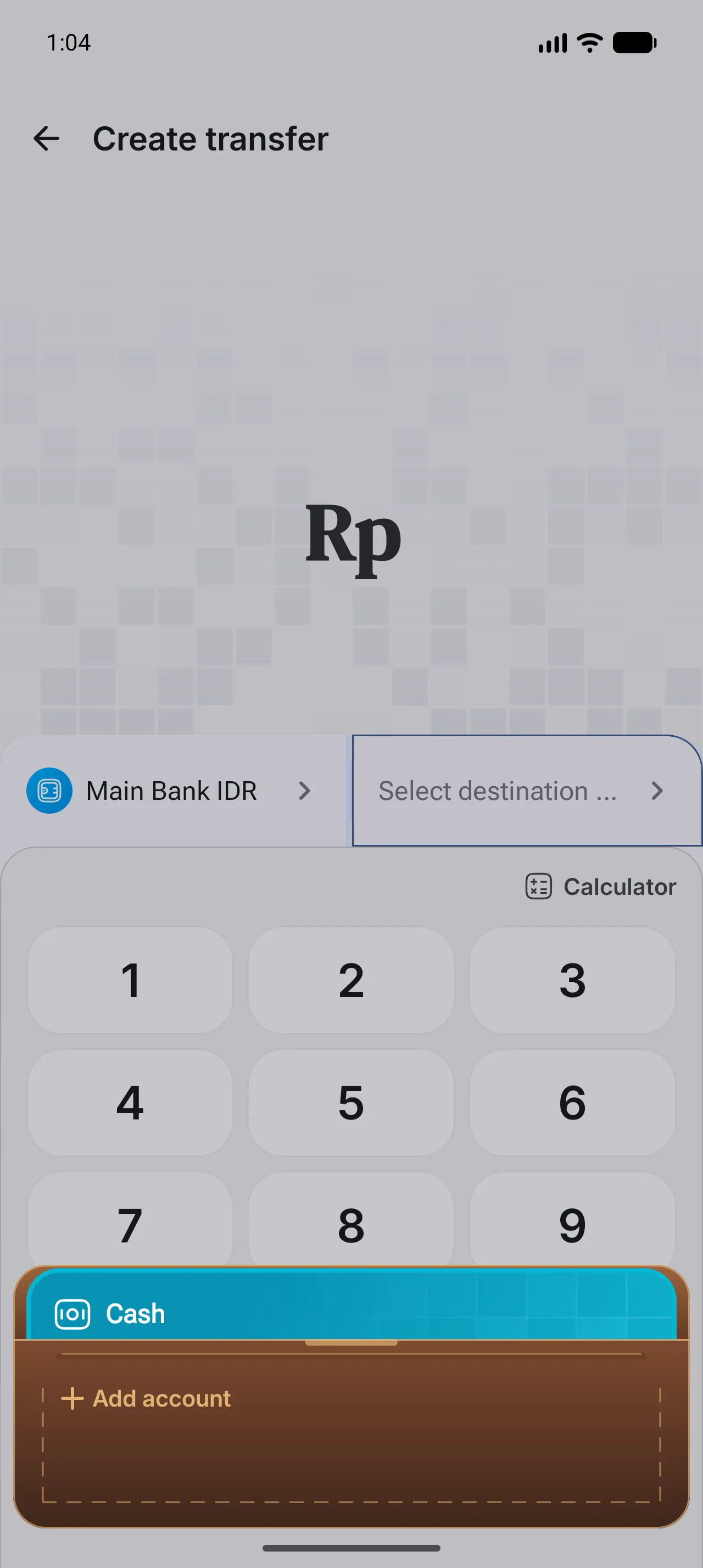
Check and save the transfer
Swipe the keypad left to check the date, time and optional note. Check both accounts and the amount, then tap Save. This records a transfer in Harbour; it does not move money through your bank.
Or start from an account
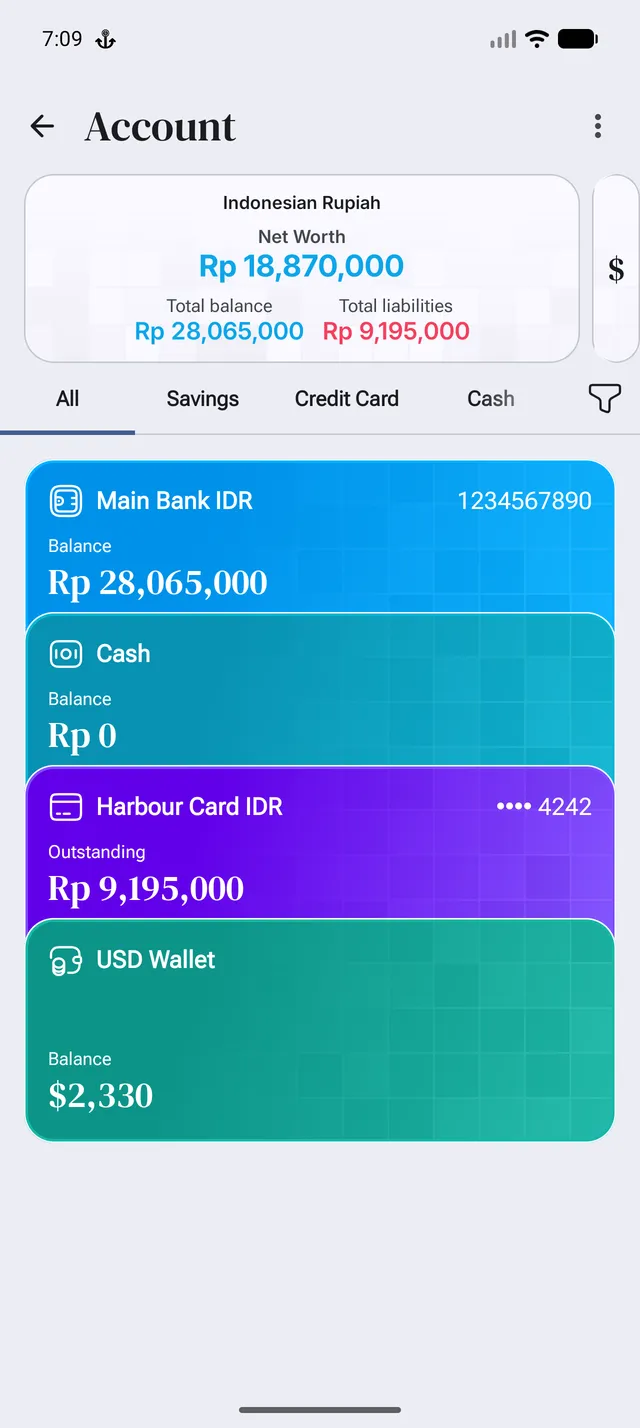
You can also start from an account. On Home, tap Accounts and open the account the money came from. Tap Transfer below its balance. Choose the destination account, enter the amount, then tap Confirm transfer. The source account is already selected. Credit card and loan accounts show Pay bill instead.