Set up AutoWrite and review transaction drafts.
Create transaction drafts from supported notifications and review them before saving.
Open Record from Notifications
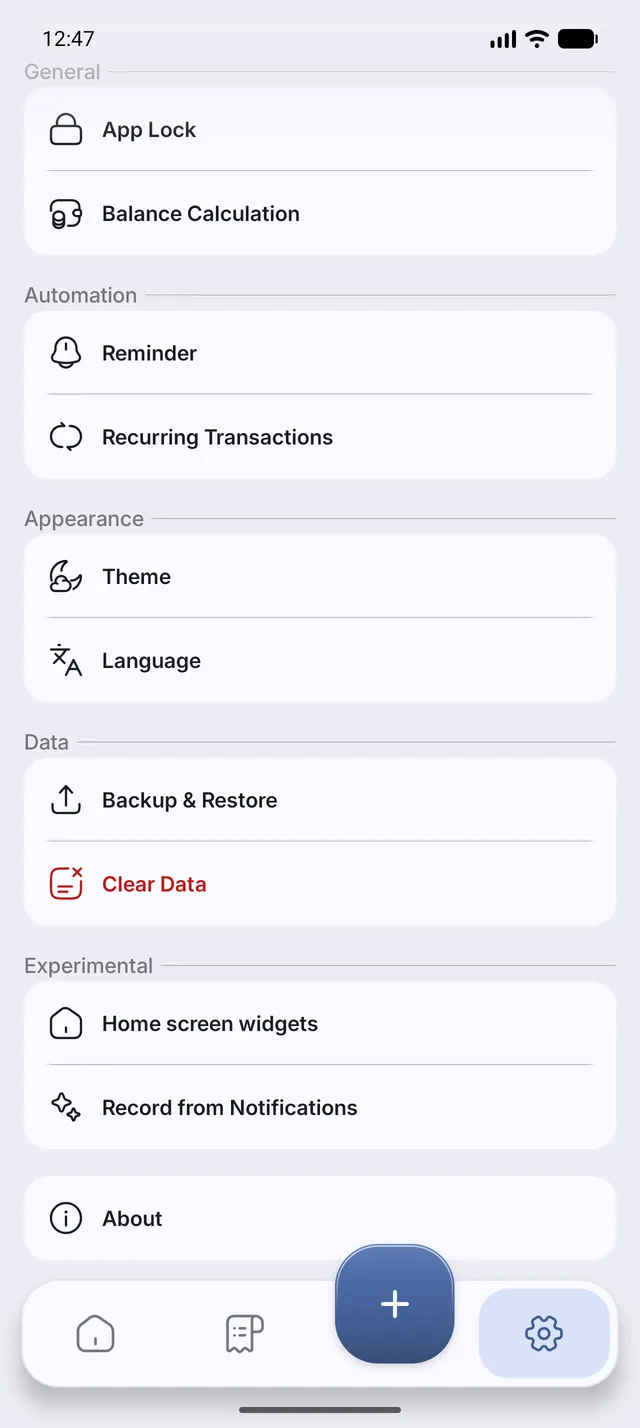
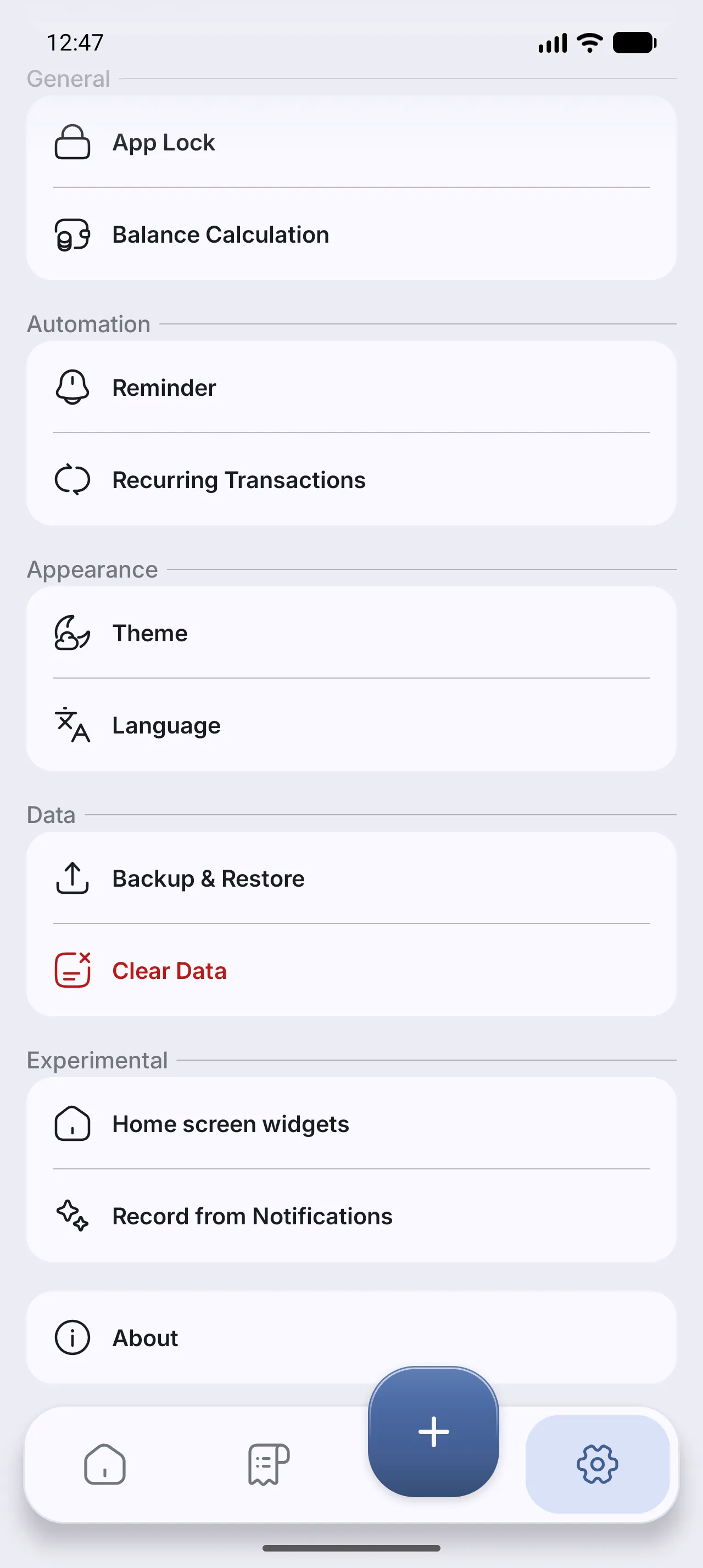
In Settings, find Experimental and tap Record from Notifications. AutoWrite is experimental and currently supports notification sources in Indonesia; it does not recognize every banking app or notification.
Review the permission request
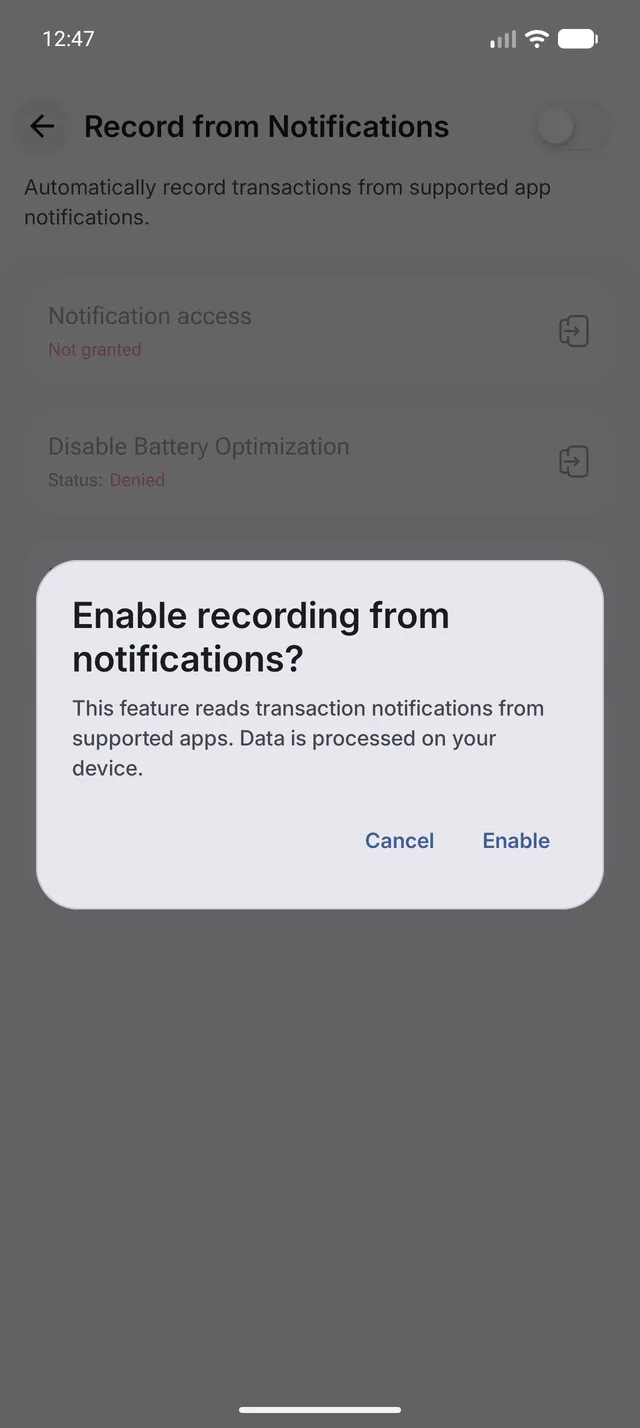
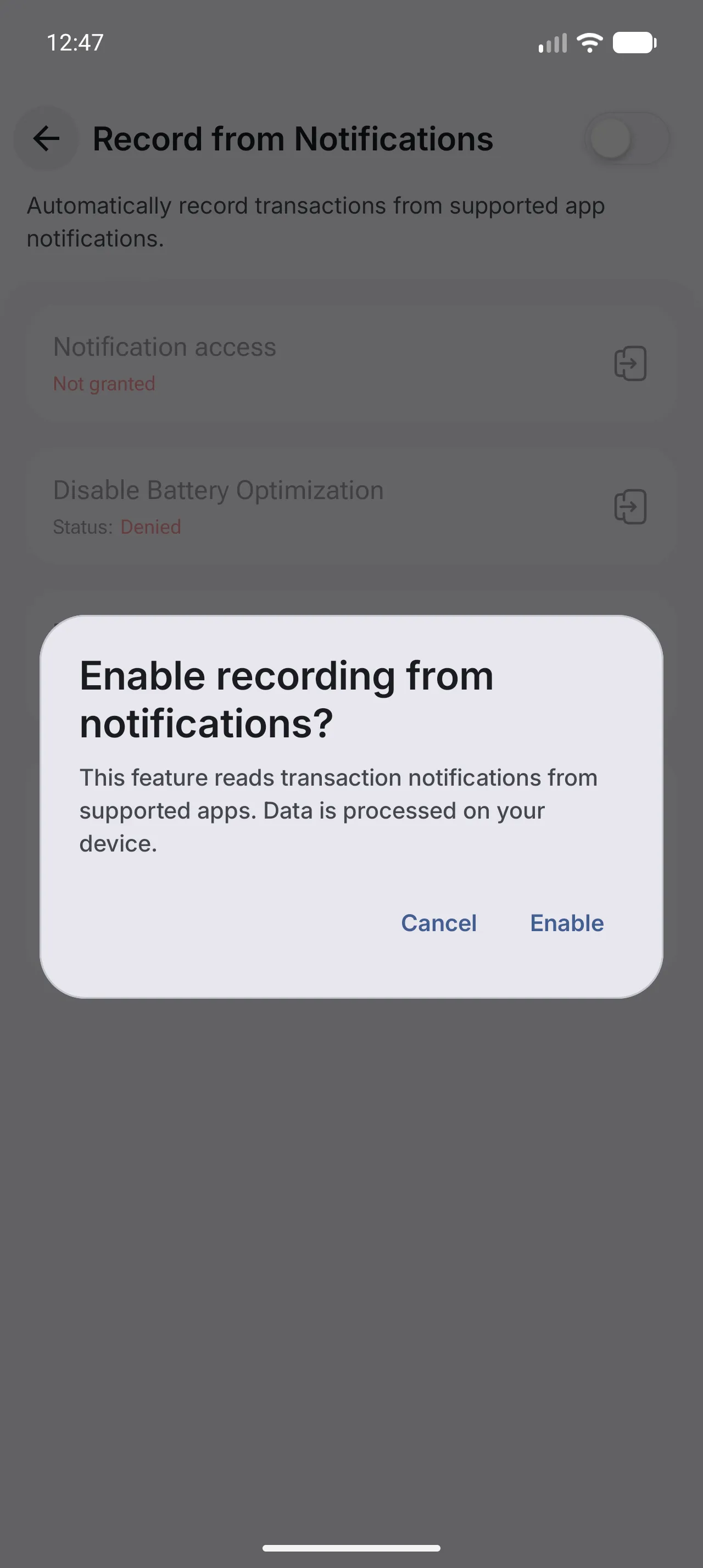
Turn on the switch at the top and read the explanation. Enable continues to notification access settings when permission is needed. Grant access only if you want Harbour to read transaction notifications from supported apps. Processing happens on your device.
Check access and background settings
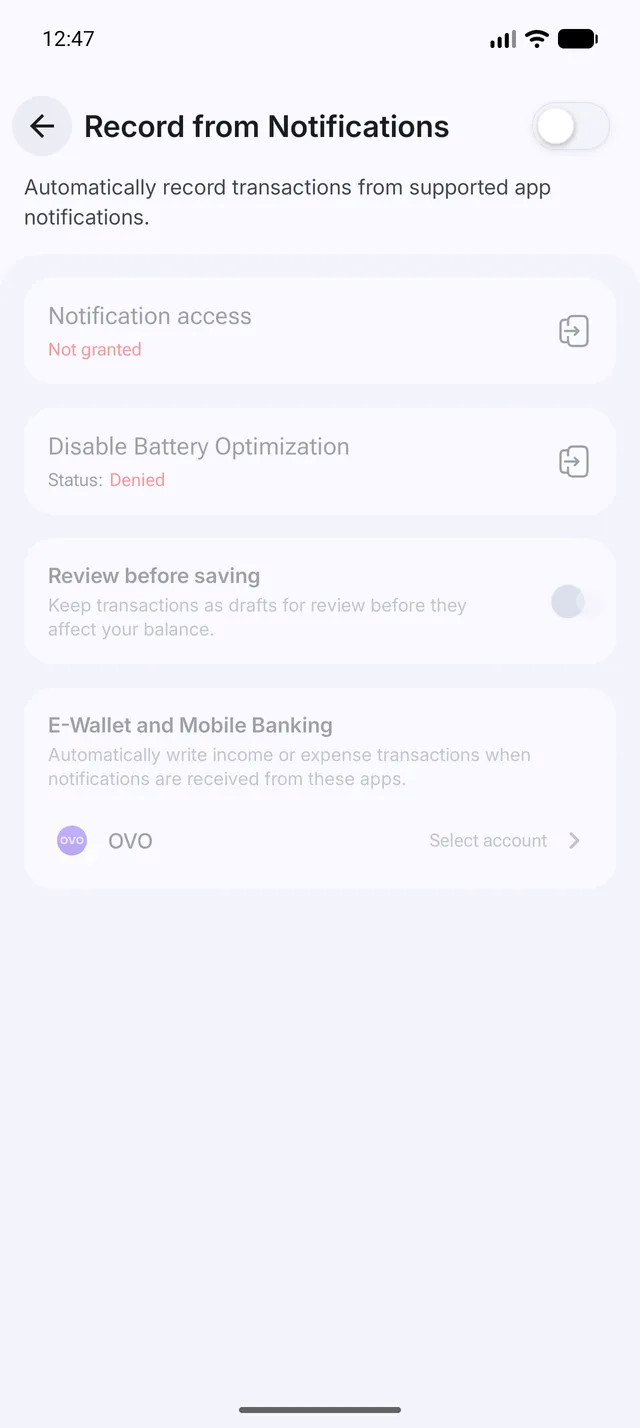
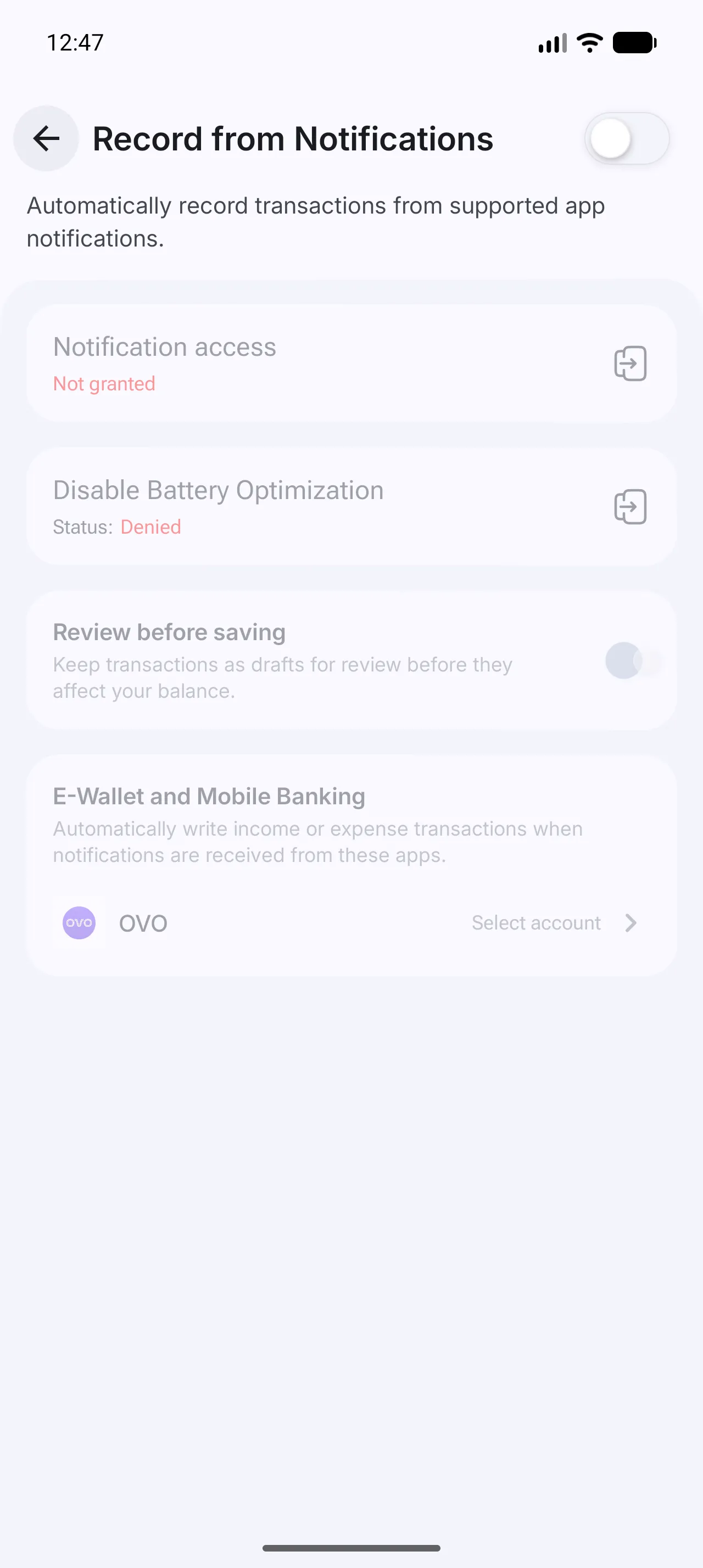
Return to Harbour and check Notification access. Disable Battery Optimization is also shown so you can review background restrictions on your device. Follow the Android settings prompts when needed.
Choose accounts and review mode
For each supported installed app listed, use Select account to connect its records to a Harbour account. Keep Review before saving enabled if you want to check drafts before they affect your balance. Saving without review bypasses that check for supported sources.
Open Draft transactions
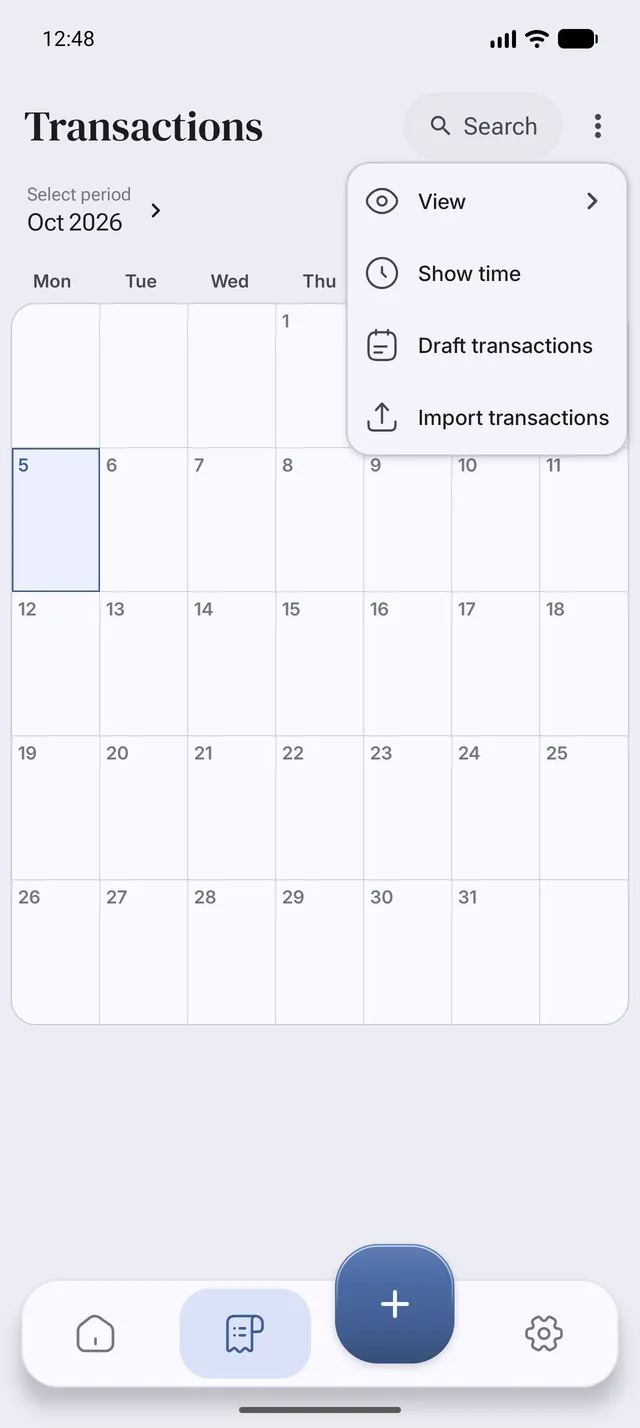
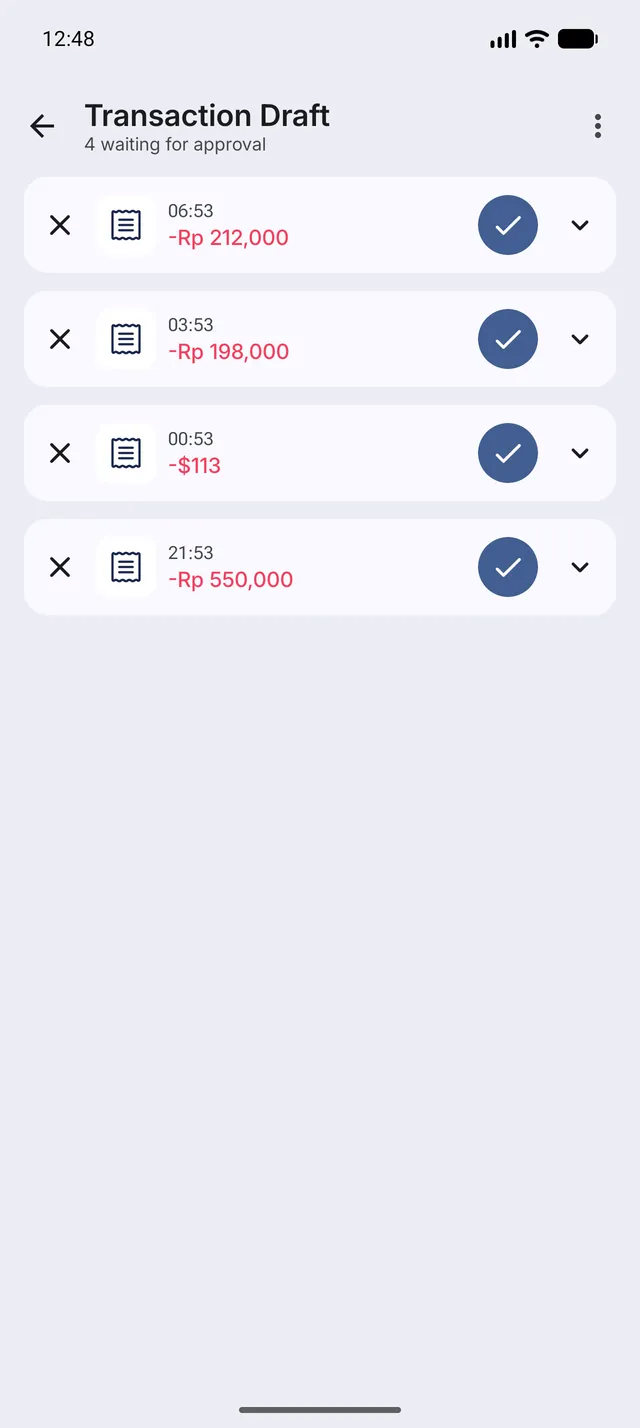
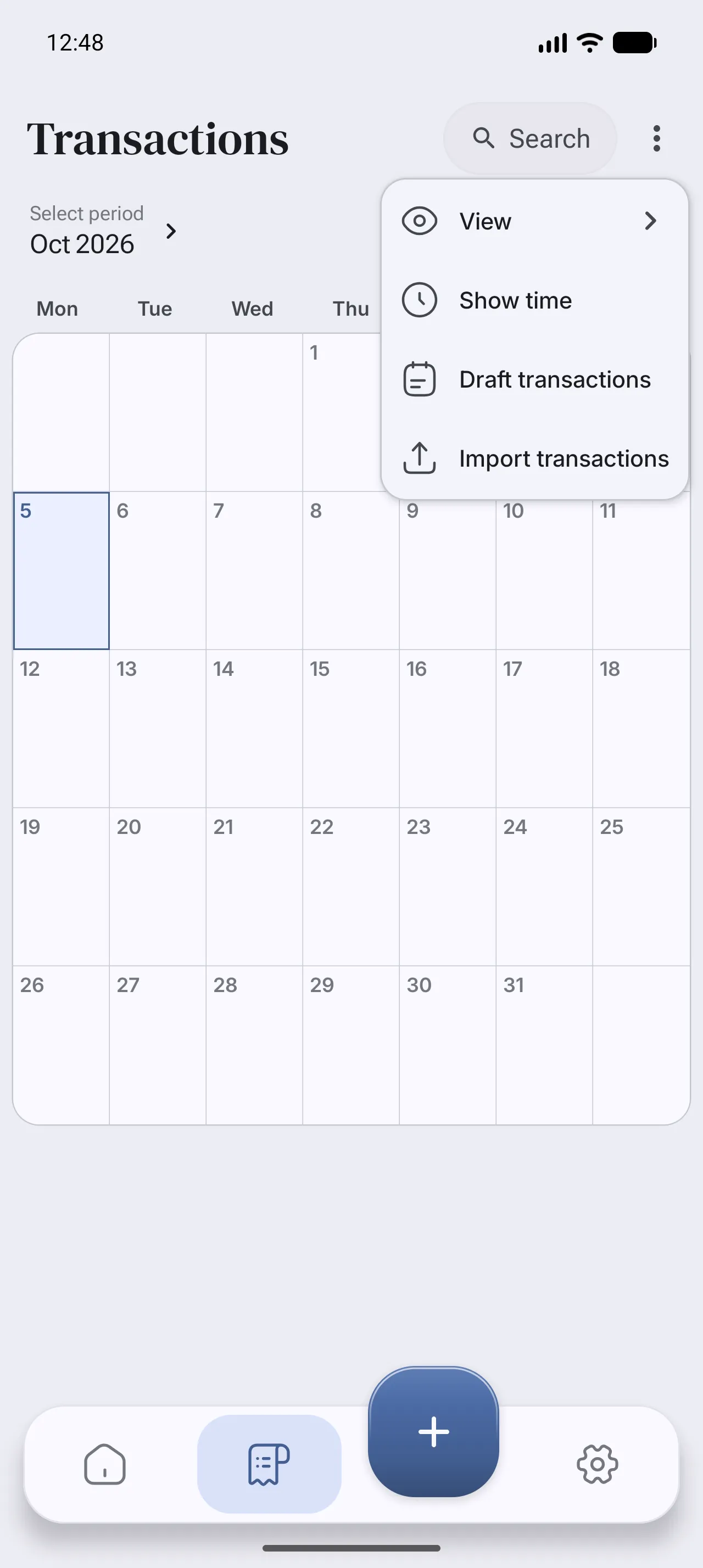
In Transactions, open the three-dot menu and choose Draft transactions. Drafts waiting for approval have not yet been added to your balance. Drafts can also come from records you saved for later.
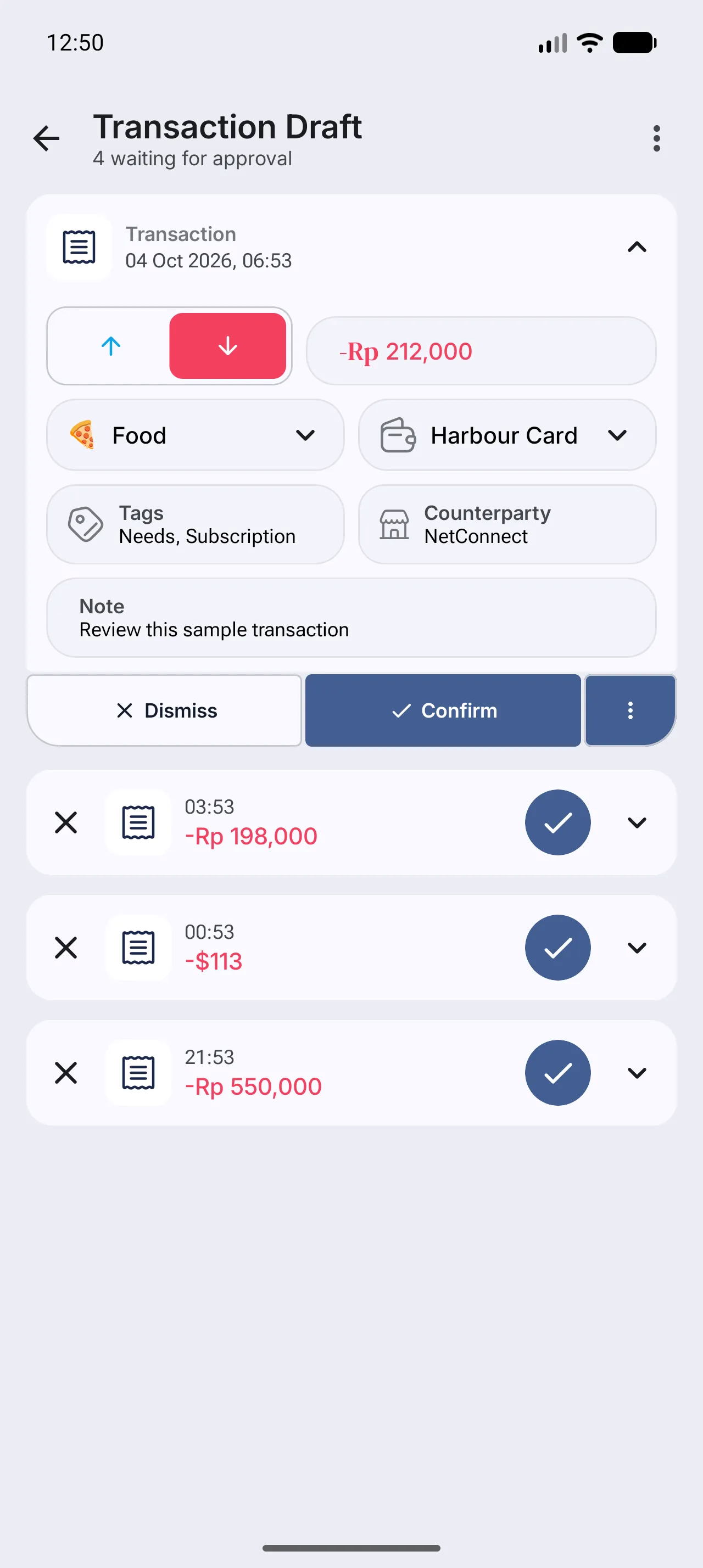
Expand a draft
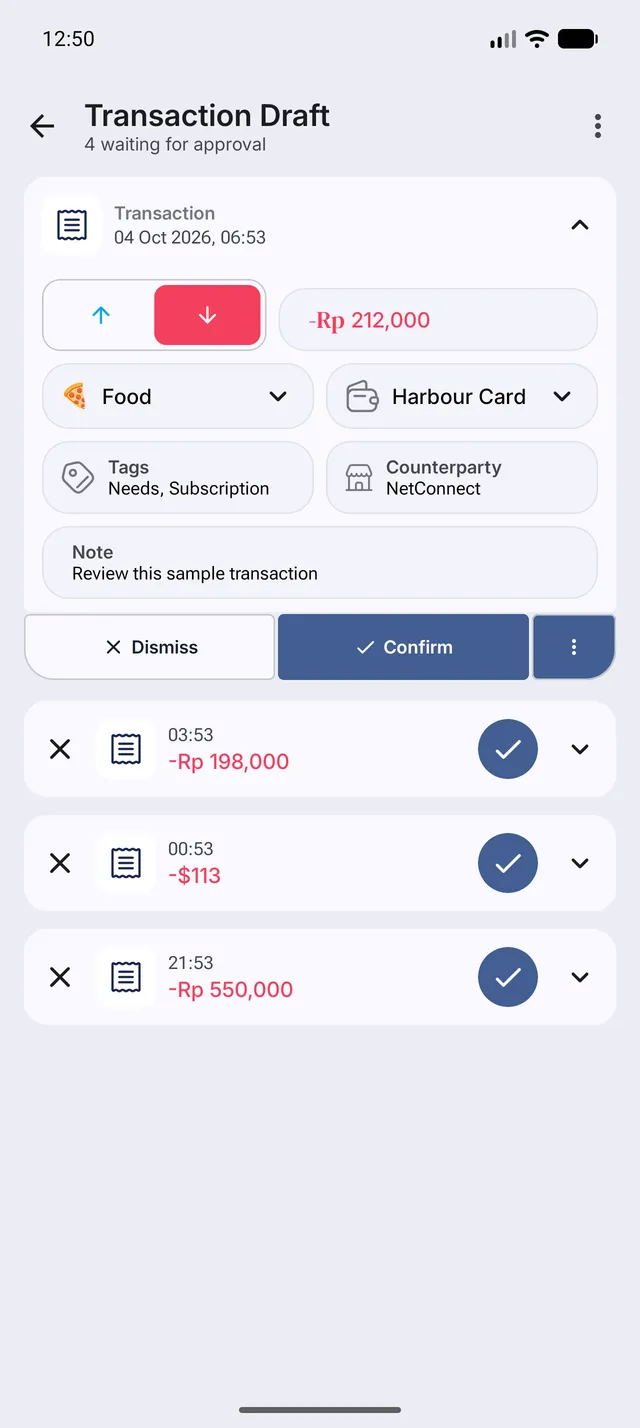
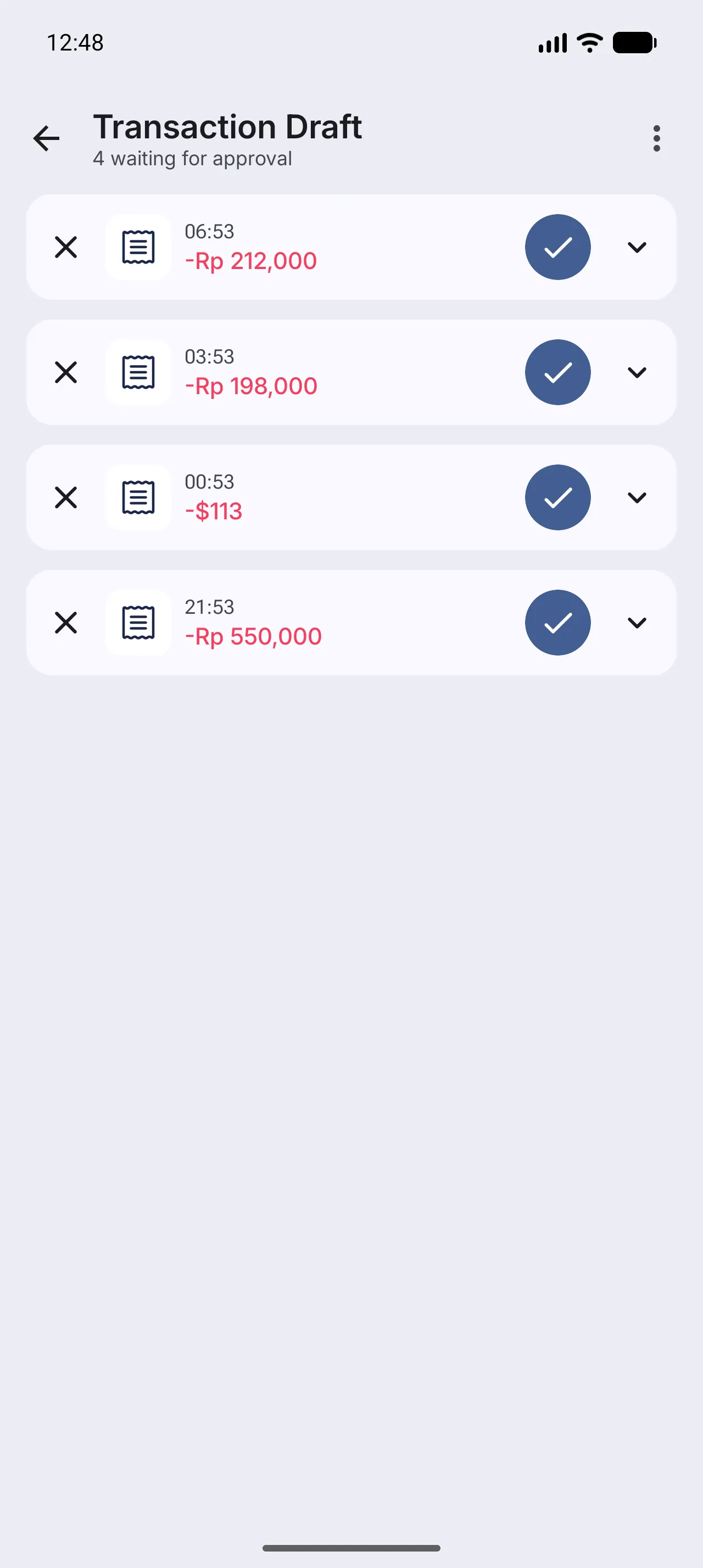
Tap the arrow at the right of a draft to review its fields. Check the date, transaction type, amount, account and category before confirming it.
Review and confirm or dismiss
Correct the fields as needed, including optional tags, counterparty and note. Confirm records the transaction and updates the account balance. Dismiss removes the draft from the pending list. Leave it pending if you still need to check it.