Create recurring transactions.
Record income or expenses that repeat on a schedule.
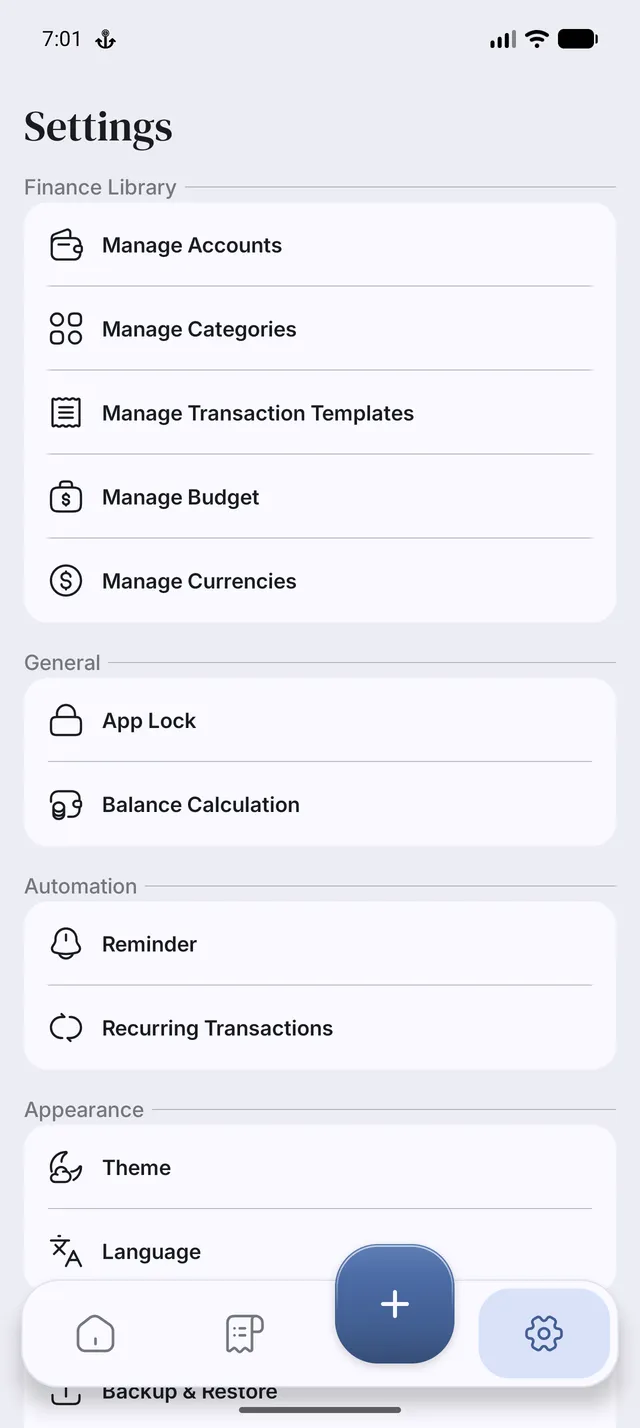
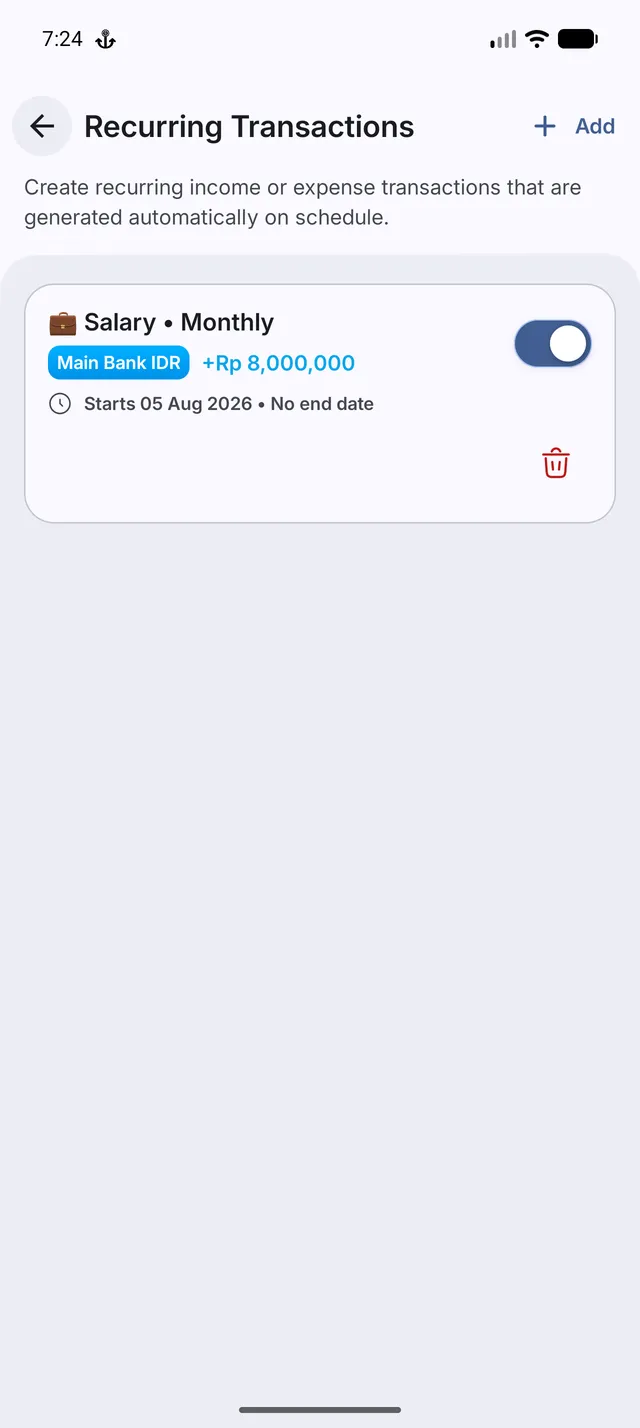
Open Recurring Transactions
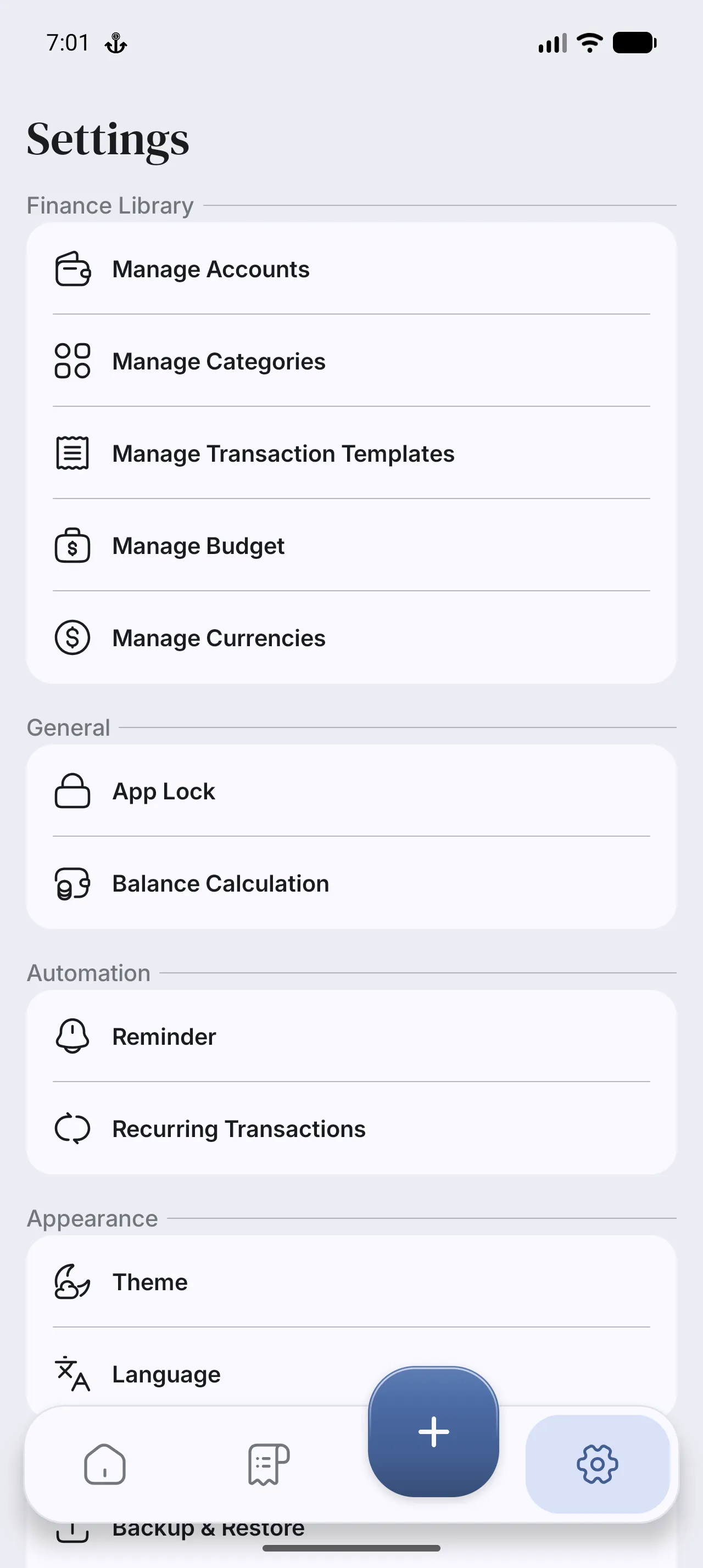
In Settings, find Automation and tap Recurring Transactions.
Add a recurring transaction
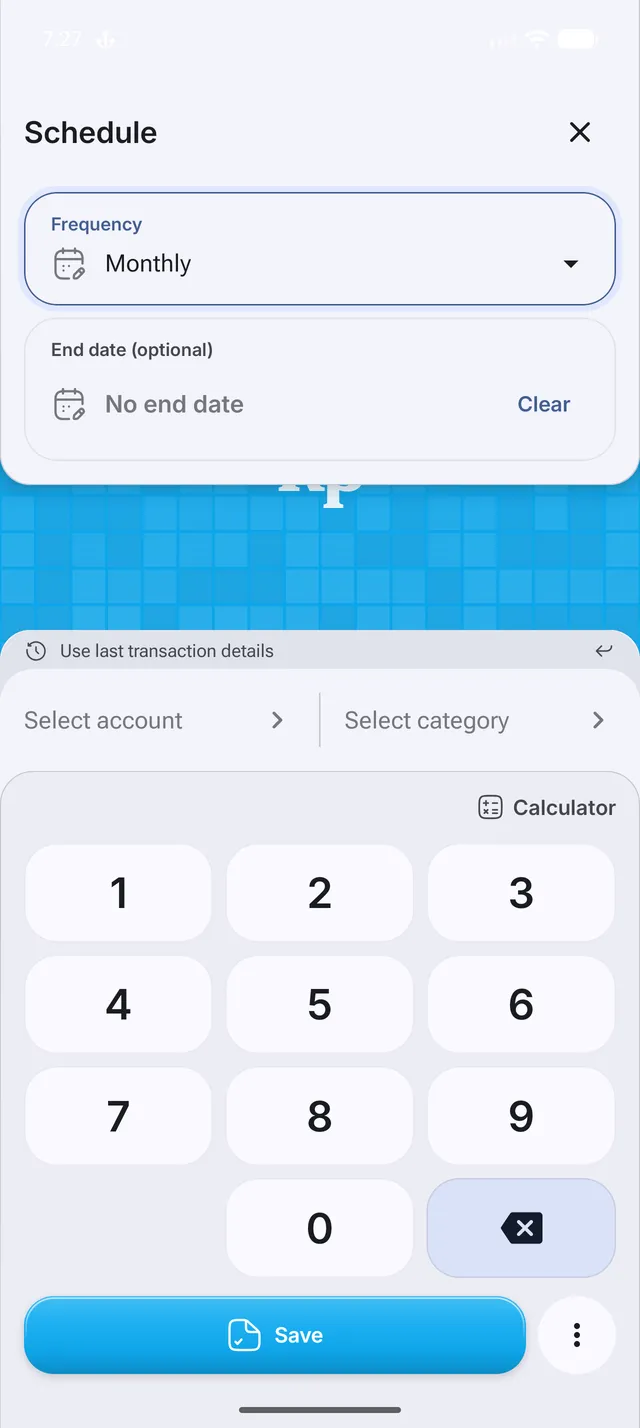
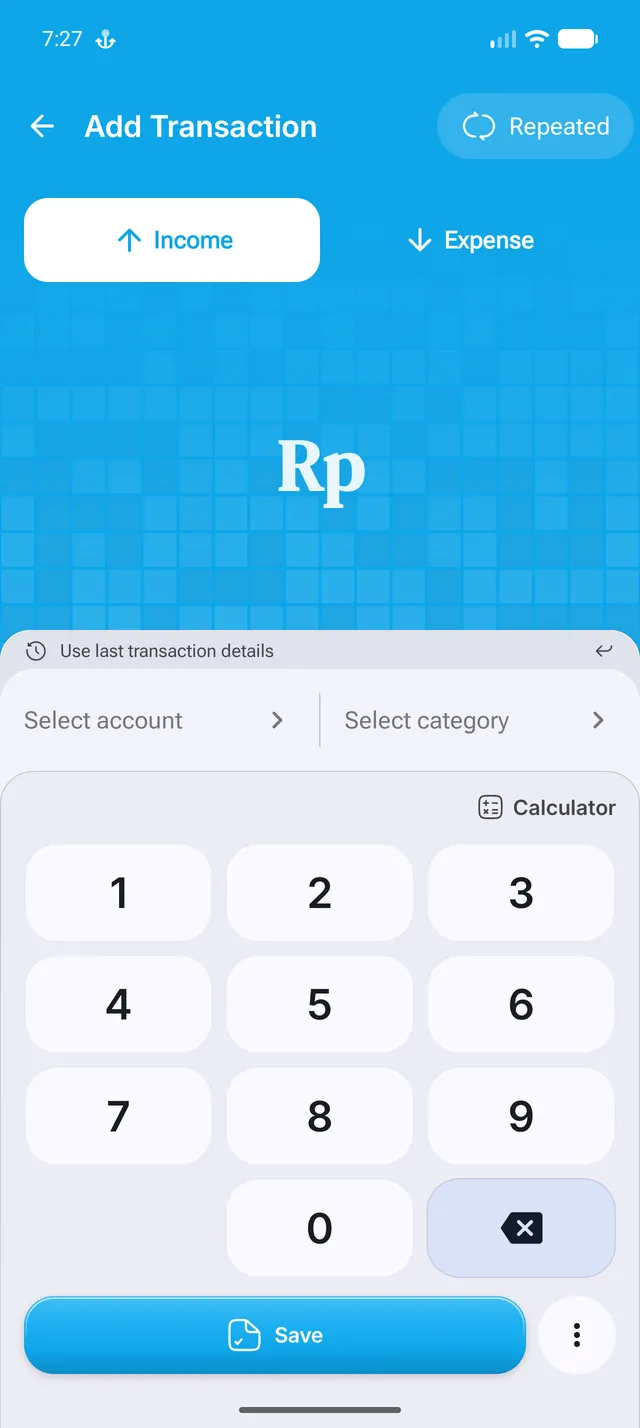
Tap Add at the top right. Harbour opens Add Transaction with the Schedule panel.
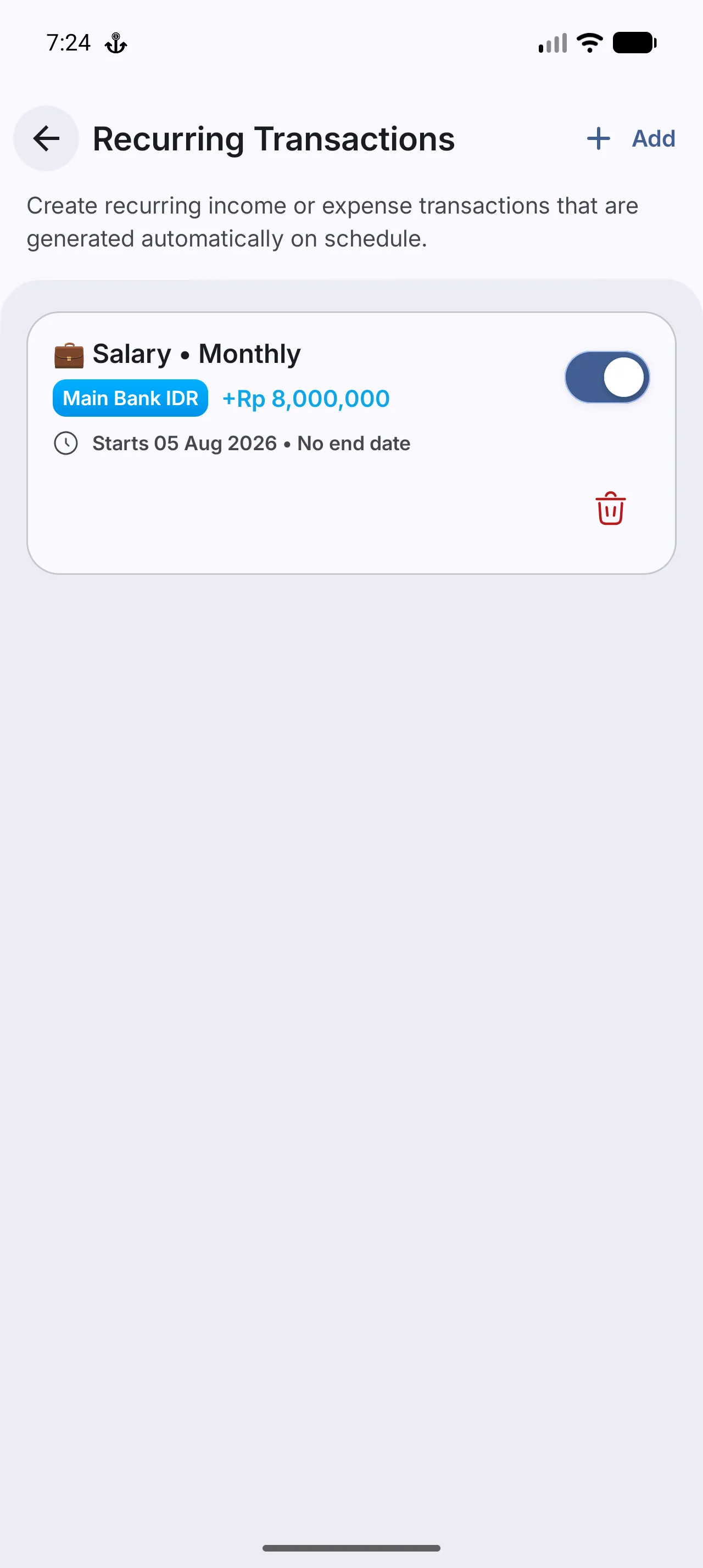
Choose the schedule
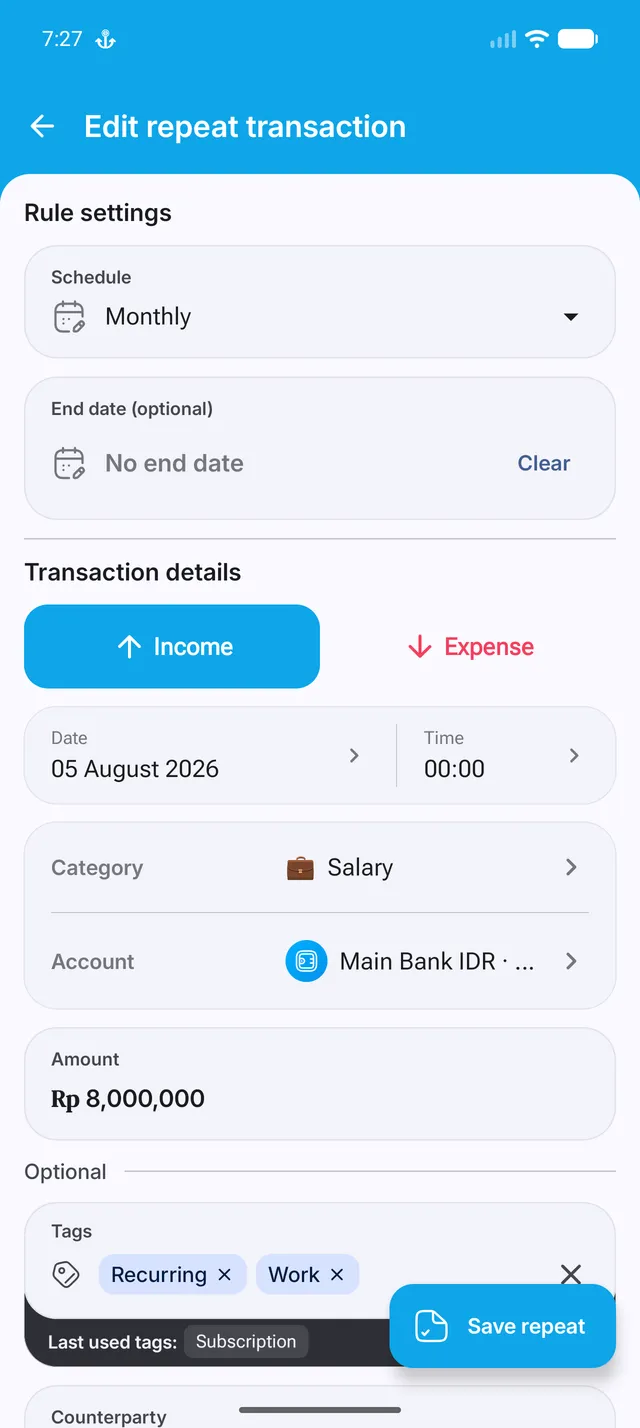
Open Frequency and choose how often the transaction repeats, such as Monthly. Once creates a single transaction. Set an optional End date, or leave No end date for an ongoing rule. Close the panel when ready.
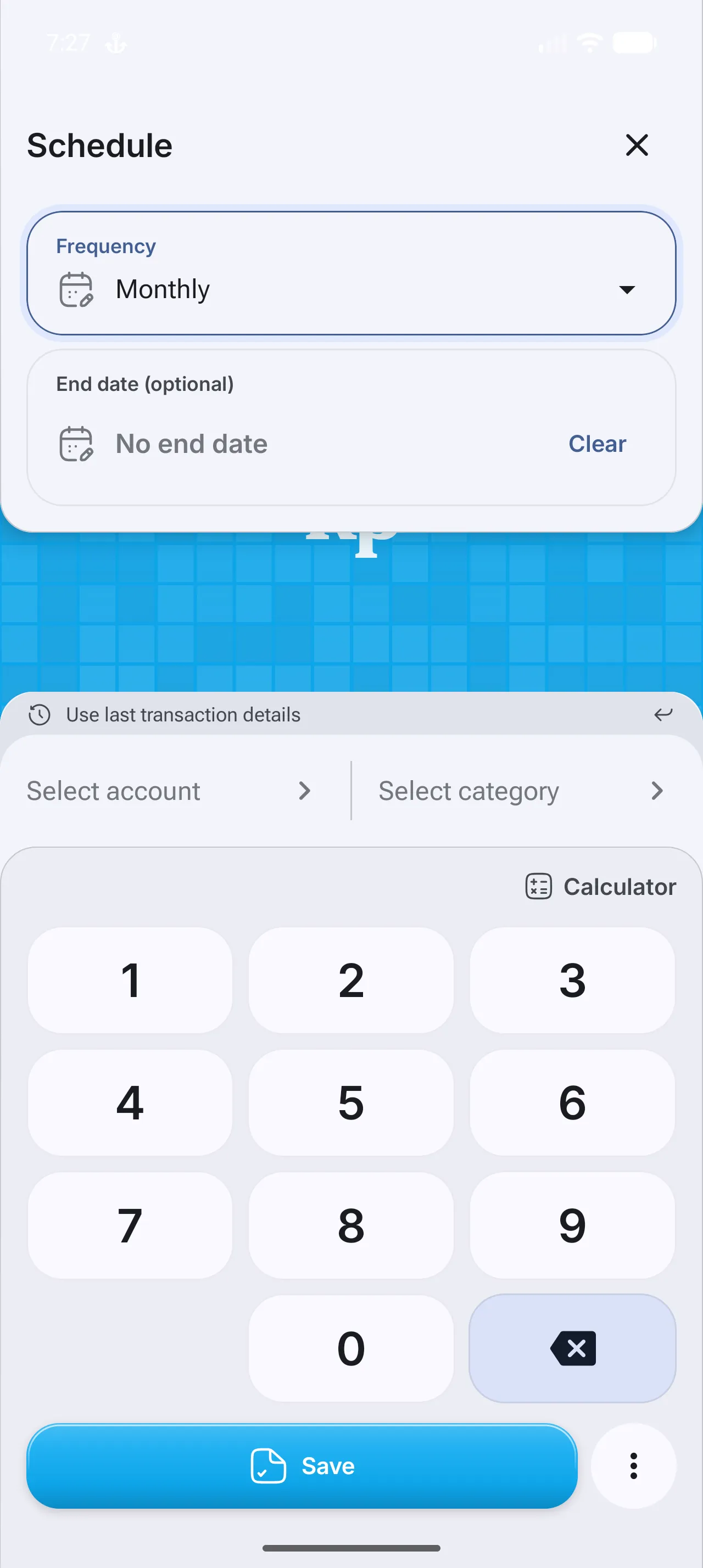
Enter the transaction details
Choose Income or Expense, enter the amount, and select an account and category. Swipe the keypad left to check Date and Time: these set the first occurrence. Tags, Counterparty, and Note are optional.
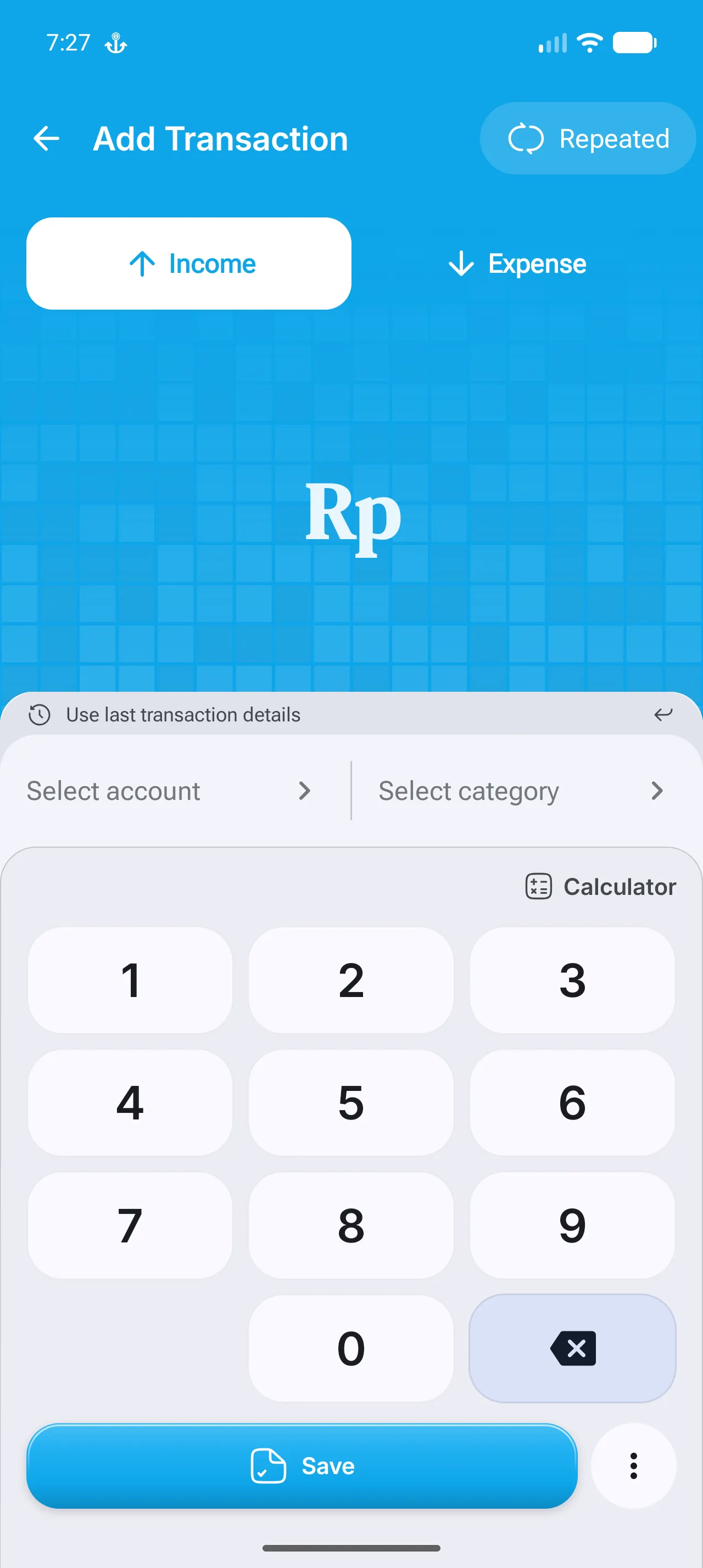
Check and save
Check the frequency, first date, amount, account, and category, then tap Save. Harbour creates transaction records when they are due, including due occurrences from a past start date. It does not move money or make payments for you.
Edit an existing rule
Return to Recurring Transactions and tap the rule. Update its schedule, end date, or transaction details, then tap Save repeat. Changes to the rule do not rewrite transactions already generated.
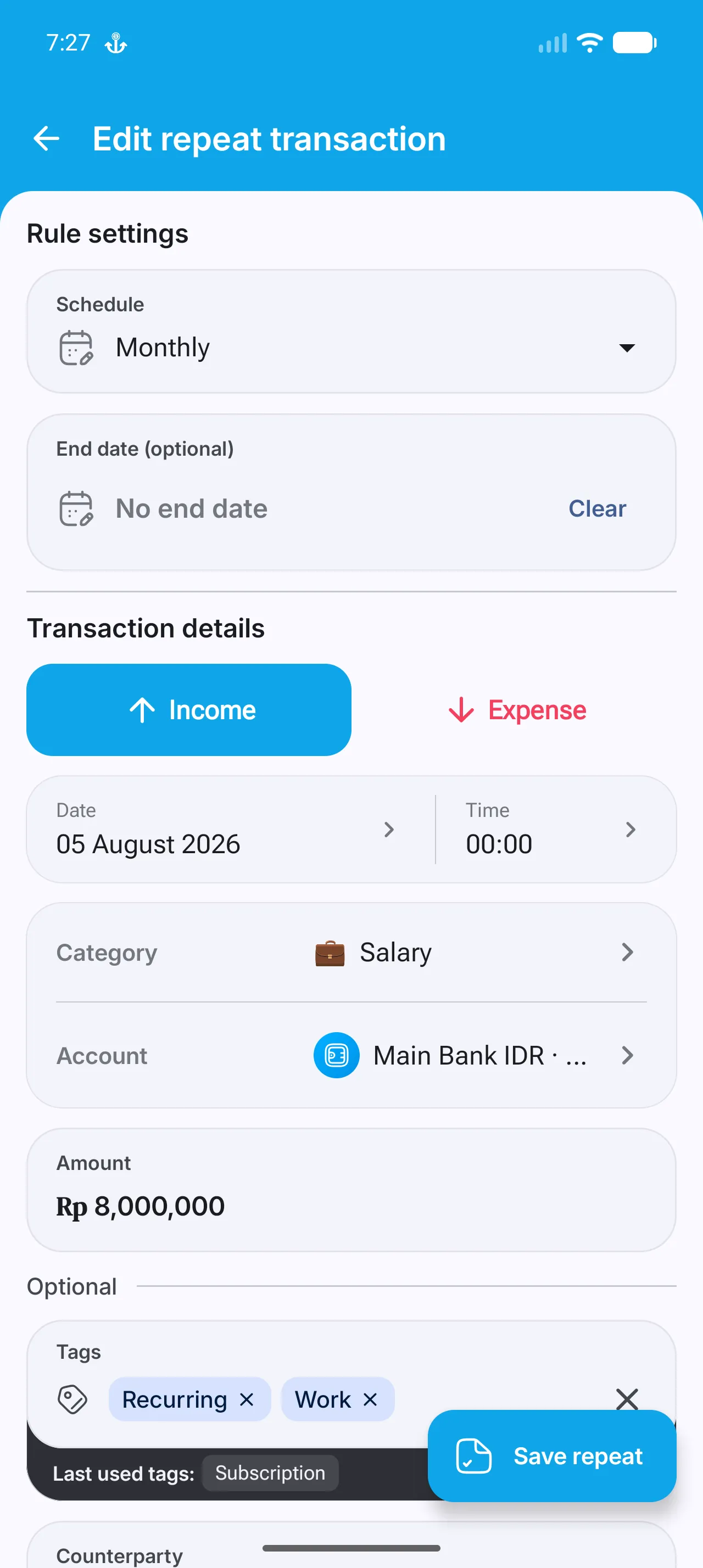
Pause a rule
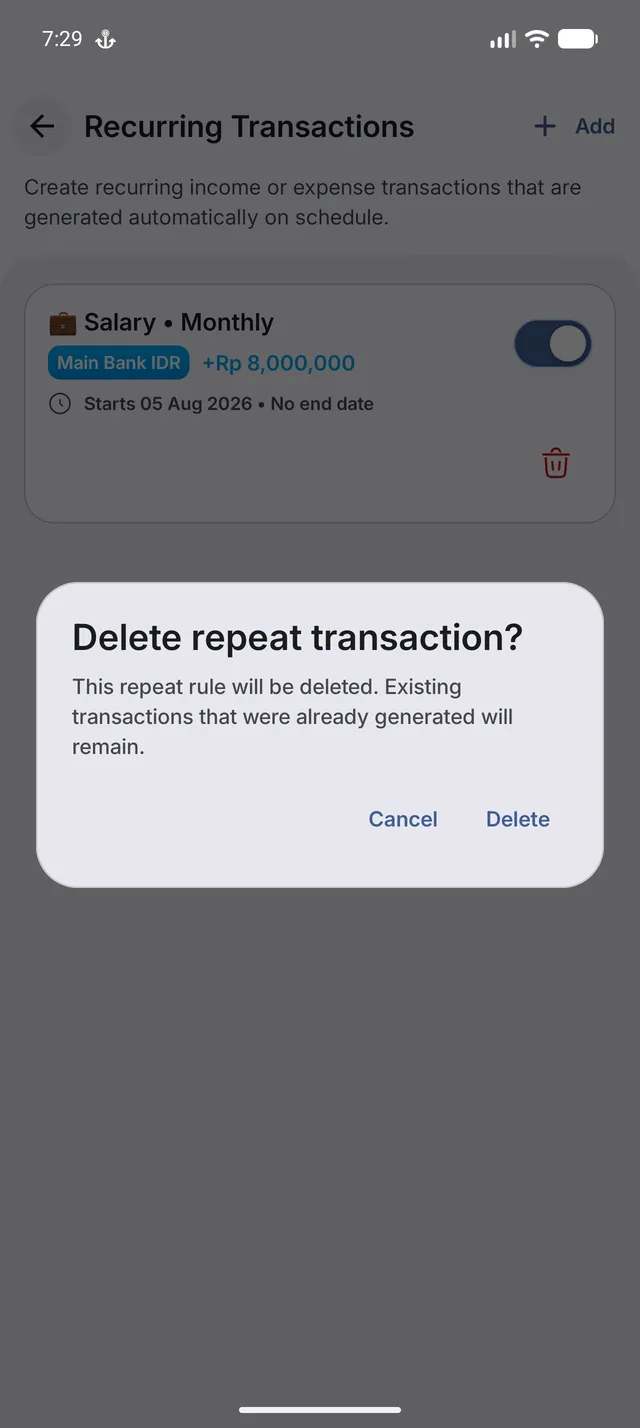
Use the switch on the rule card to turn automatic generation off. Turn it back on when you want to enable the rule again.
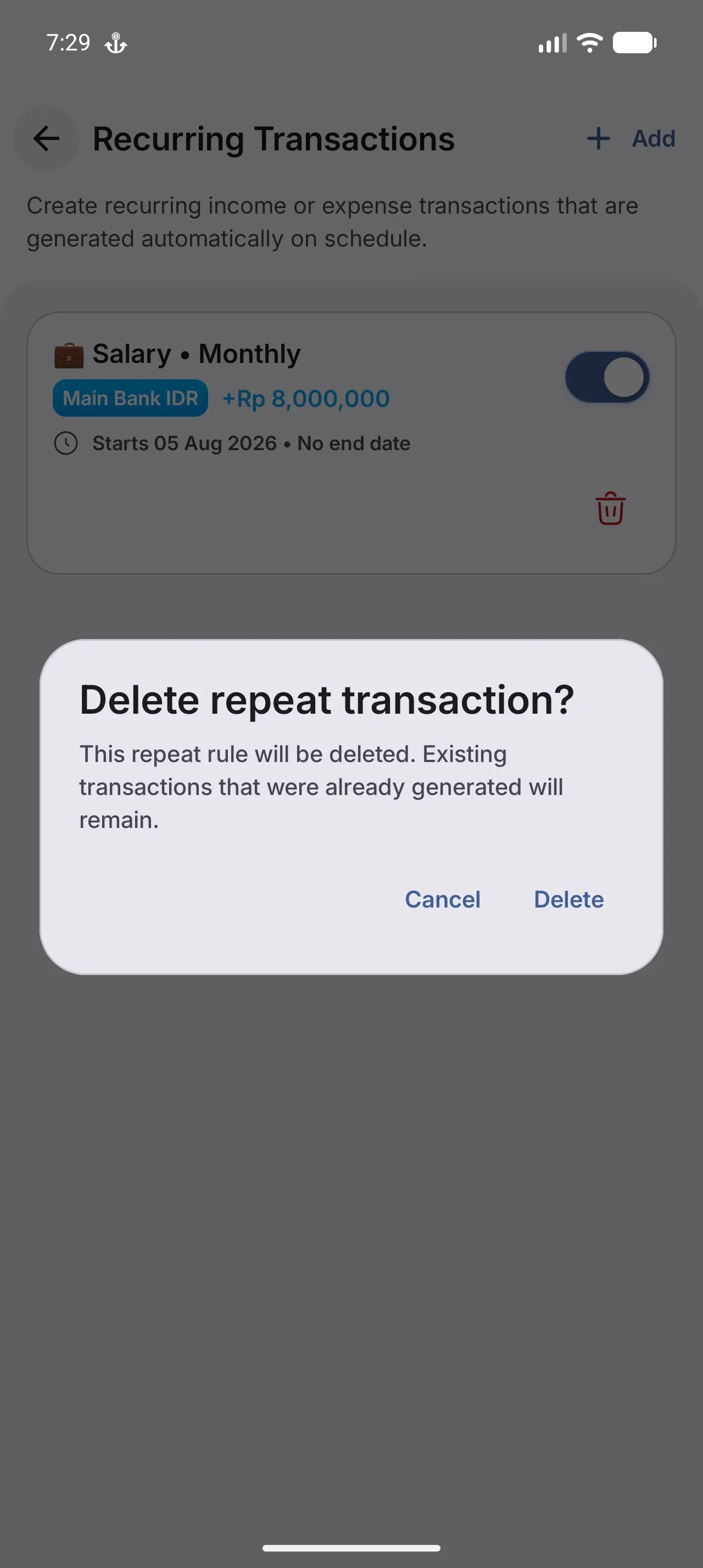
Delete a rule
Tap the trash button on its card and read the confirmation. Delete removes the repeat rule; transactions already generated remain. Tap Cancel to keep the rule.