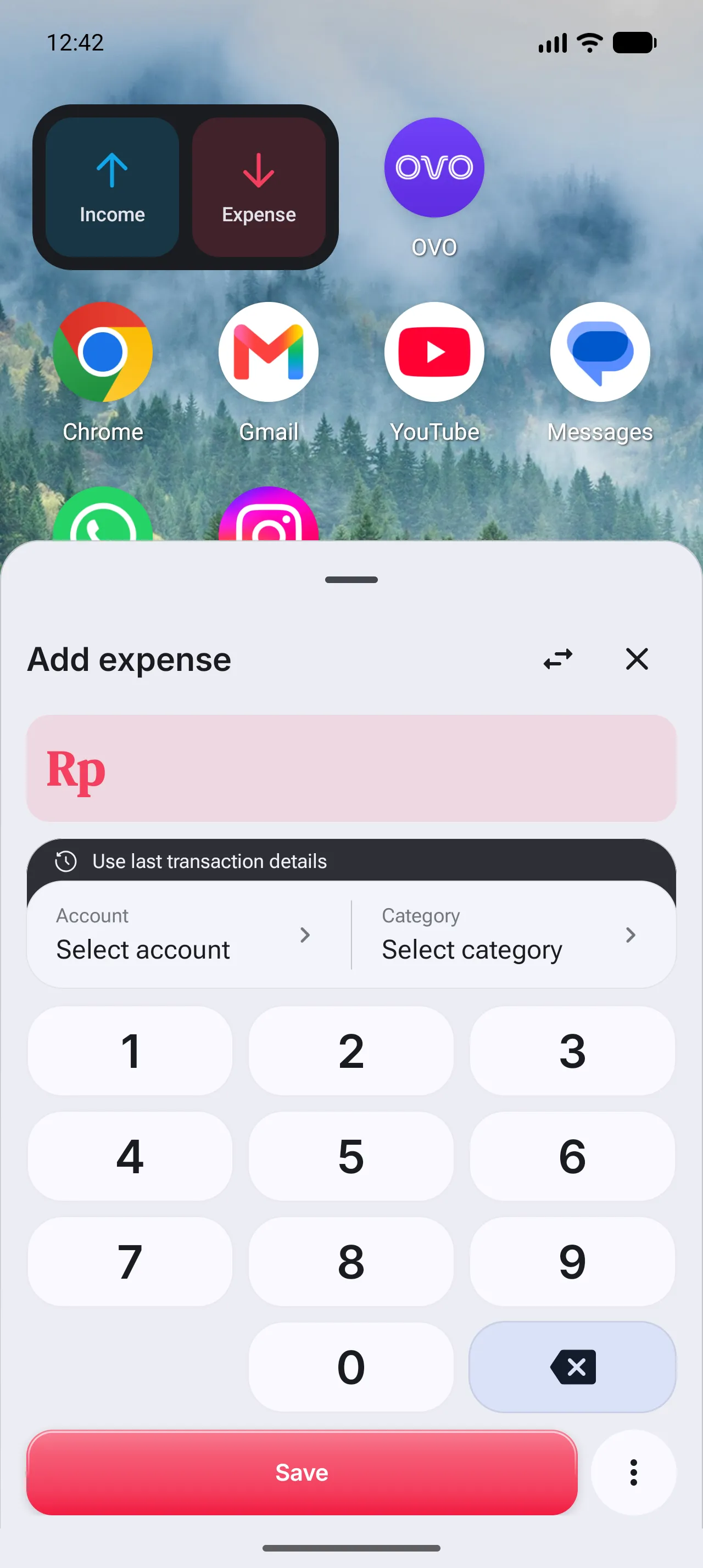
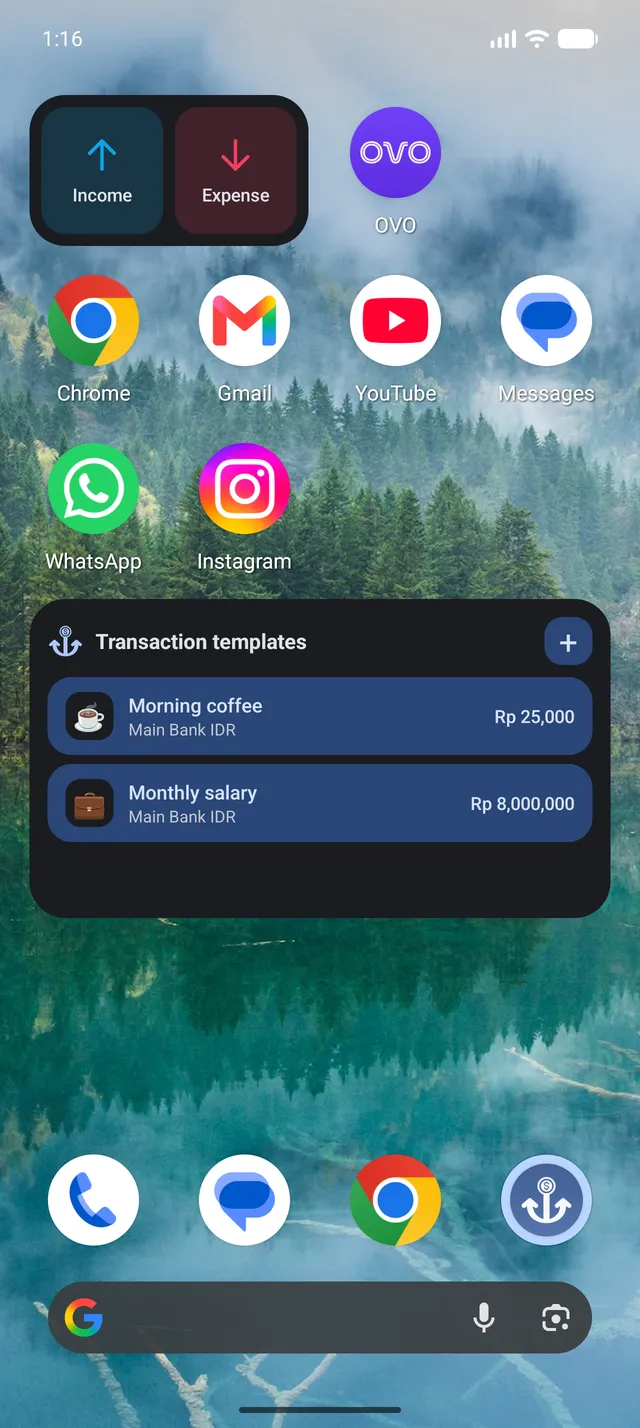
Add a transaction from your home screen.
Use the Quick transaction widget to open income or expense entry.
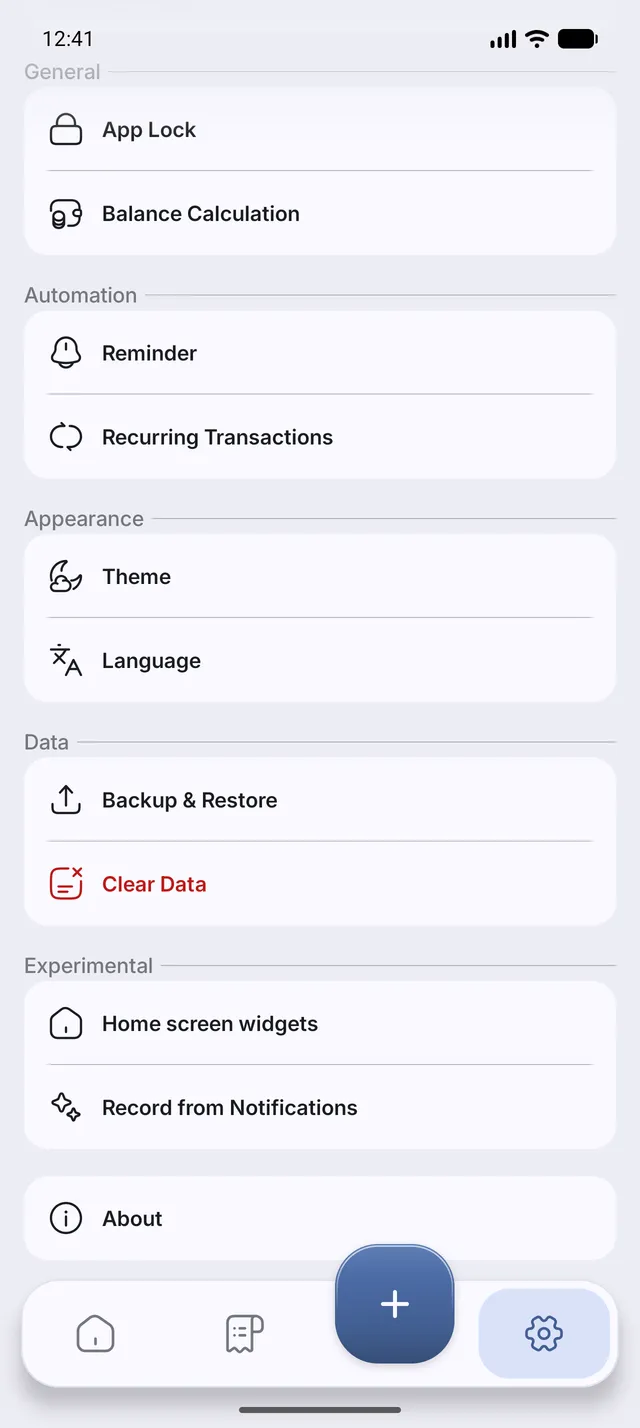
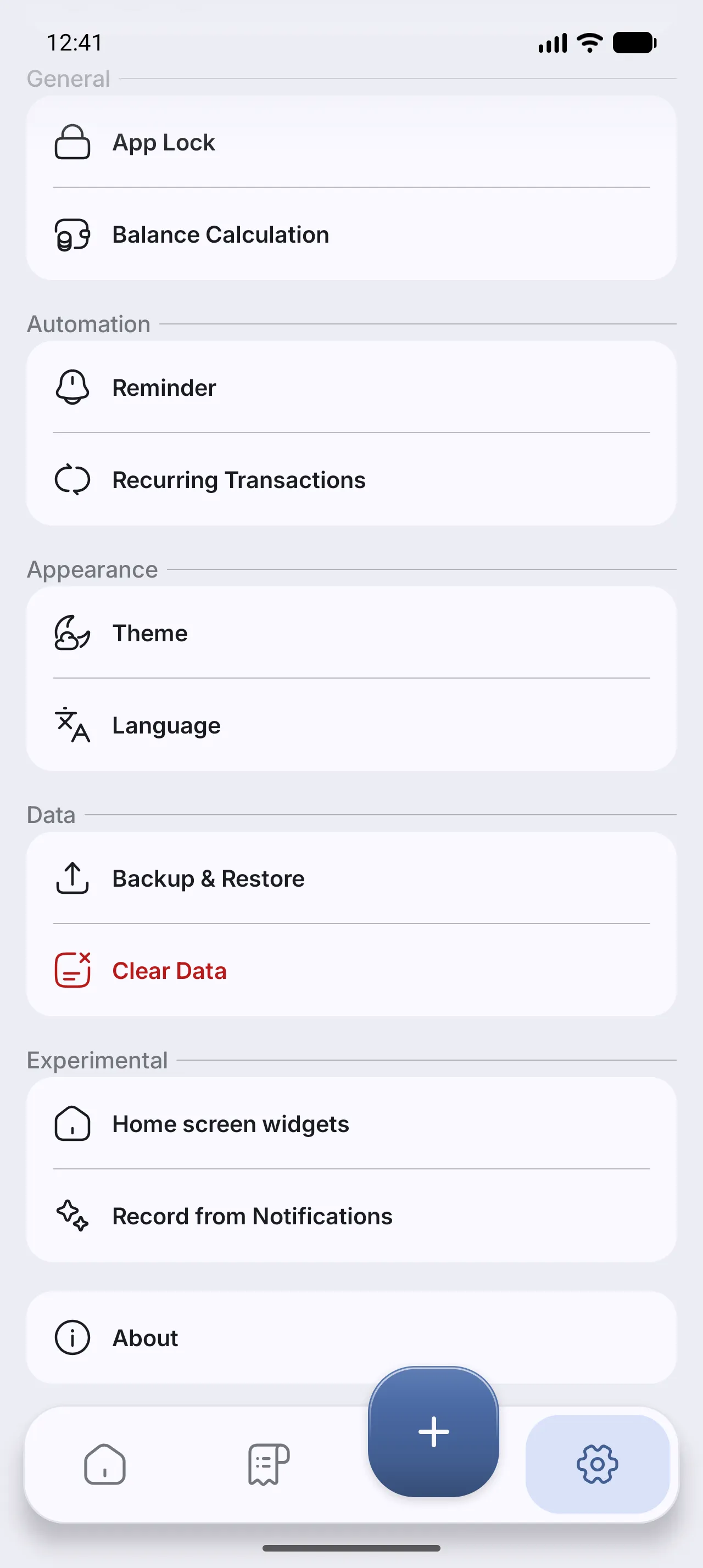
Open Home screen widgets
In Settings, find Experimental and tap Home screen widgets.
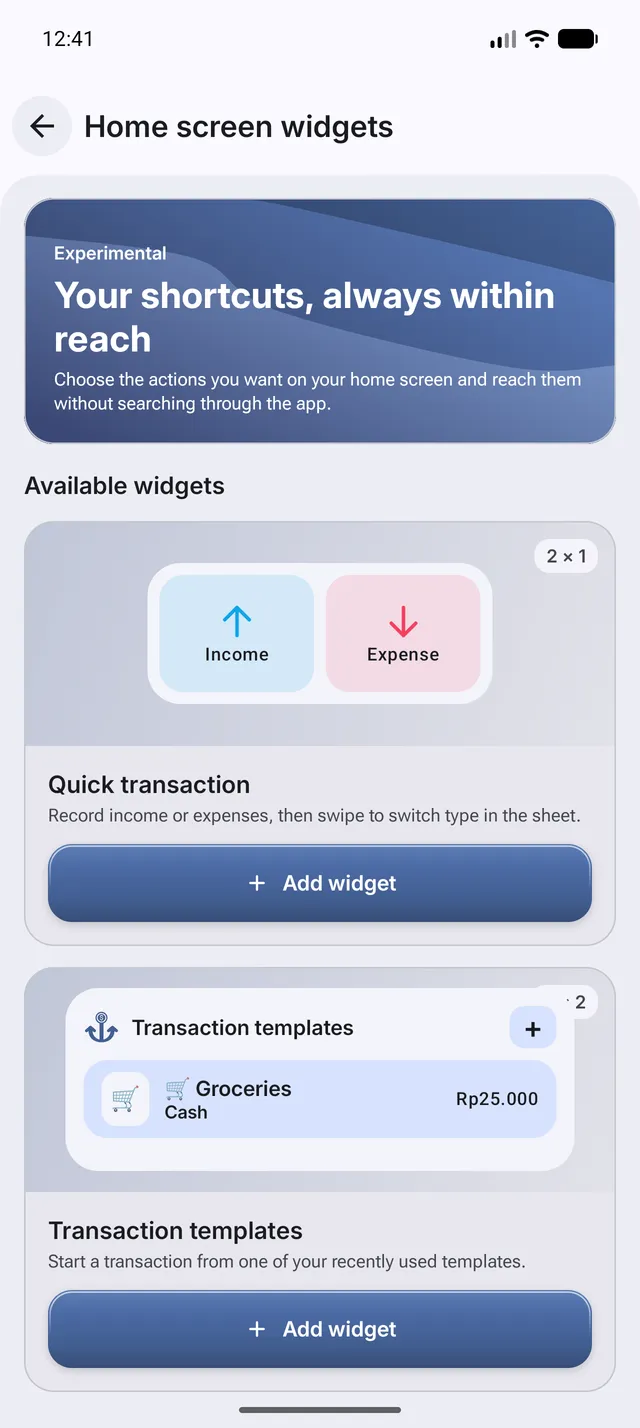
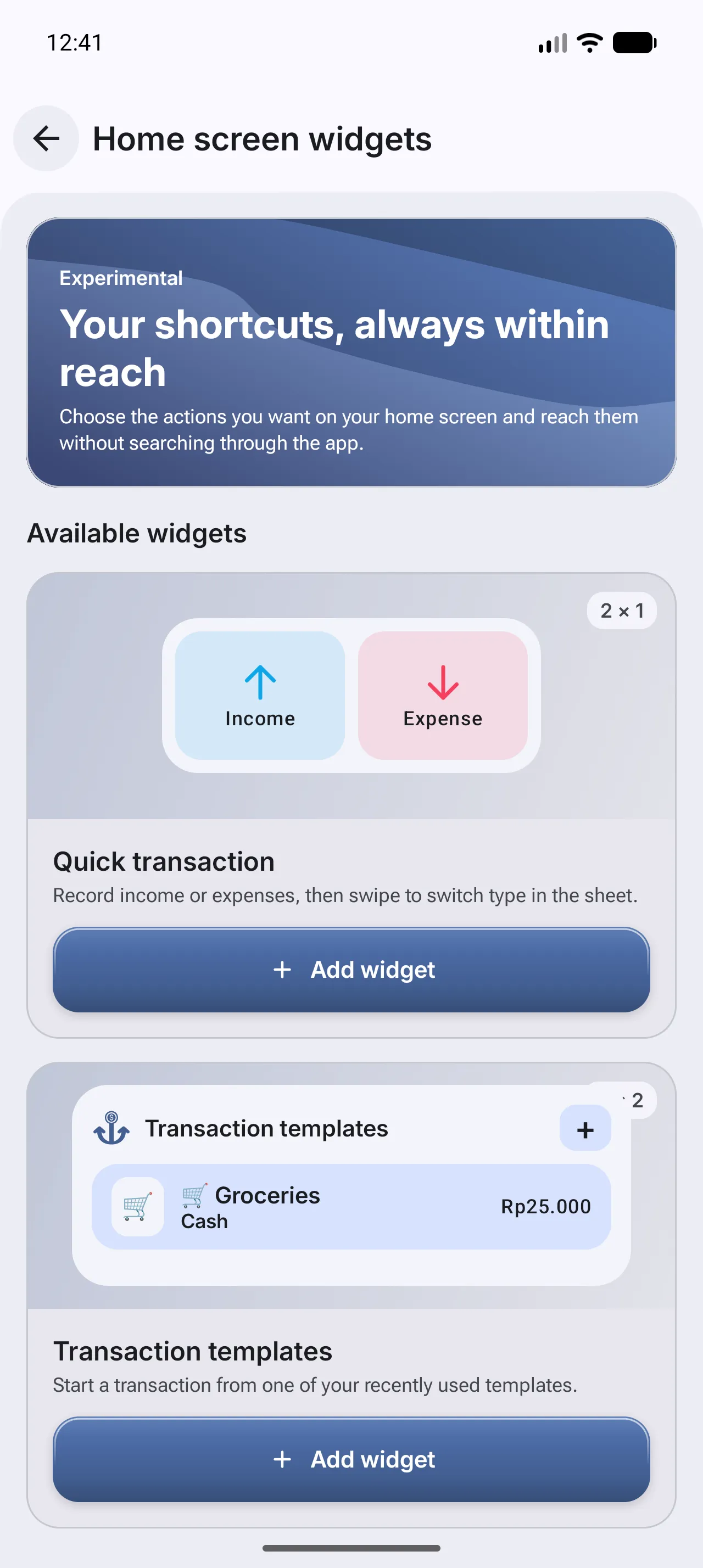
Choose Quick transaction
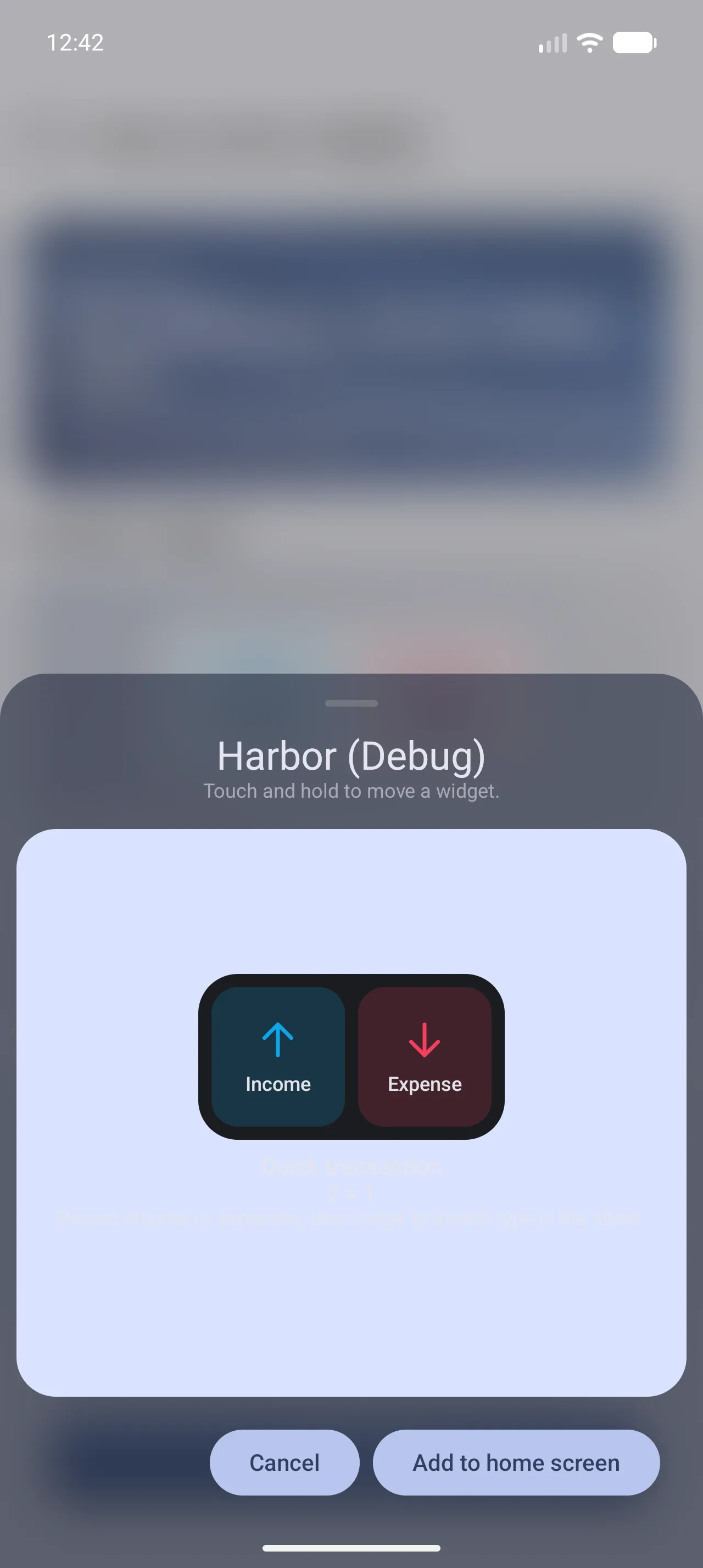
Under Quick transaction, tap Add widget. This widget has separate Income and Expense shortcuts.
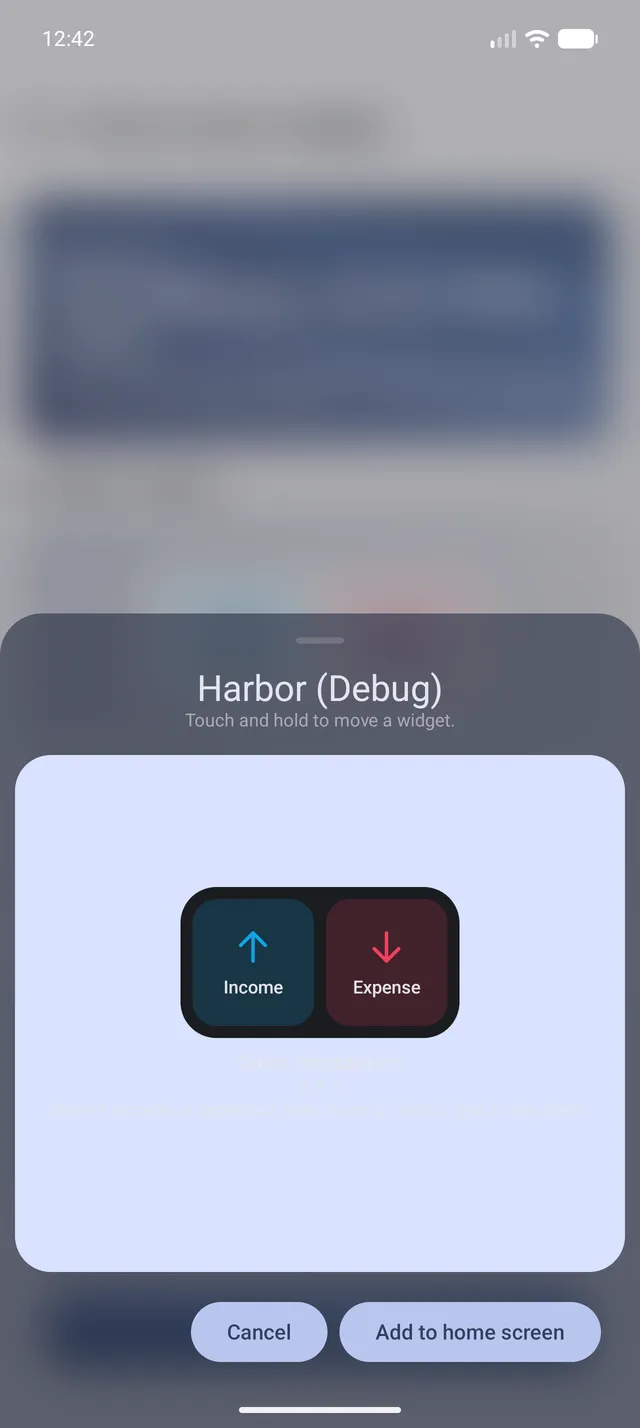
Add it to your home screen
Confirm Add to home screen in your launcher. You can also touch and hold to place the widget. Placement and resizing depend on your launcher.
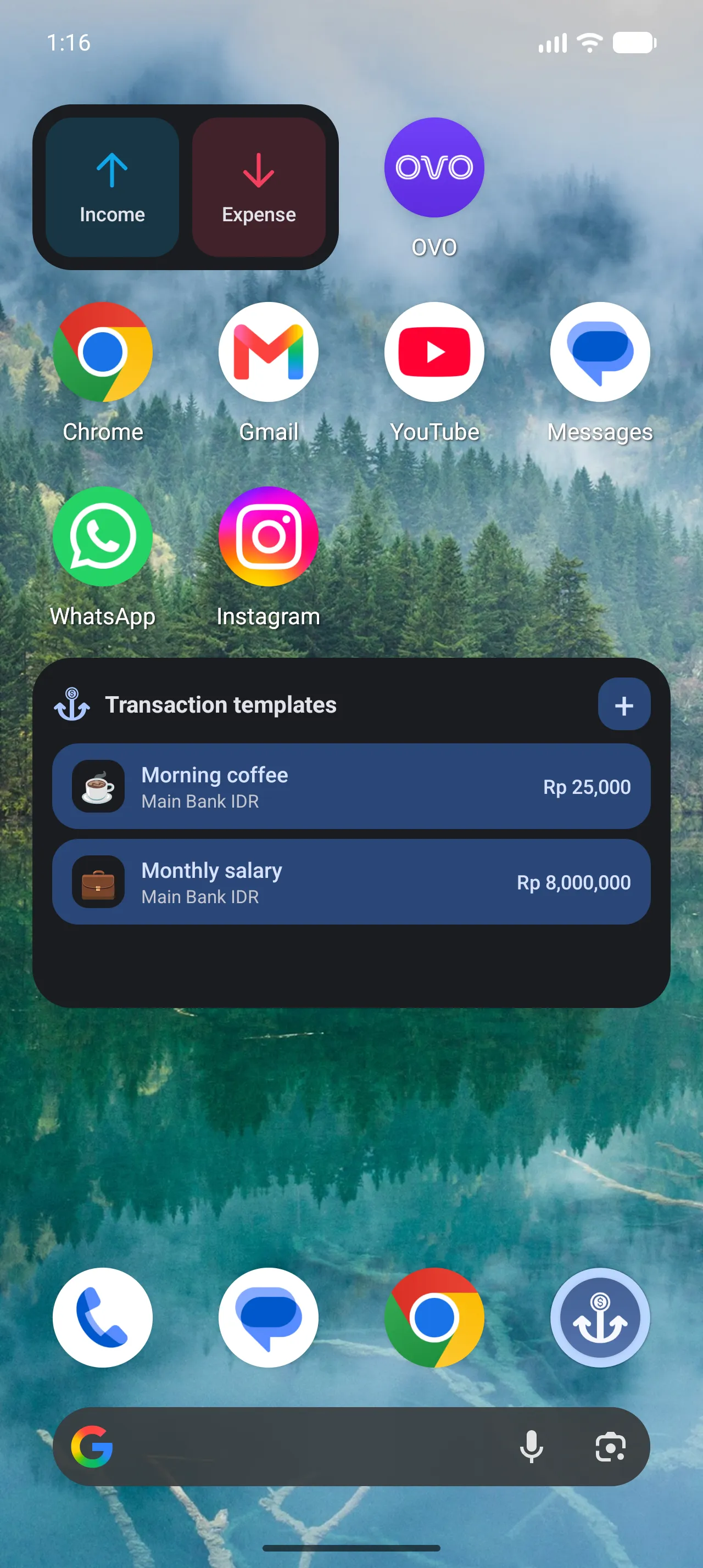
Choose Income or Expense
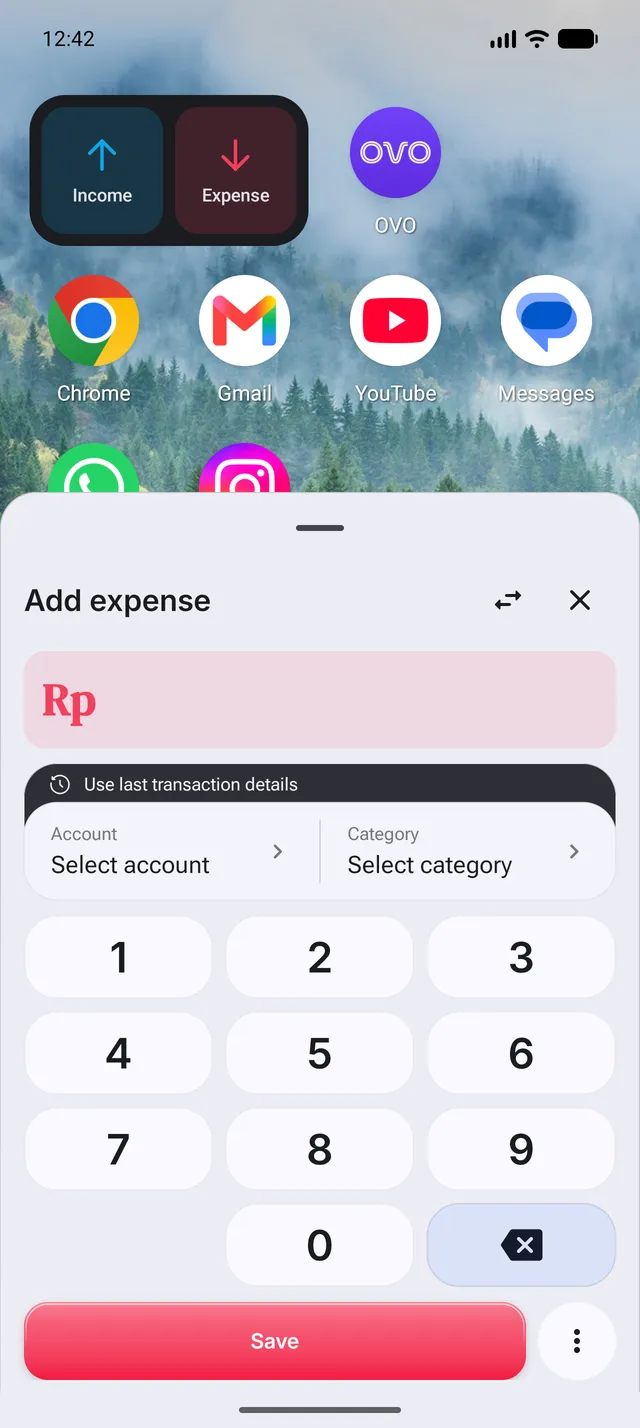
On your Android home screen, tap the type you want to record. The widget opens a quick entry sheet. You can swipe within the sheet to switch type.
Review and save
Enter the amount and select an account and category. Check the transaction type, then tap Save. Close the sheet to leave without recording it.