Edit or delete a template.
Update saved details or remove a template you no longer use.
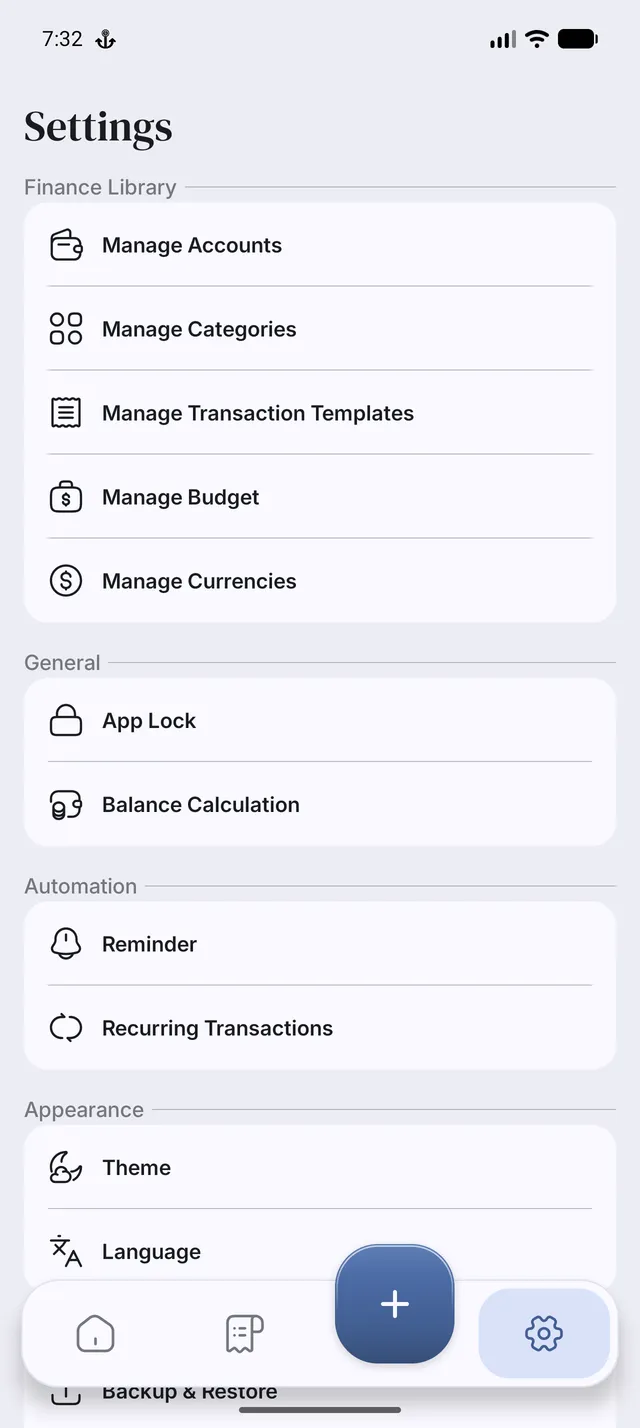
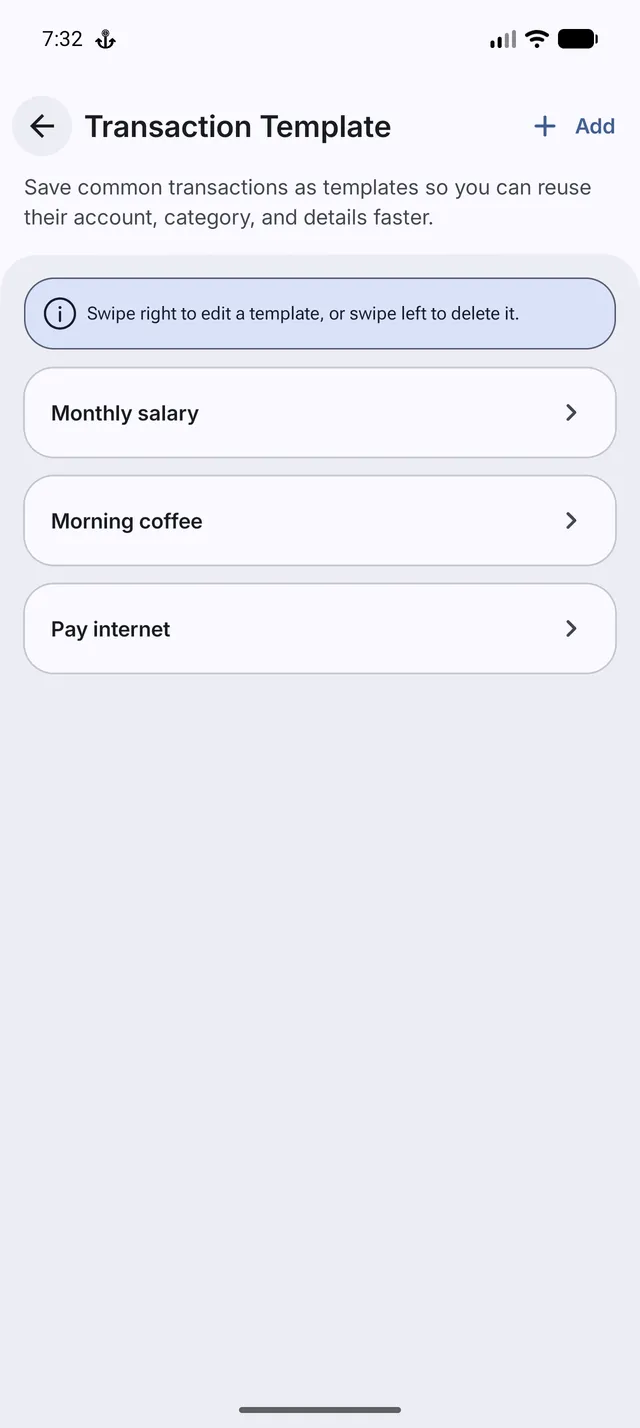
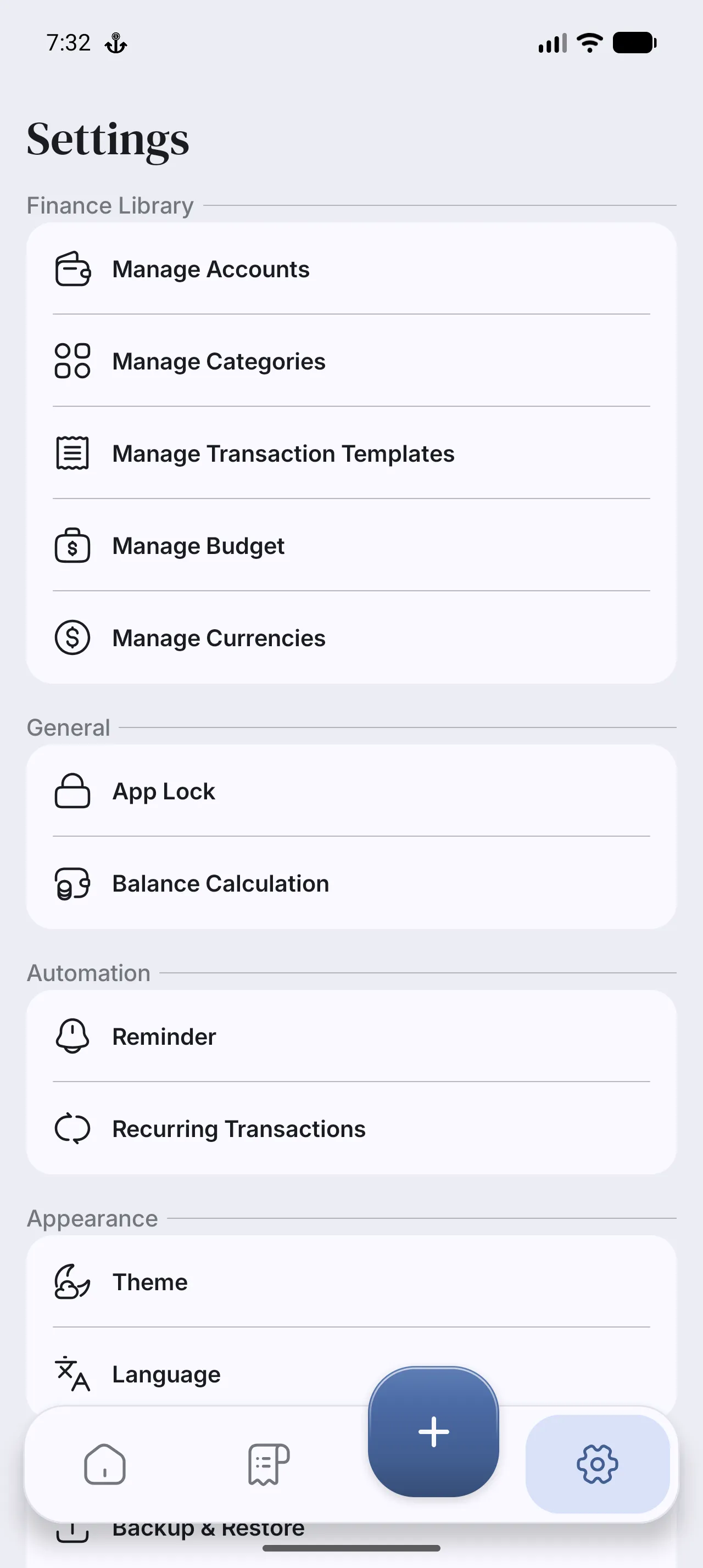
Open Transaction Templates
In Settings, tap Show 3 more under Finance Library, then Manage Transaction Templates.
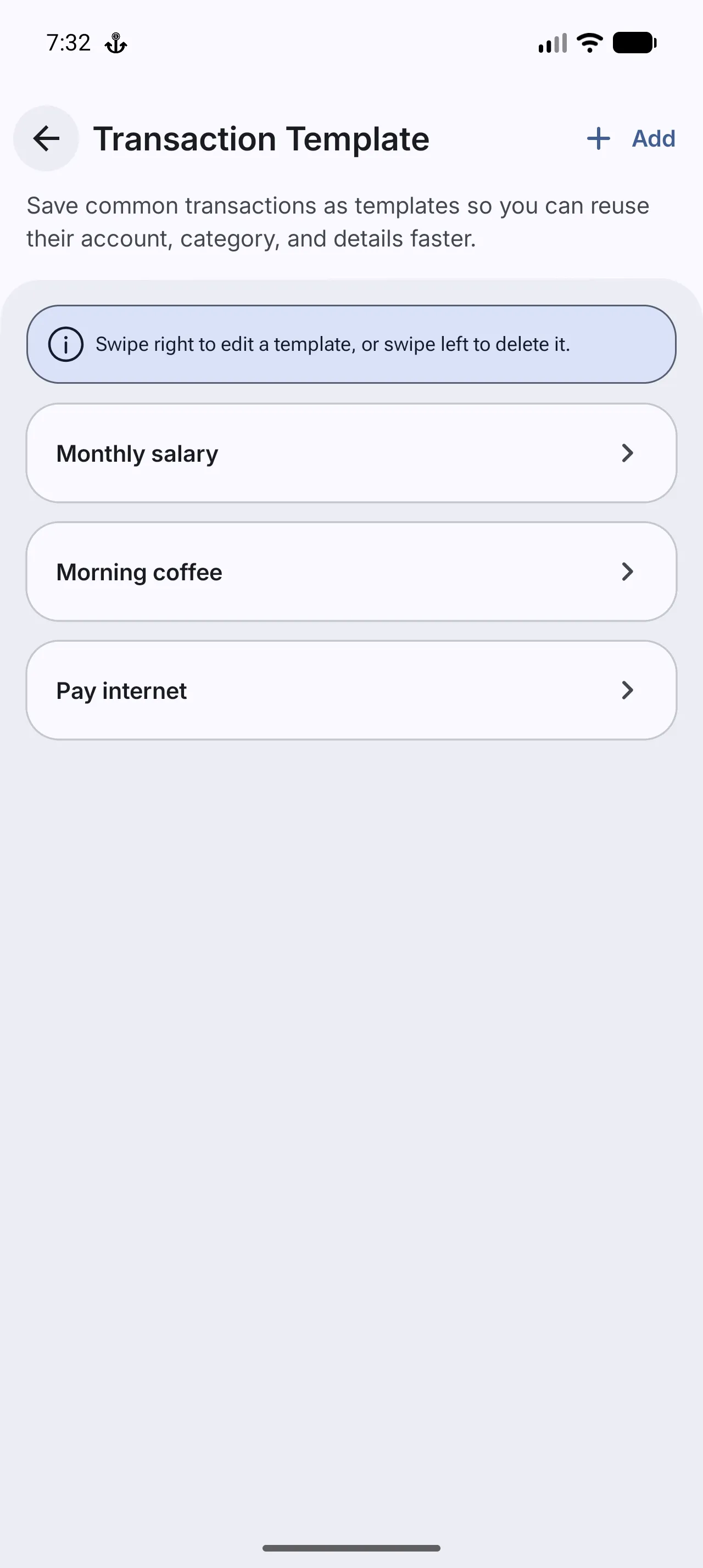
Swipe right to edit
Find the template and swipe its row to the right. Tapping the row starts a new transaction instead.
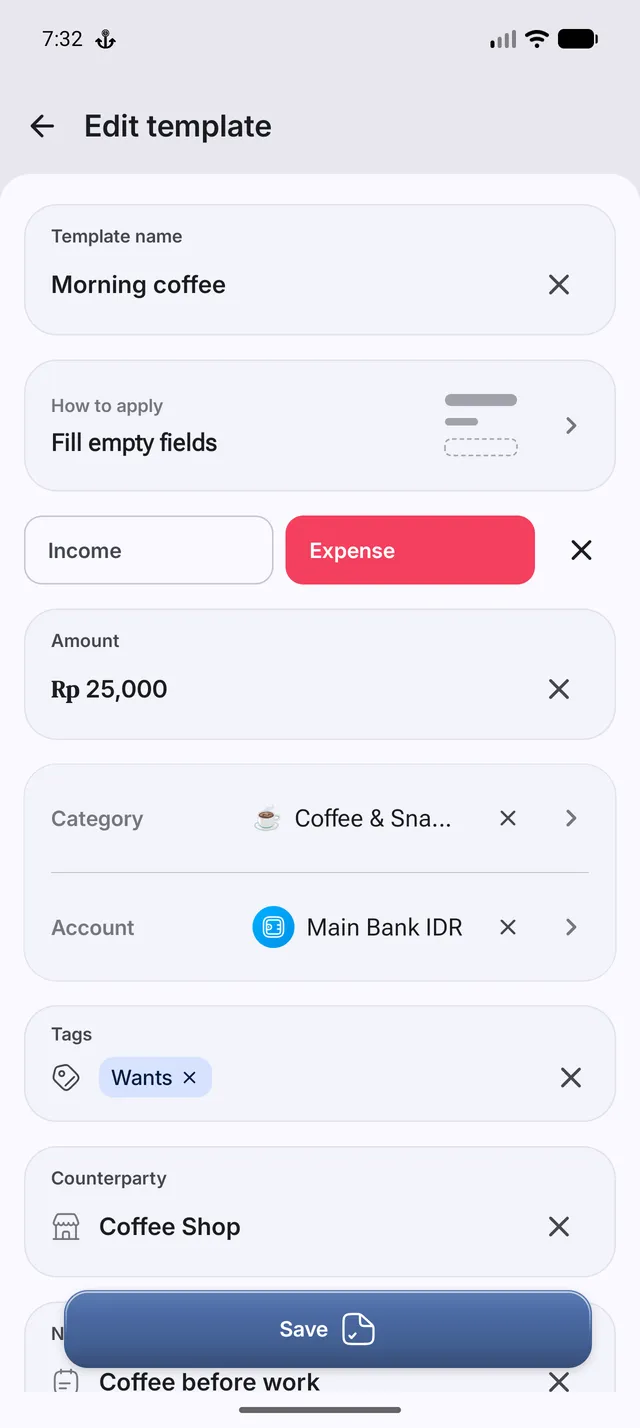
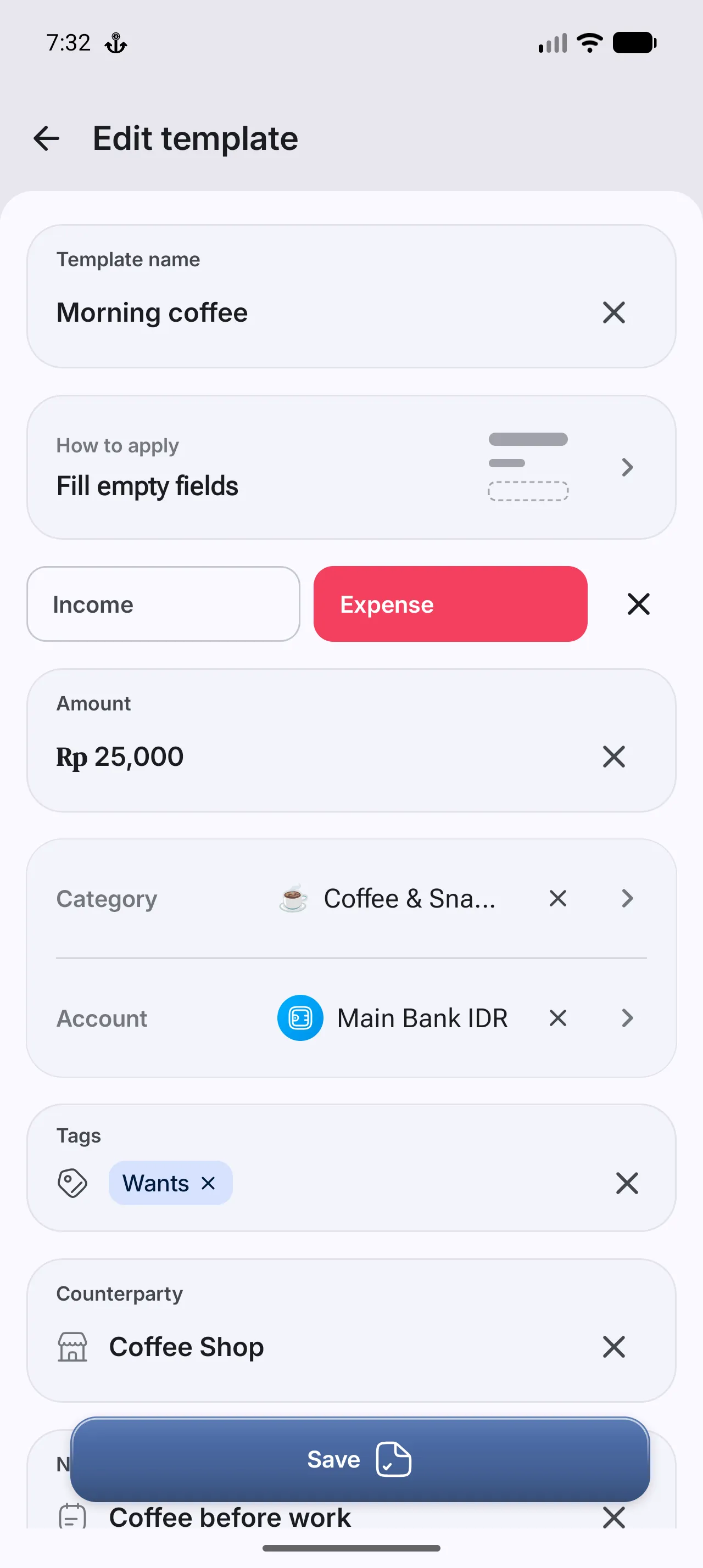
Update the saved details
Change the name or any details you want to reuse. Clear an optional field to leave it unset. How to apply controls whether the template fills empty fields or replaces the fields it defines.
Save the changes
Tap Save when the details are correct. These changes apply when you use the template again; they do not change transactions already recorded.
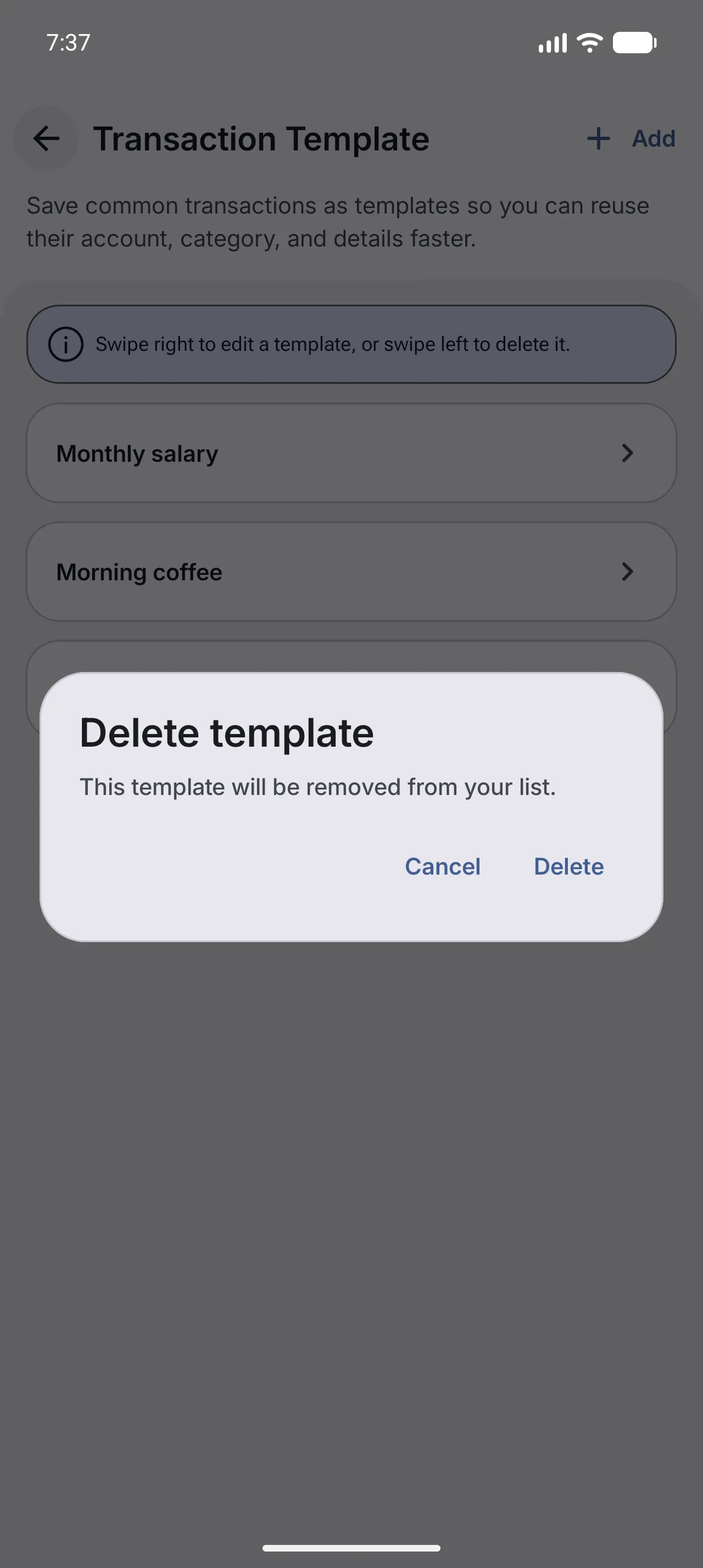
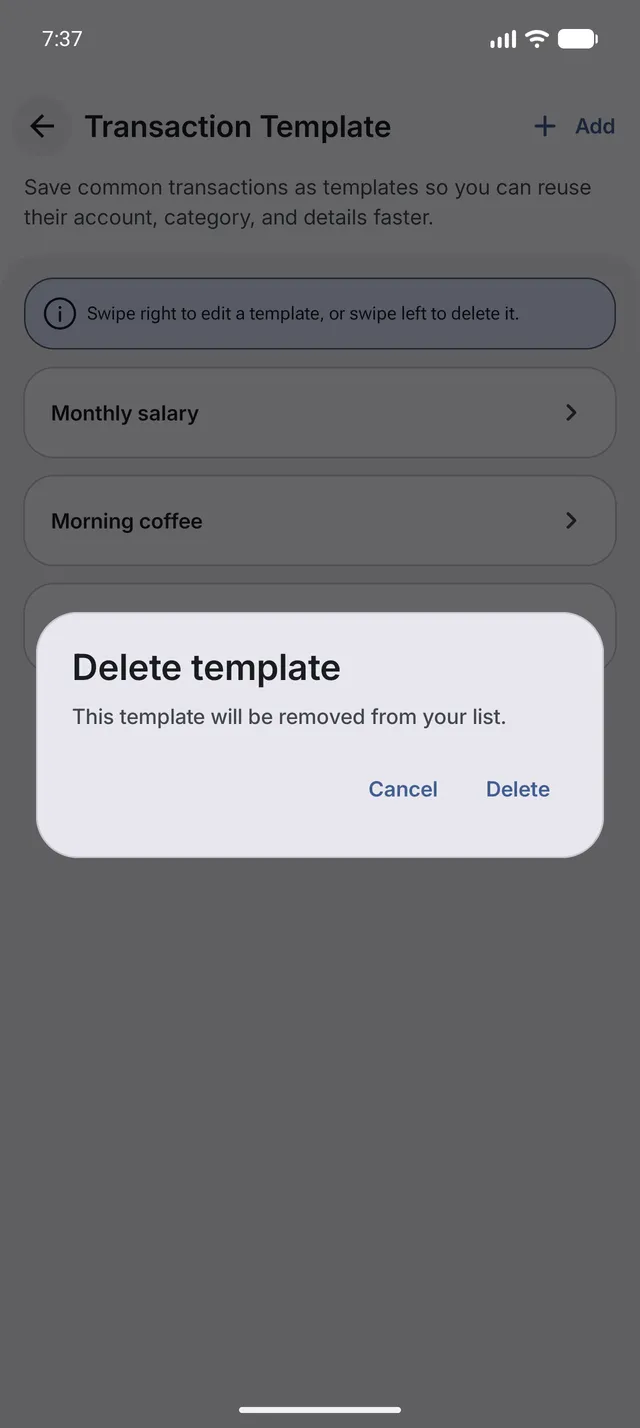
Swipe left to delete
In the template list, swipe the row left. Read the confirmation and tap Delete to remove the template, or Cancel to keep it. Deleting a template does not delete transactions created from it.