Create a transaction template.
Save the details you often reuse when recording a transaction.
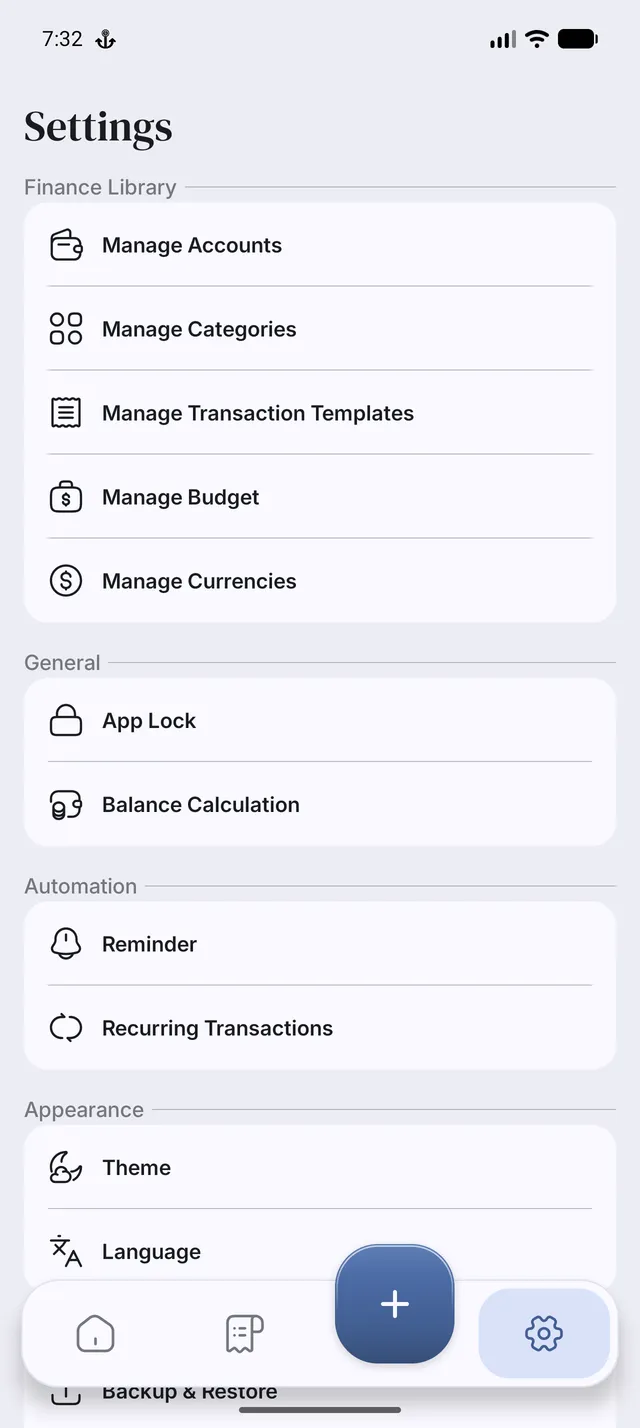
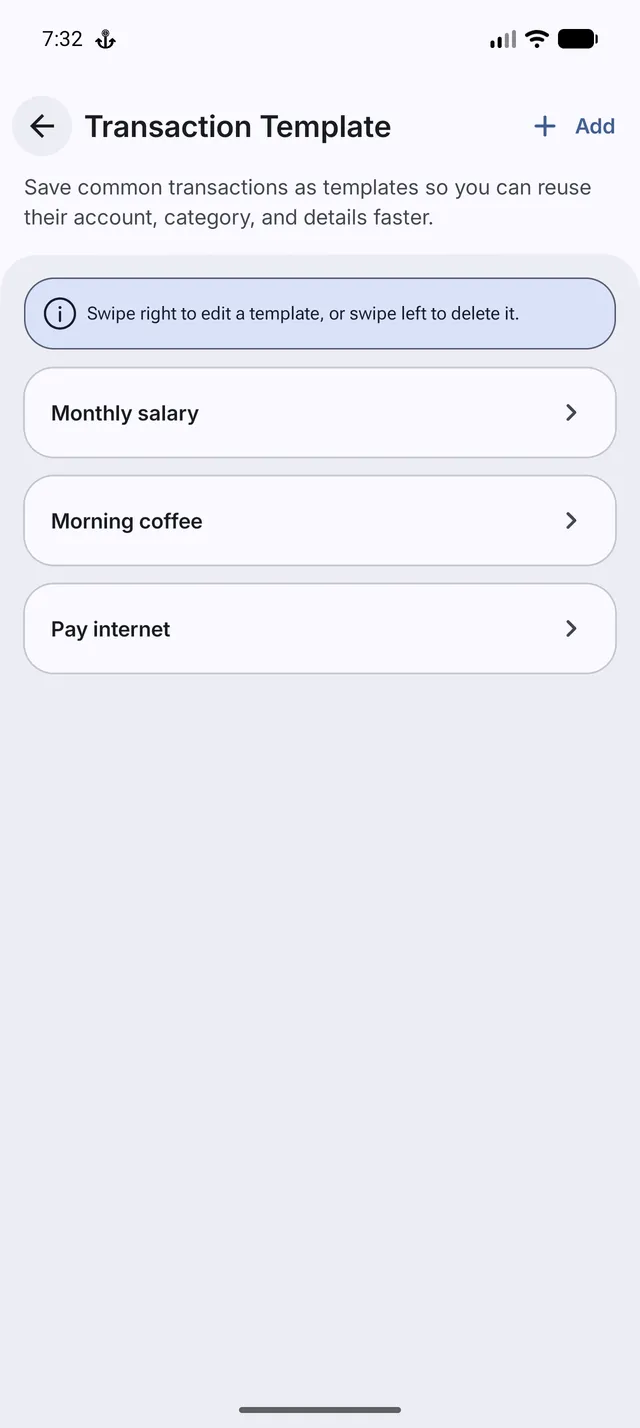
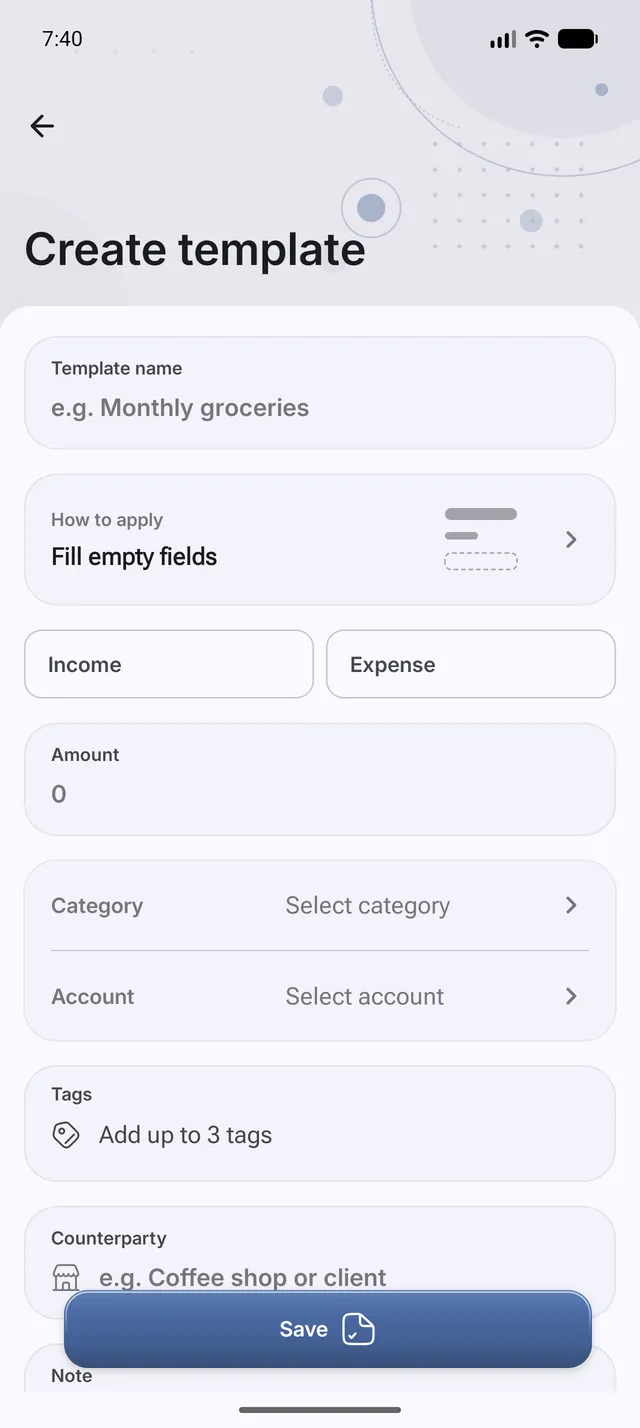
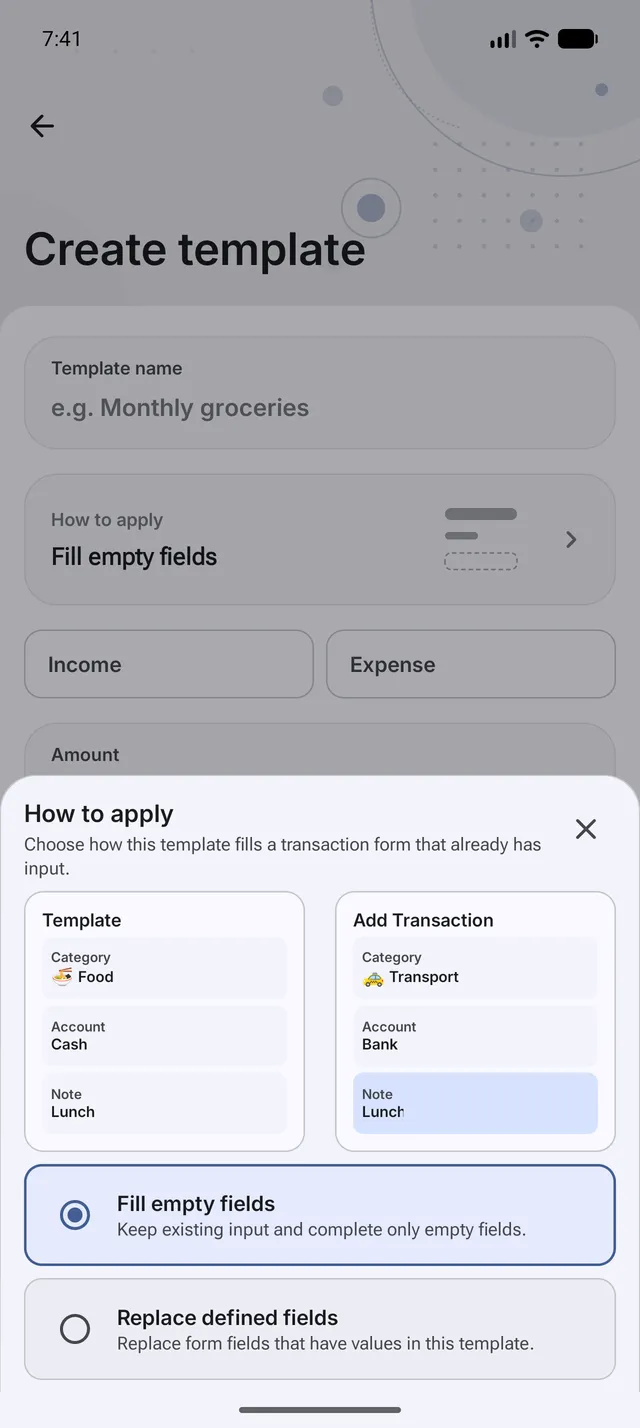
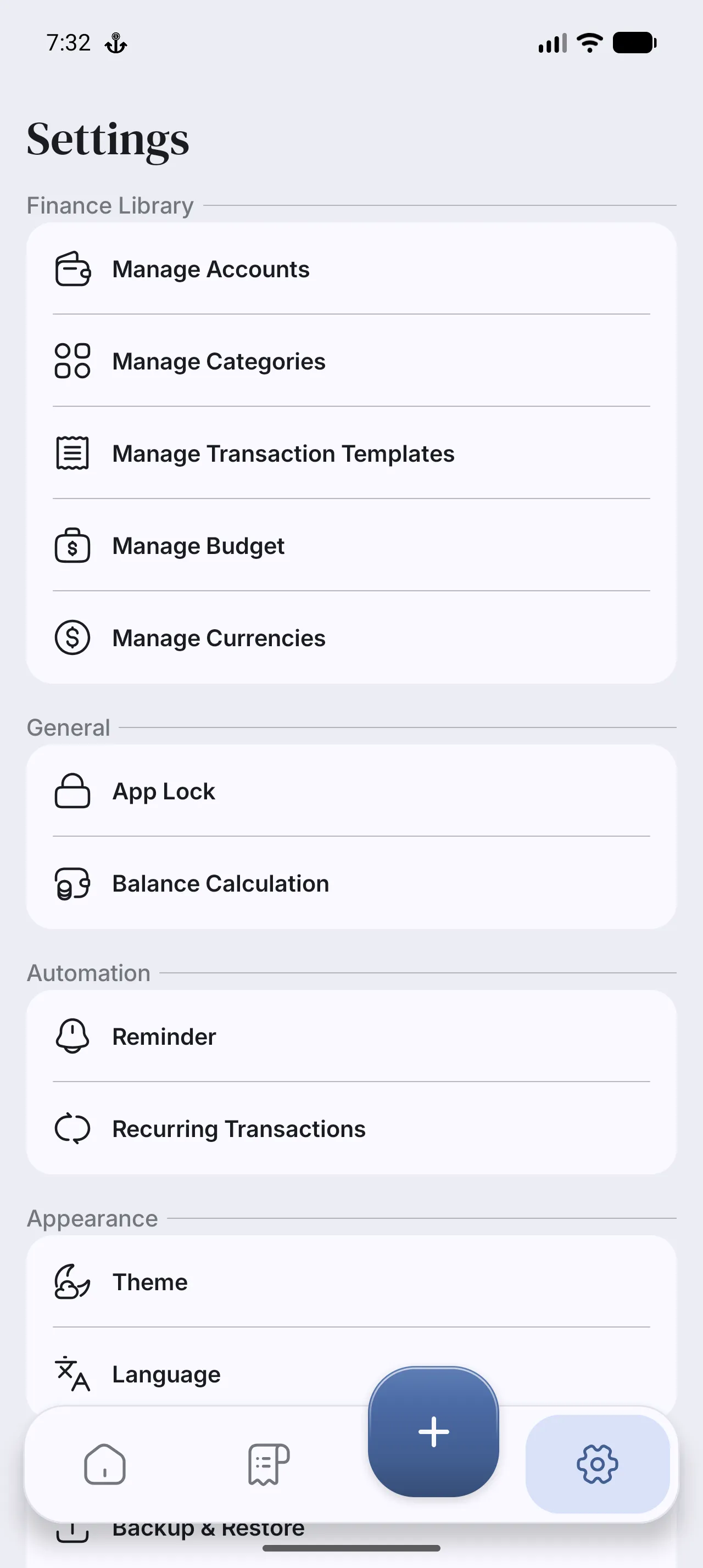
Open Transaction Templates
Go to Settings, tap Show 3 more under Finance Library, then tap Manage Transaction Templates.
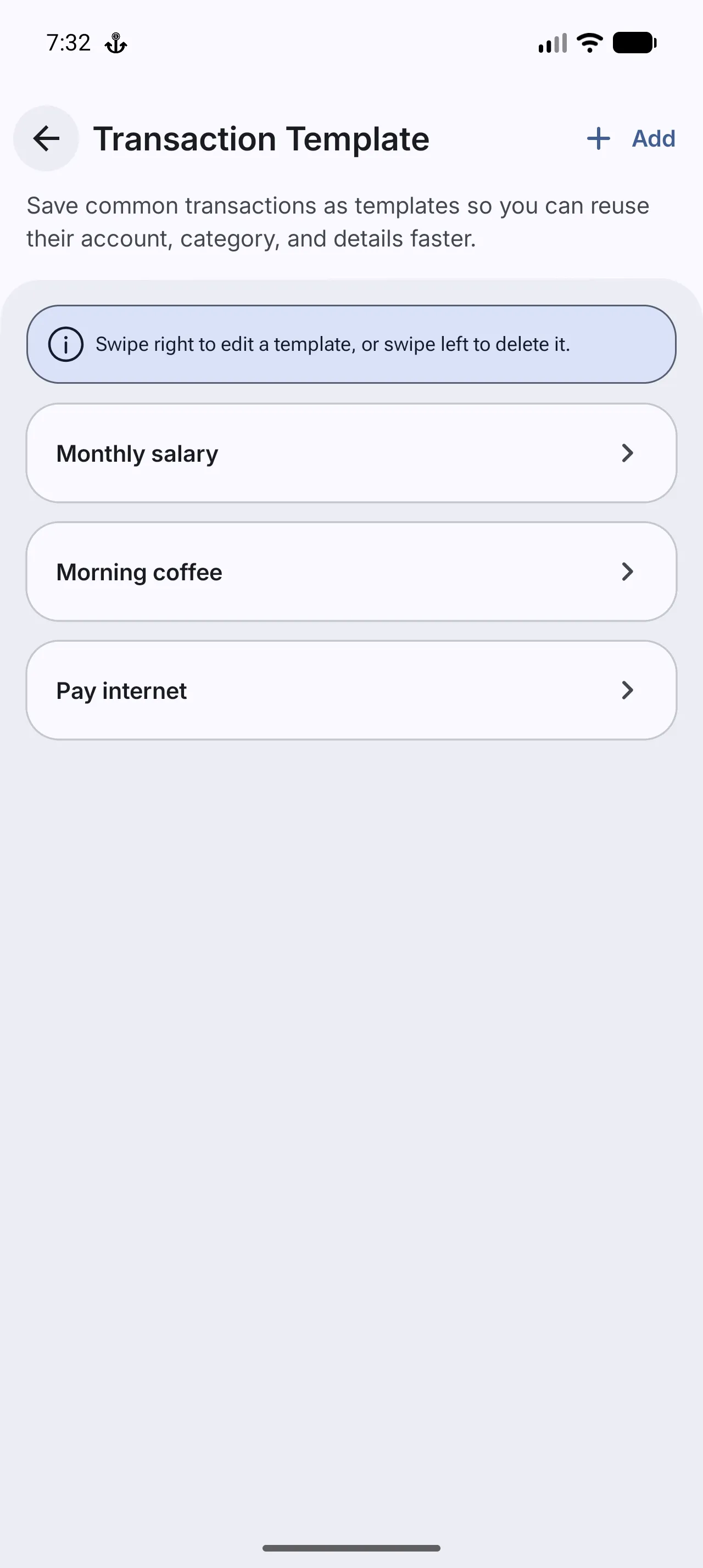
Add a template
Tap Add at the top right of Transaction Template.
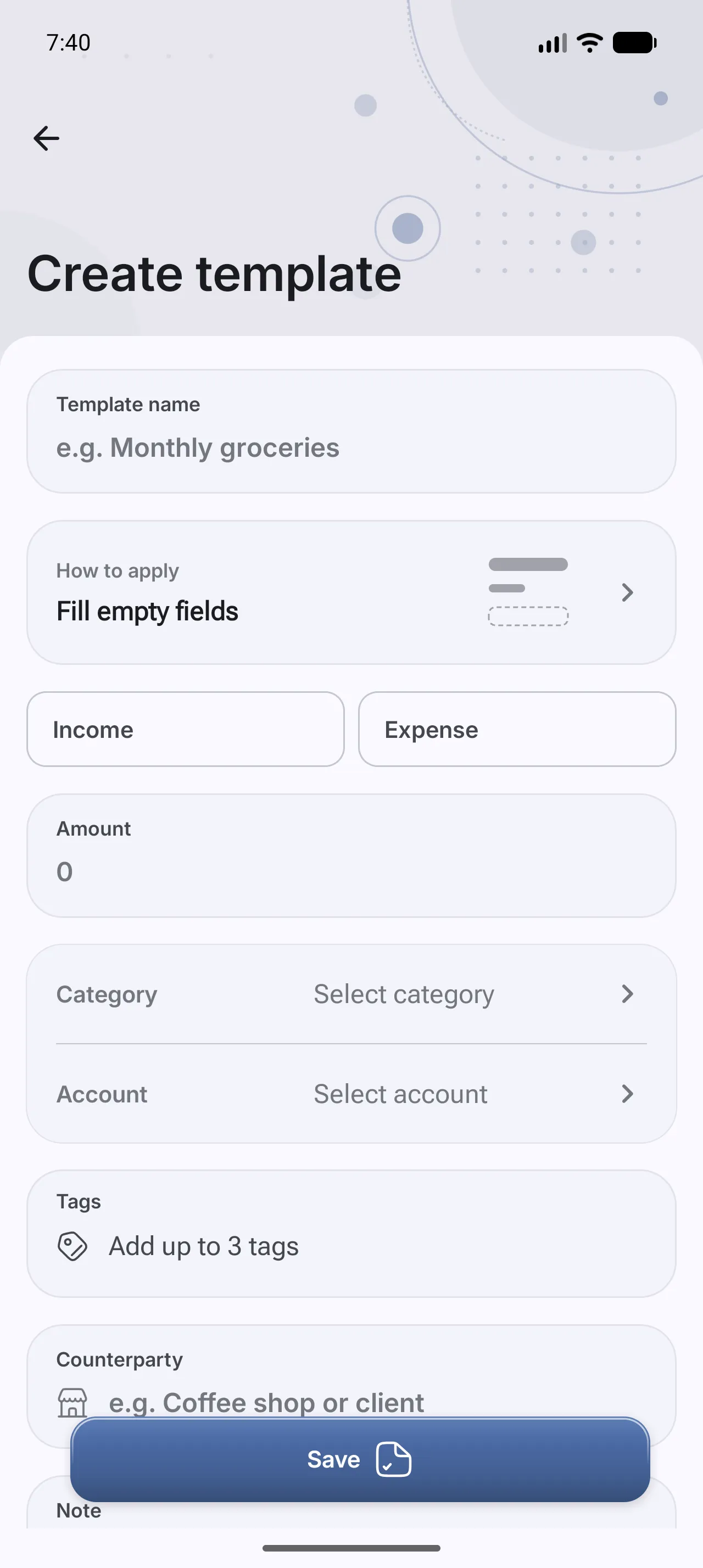
Name it and choose the saved details
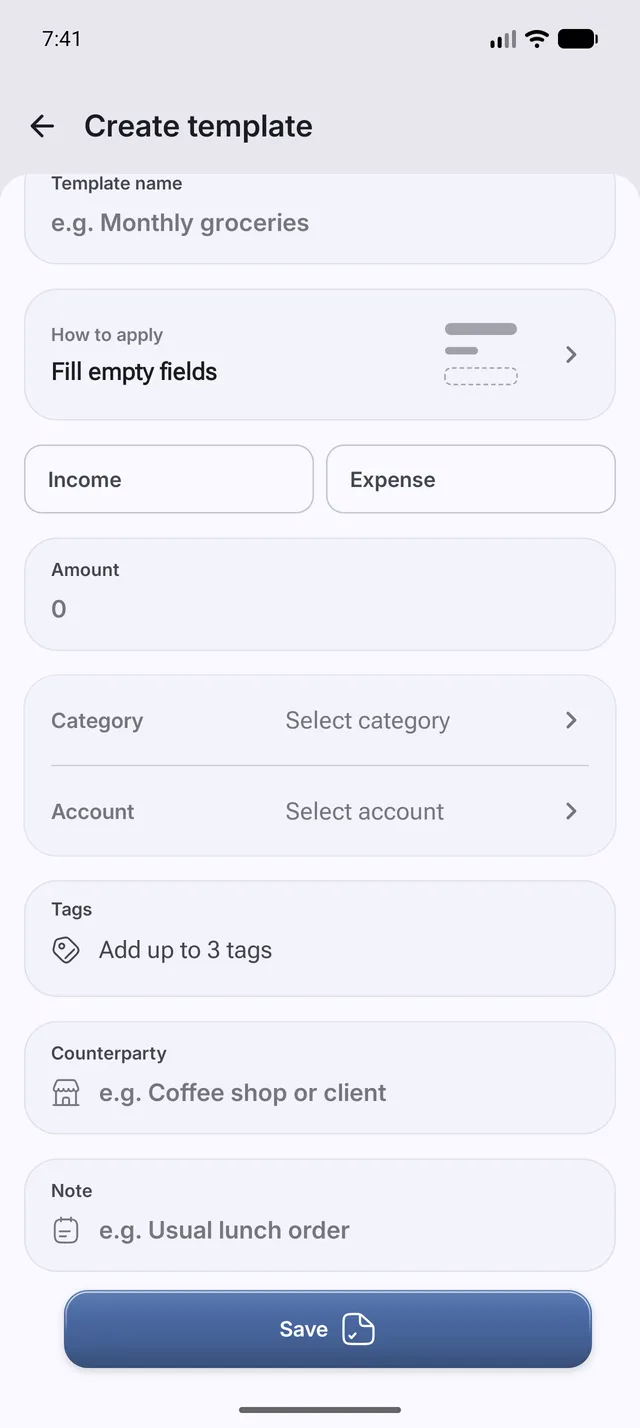
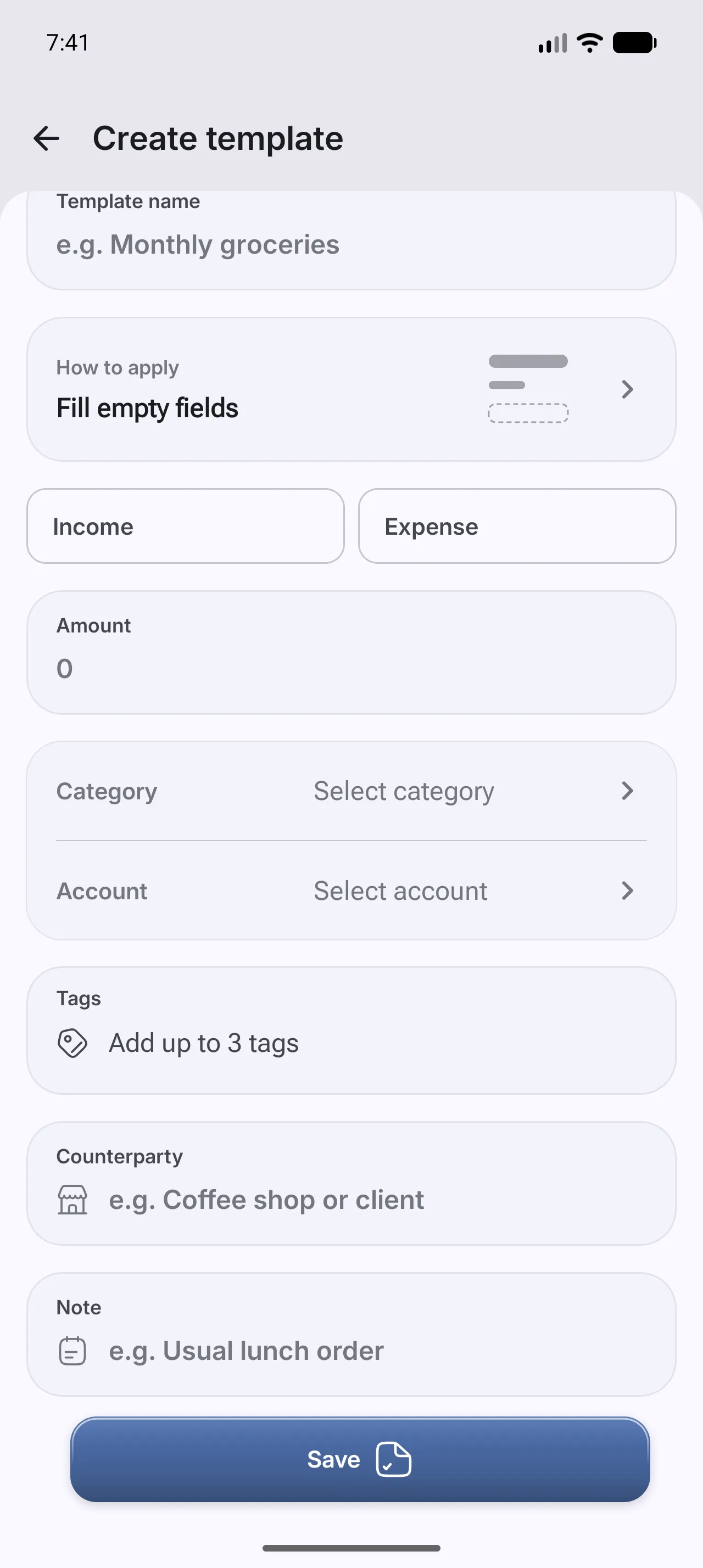
Enter a clear name, such as Morning coffee. Choose Income or Expense, then set the amount, category and account you usually use. Leave a field blank if you want to enter it each time.
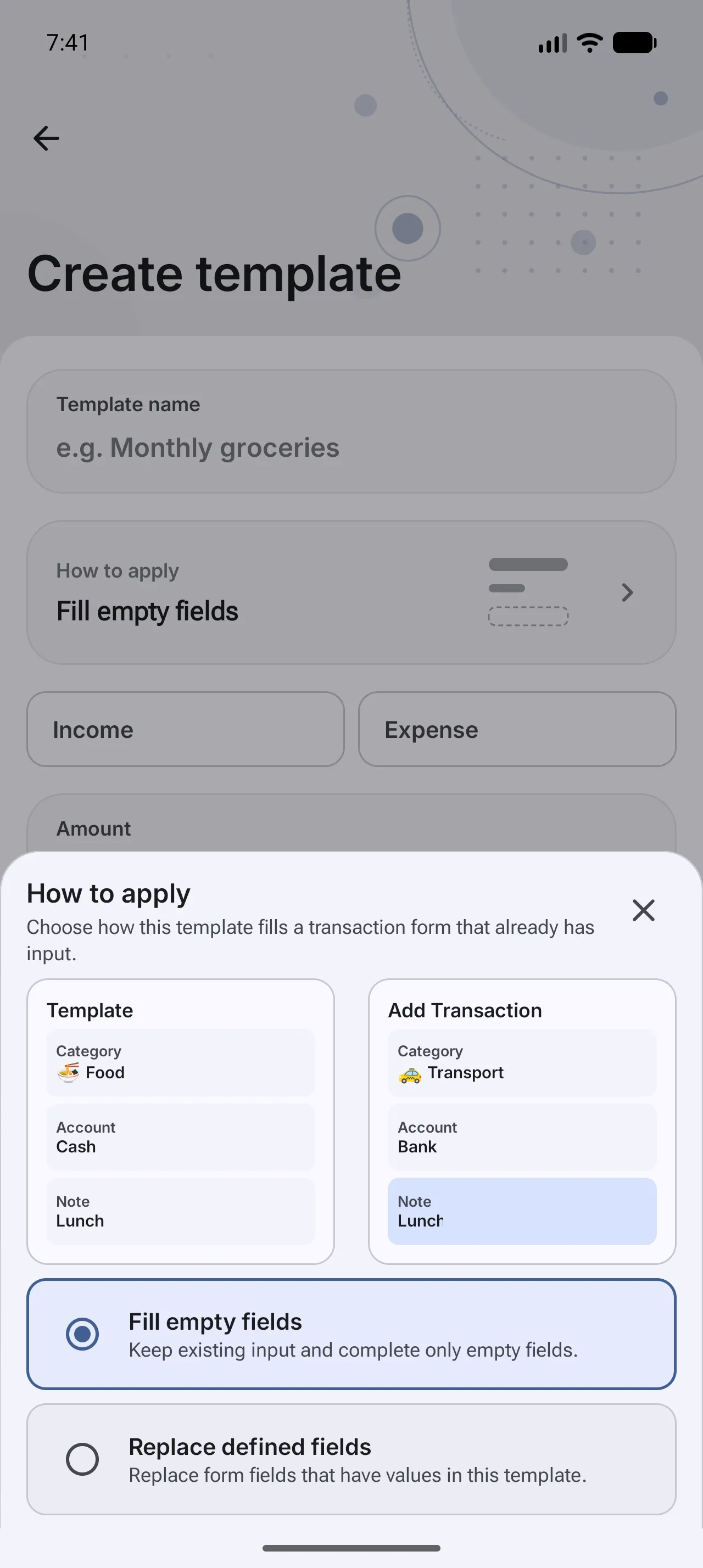
Choose how it fills the form
Tap How to apply. Fill empty fields keeps your existing input and fills blank fields. Replace defined fields replaces only the fields saved in the template; other input stays. This matters when applying a template after you have started a transaction.
Add optional details
Scroll down to add up to three tags, a counterparty (who you pay or receive money from), or a note. Leave these blank when they vary between transactions.
Save the template
Tap Save. The template appears in Transaction Template, ready to use. Saving a template does not record a transaction or schedule a recurring entry.