Create and restore backups.
Keep a copy of your records and restore it when needed.
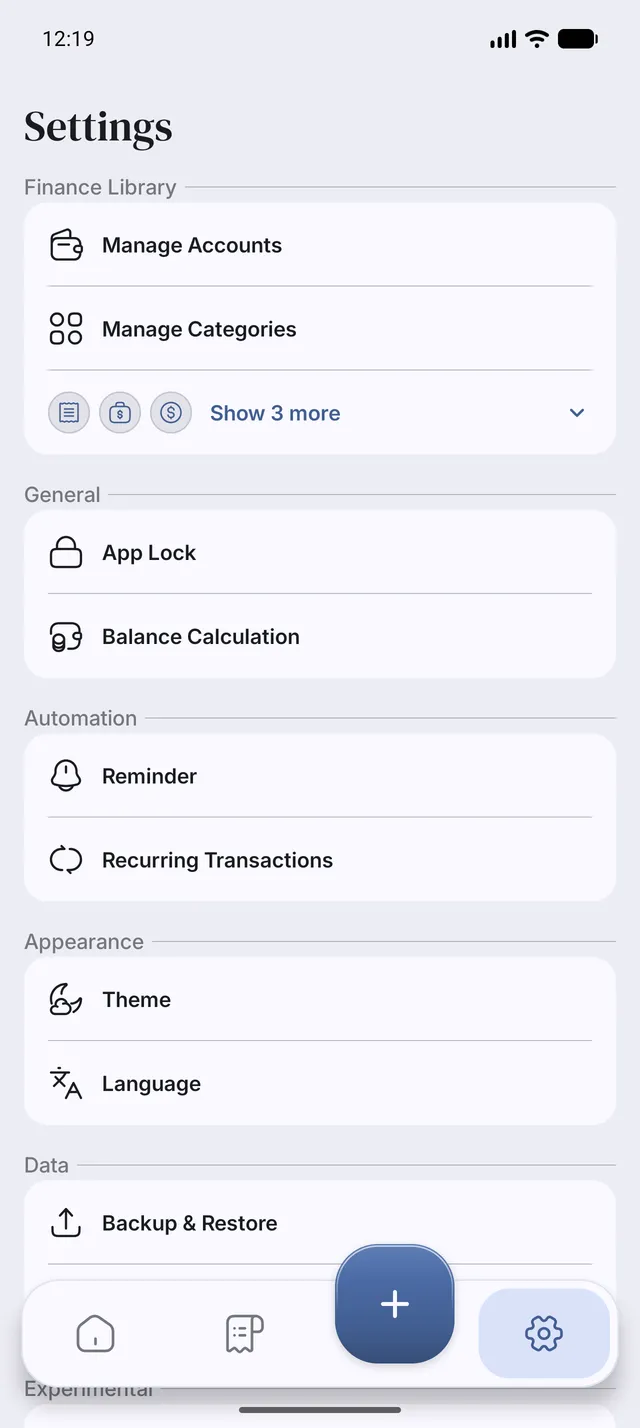
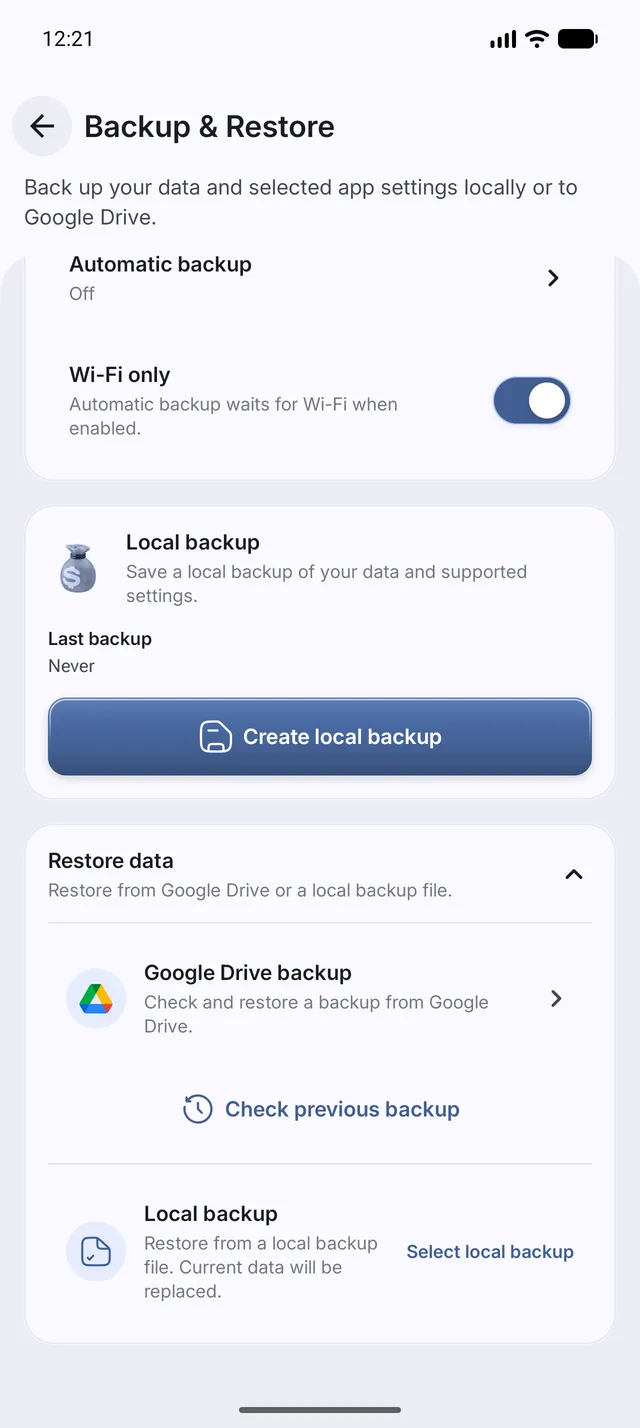
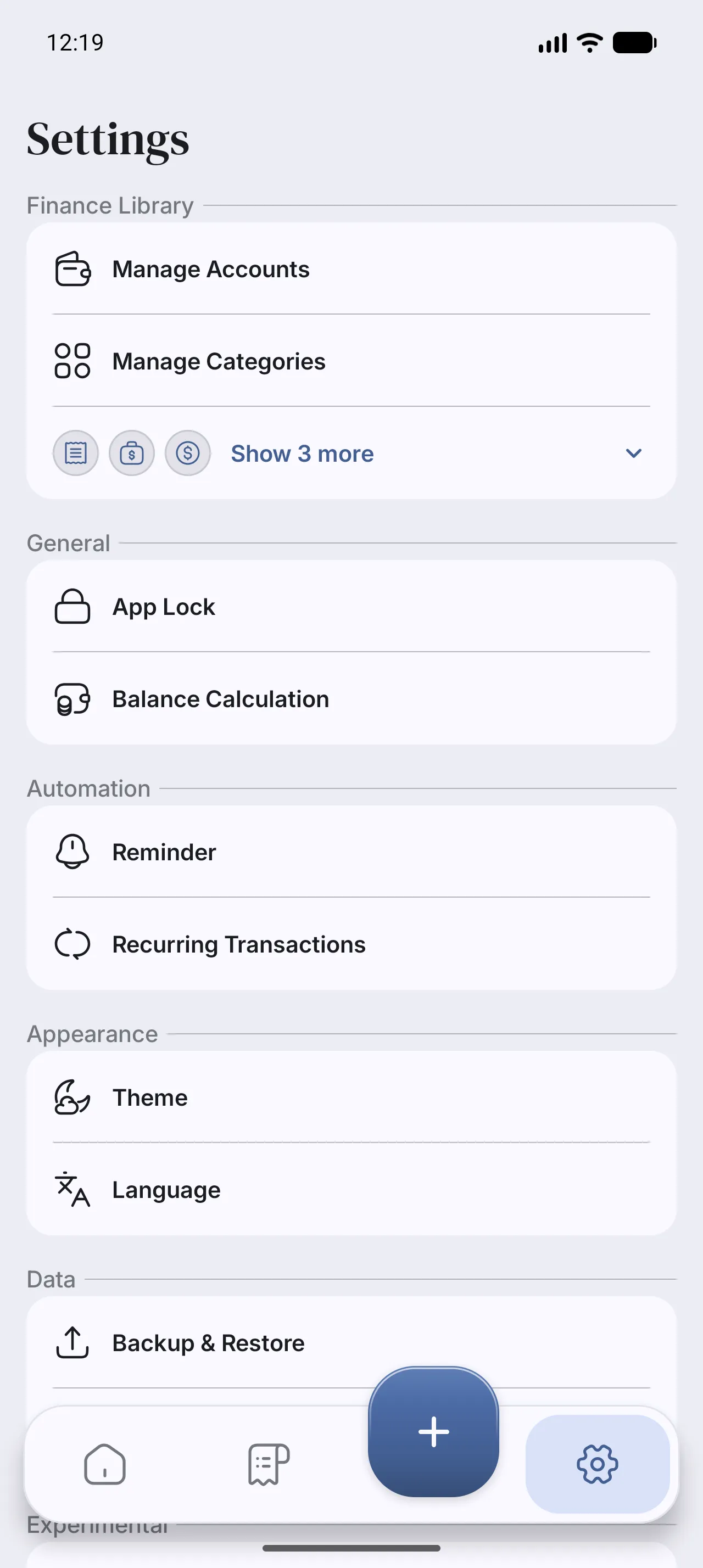
Open Backup & Restore
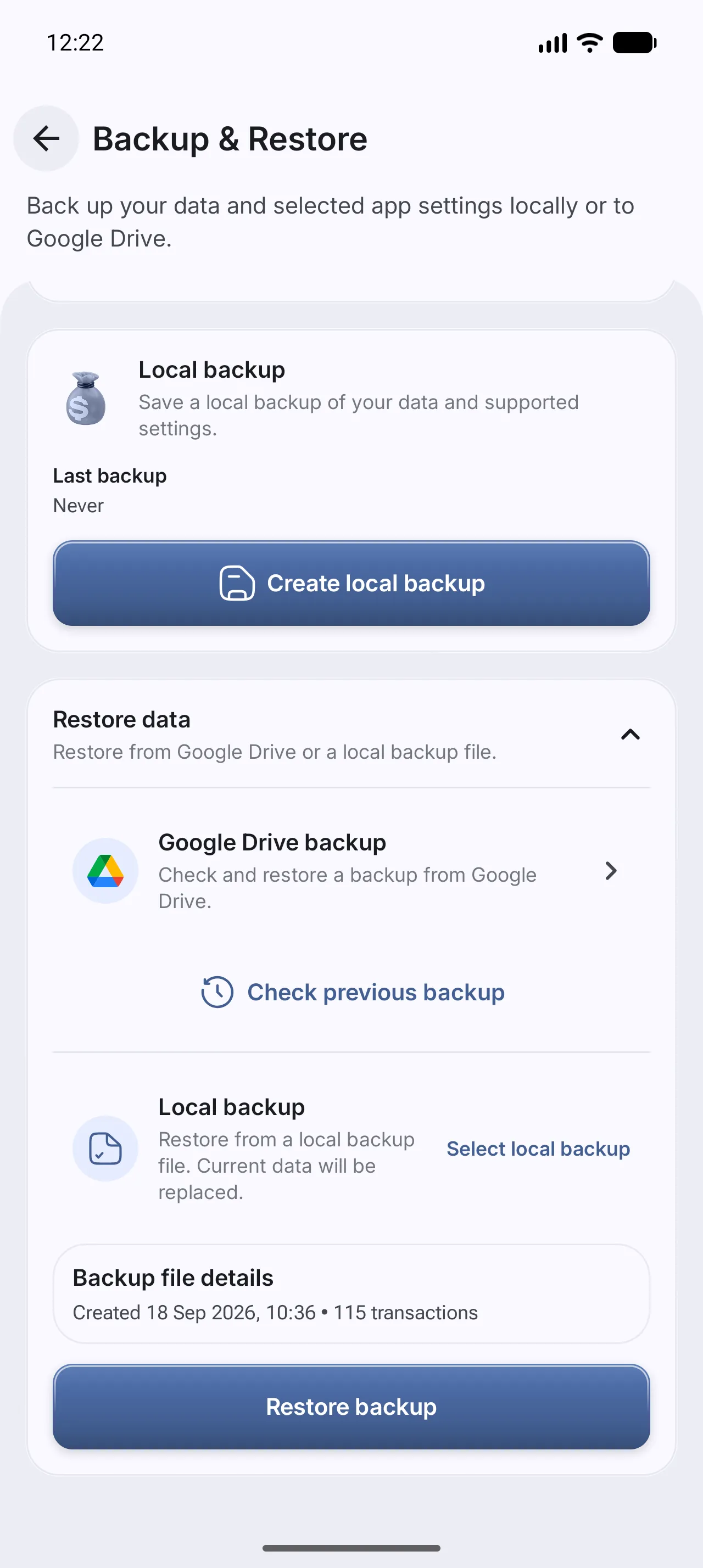
In Settings, find Data and tap Backup & Restore. Backups include your data and supported app settings.
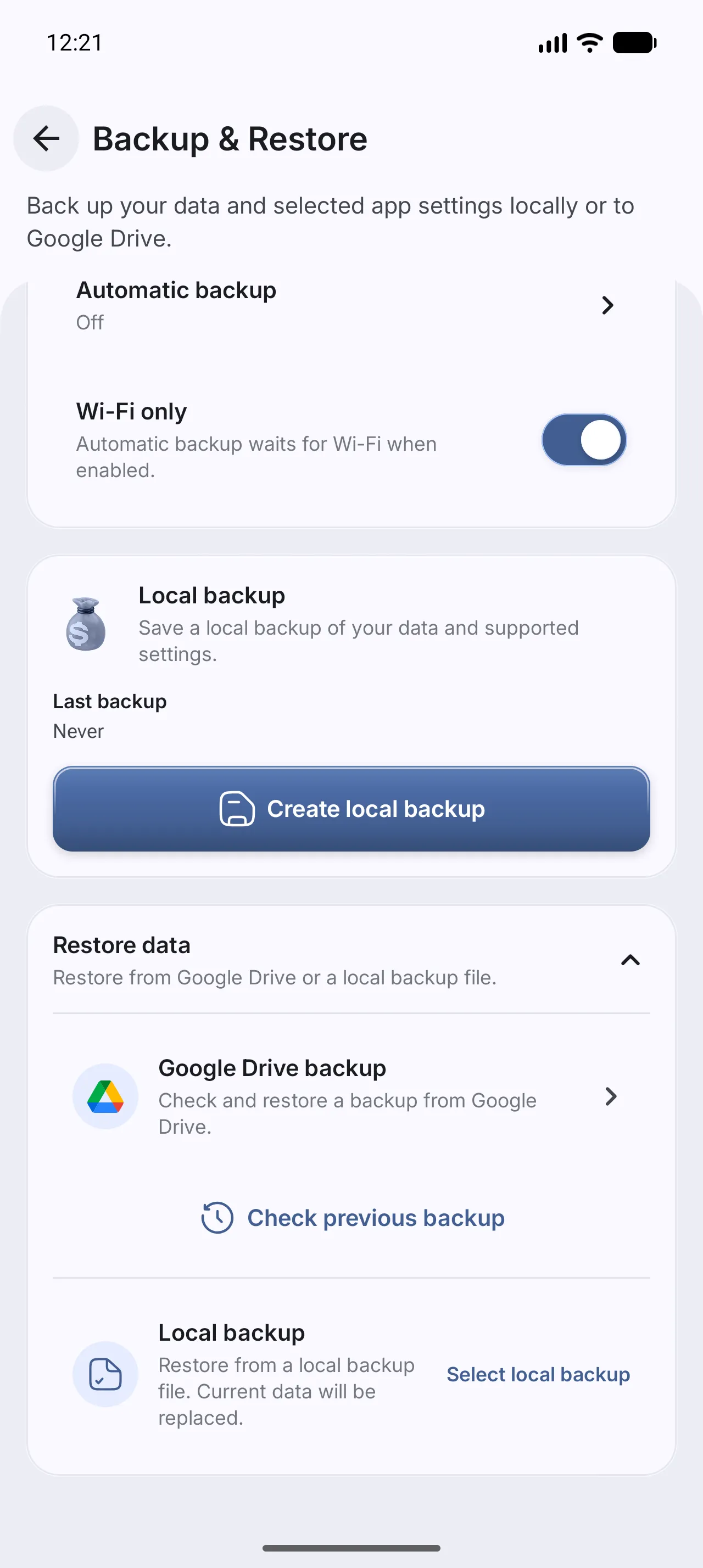
Create a local backup
Under Local backup, tap Create local backup. You can also use Google Drive backup on this page when it is available for your plan and connected account.
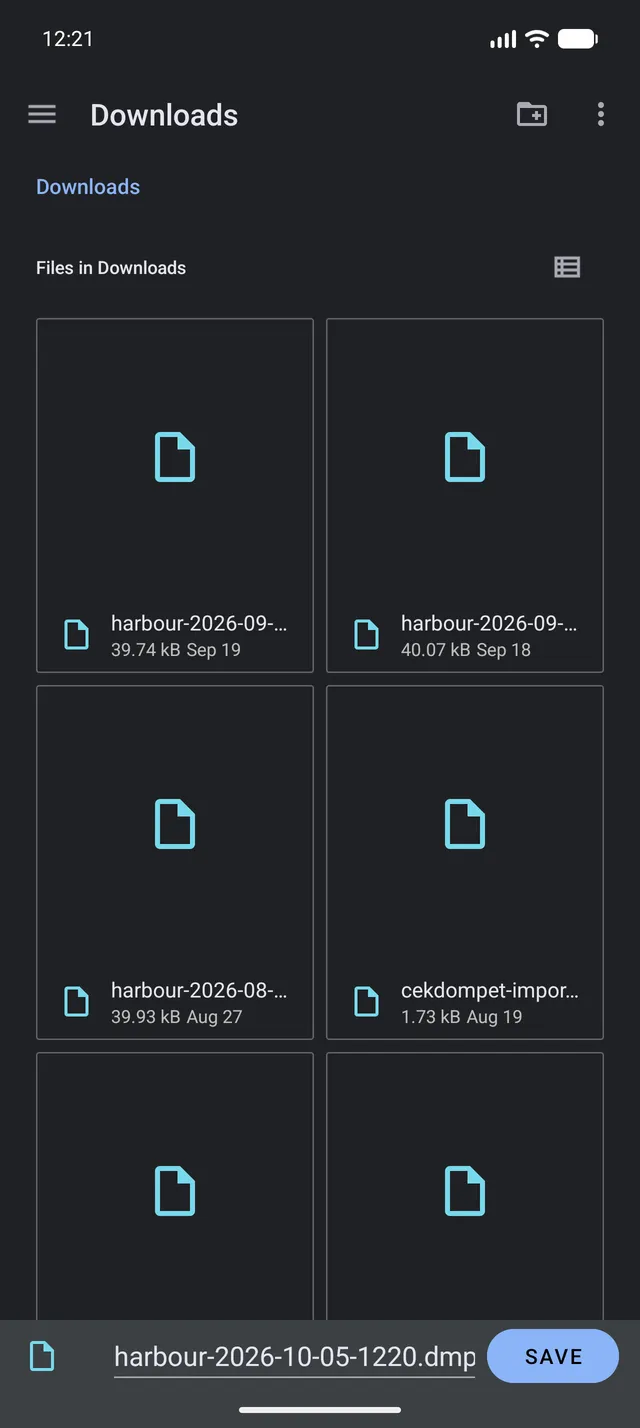
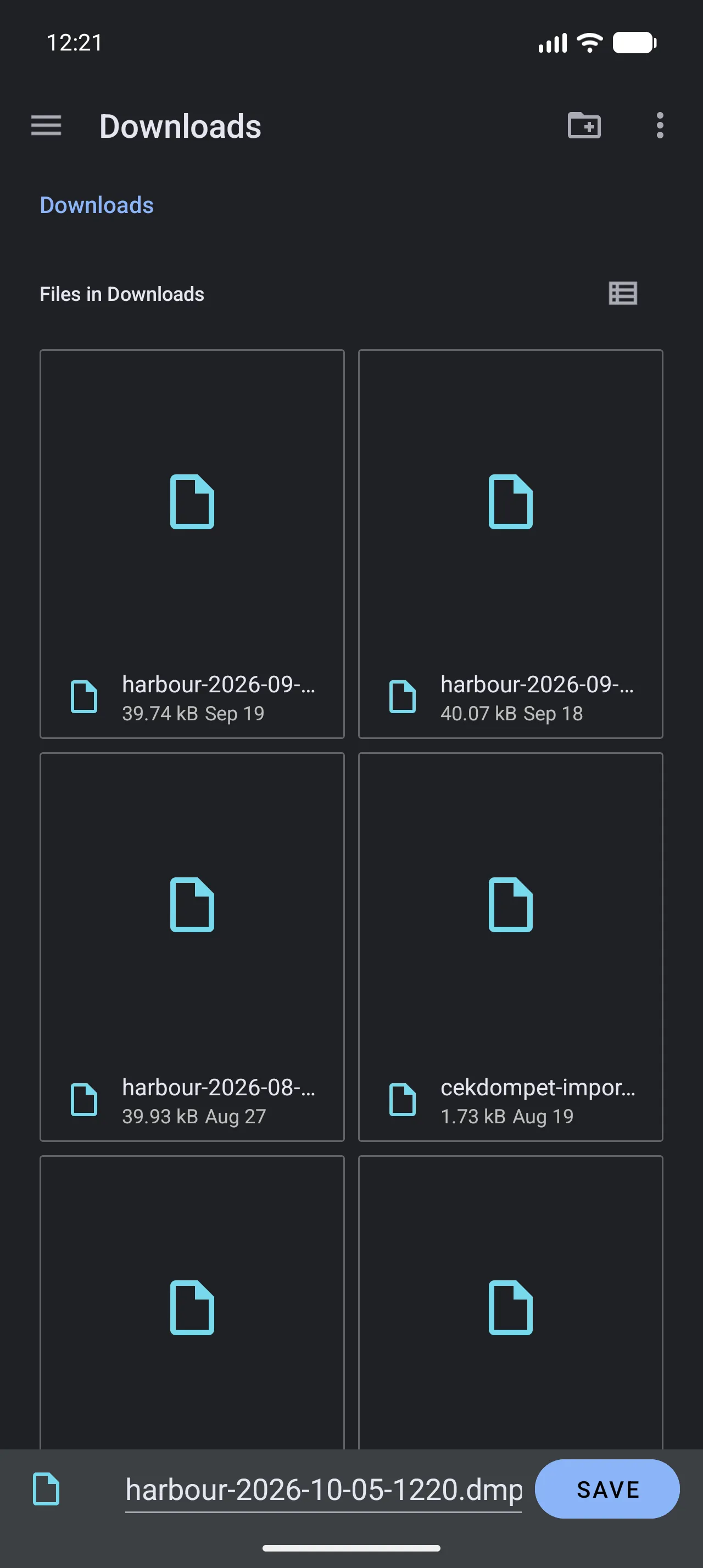
Choose where to save
The Android file picker opens. Choose a folder, keep or change the suggested .dmptbackup filename, then tap Save. Wait for Harbour to finish creating the backup and check its result.
Select a backup to restore
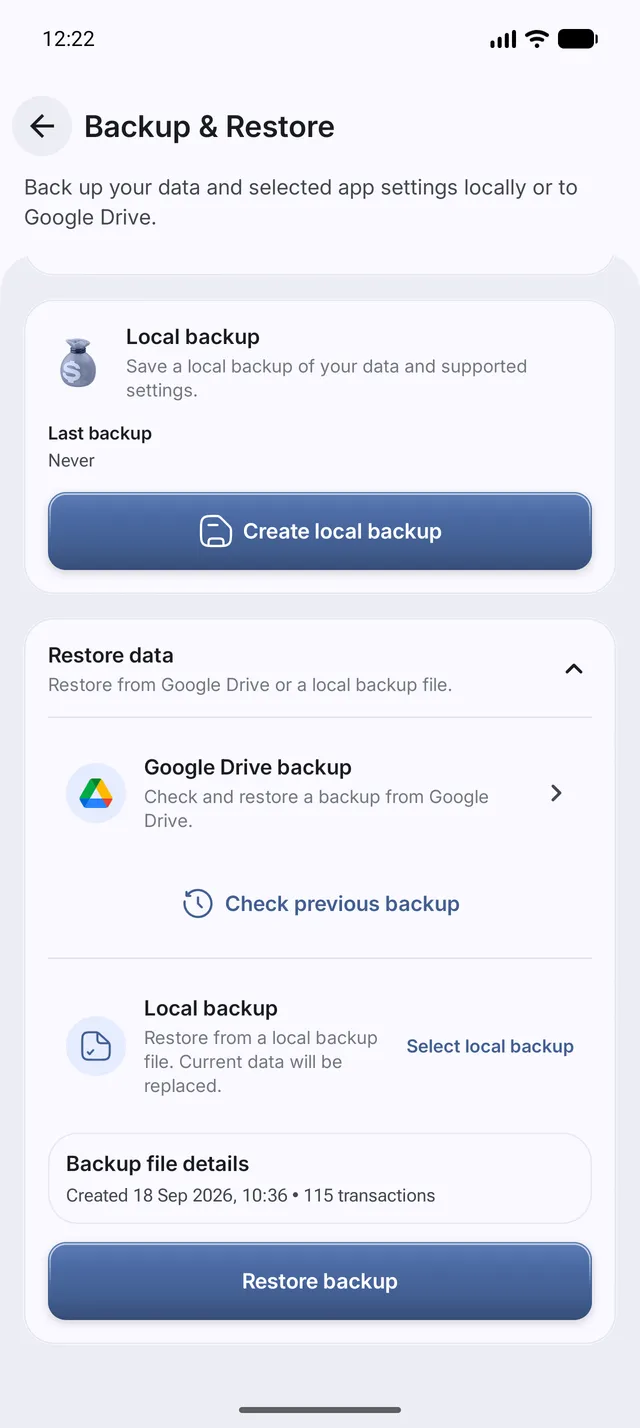
Open Restore data, then Select local backup. Choose a Harbour backup file. The app inspects it before offering Restore backup. Review its creation date and transaction count.
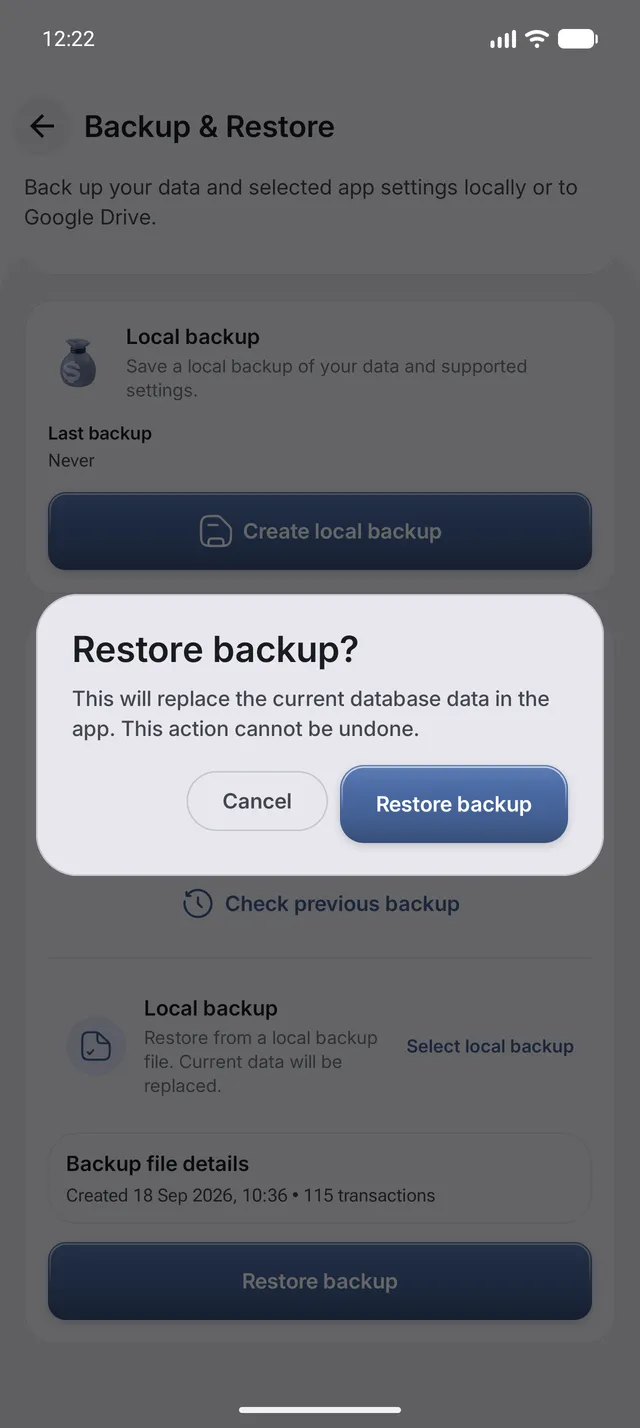
Review the replacement warning
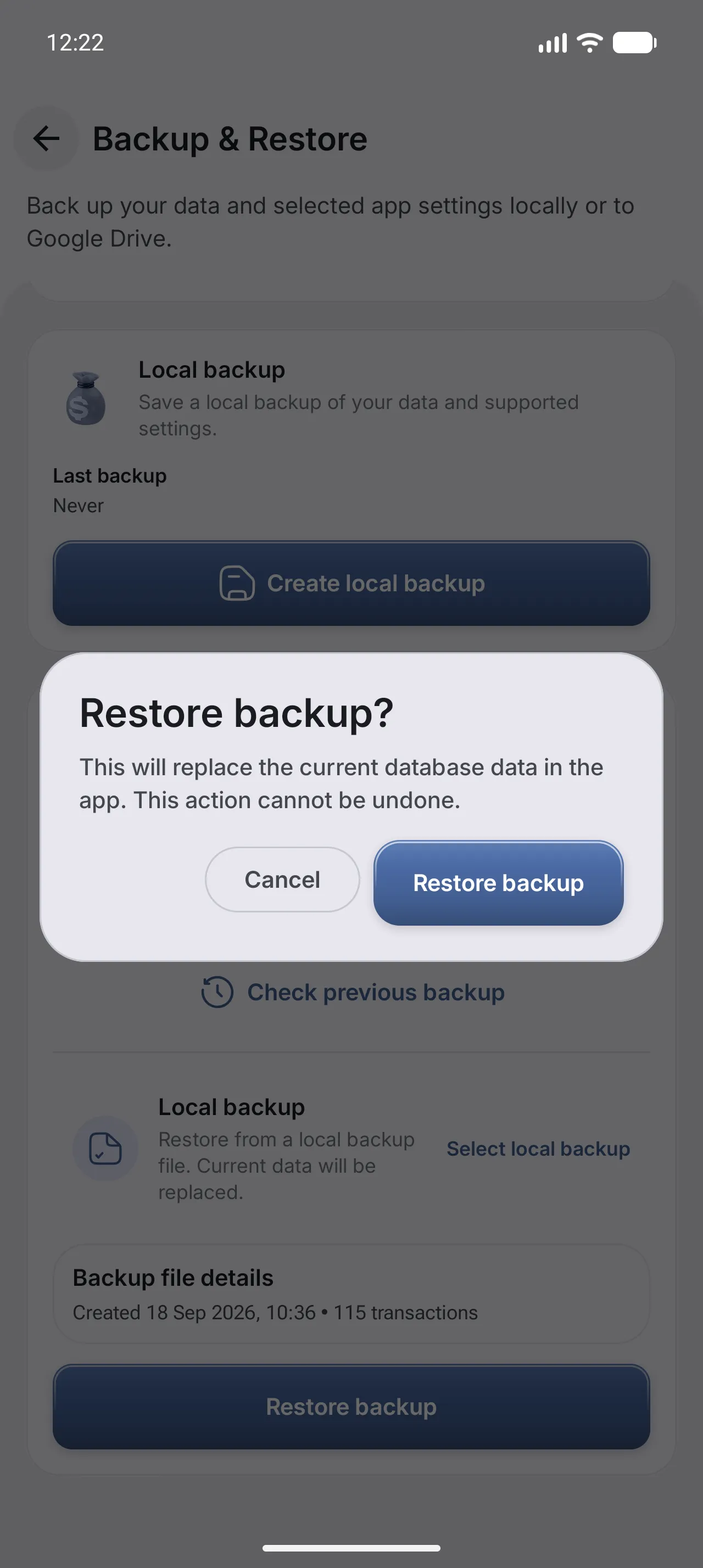
Tap Restore backup to open the confirmation. Restoring replaces the current records and cannot be undone. Create a backup of your current records first if you need to keep them.
Confirm only when ready
Tap Cancel to keep your current data. When you have checked the file and are ready to replace the data, tap Restore backup and wait for the result.