Change a limit for a specific period.
Adjust one period without changing the others.
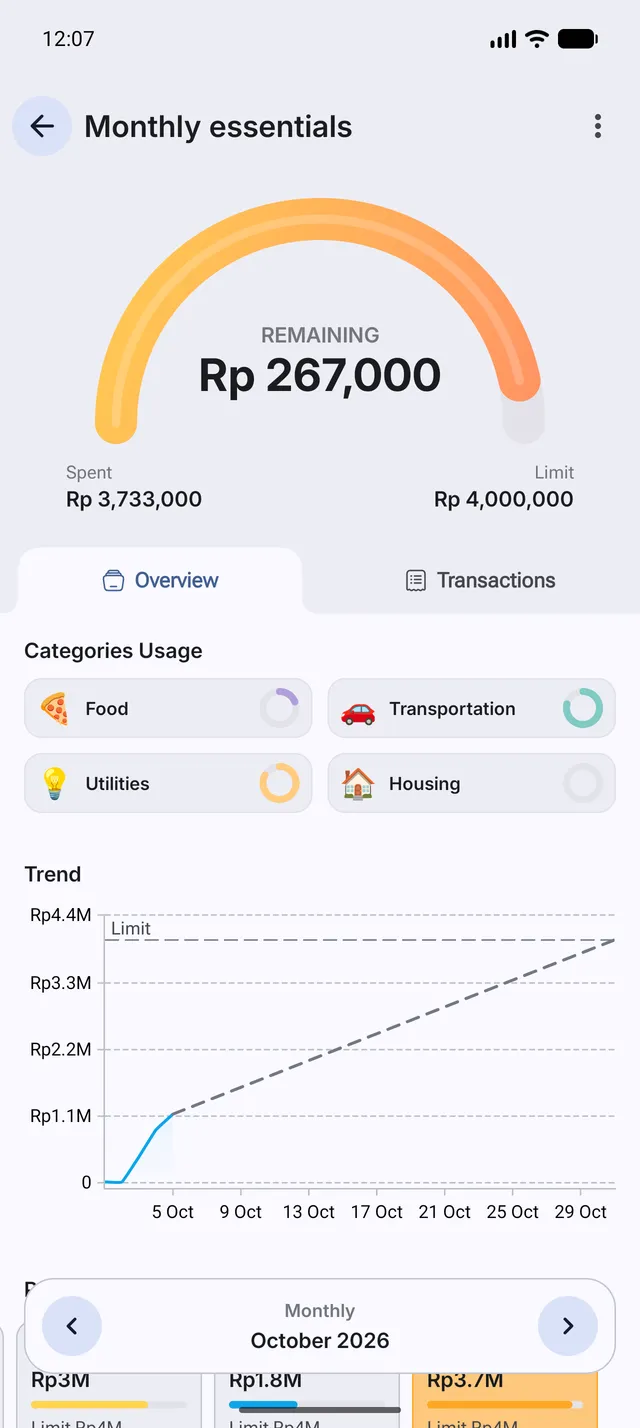
Select the period
Open the budget and use the period arrows at the bottom to select the period you want to adjust.
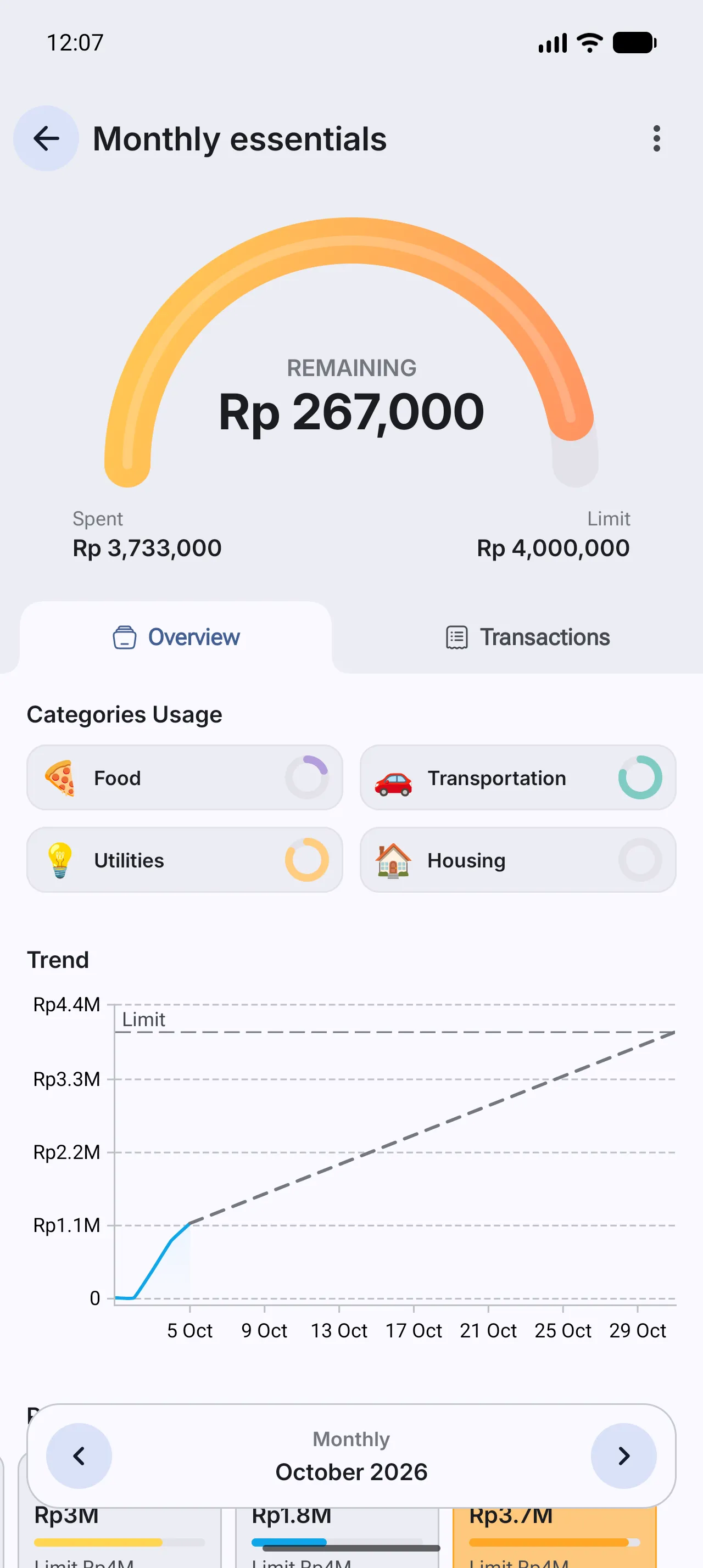
Edit the amount limit
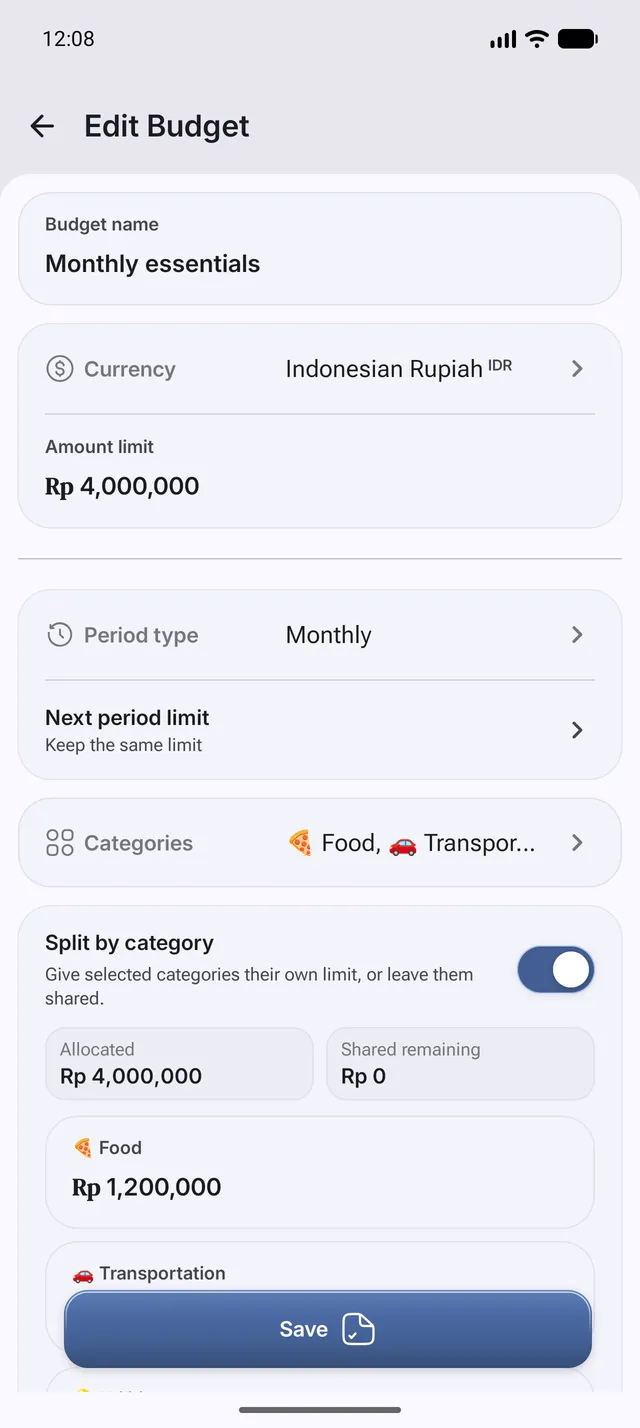
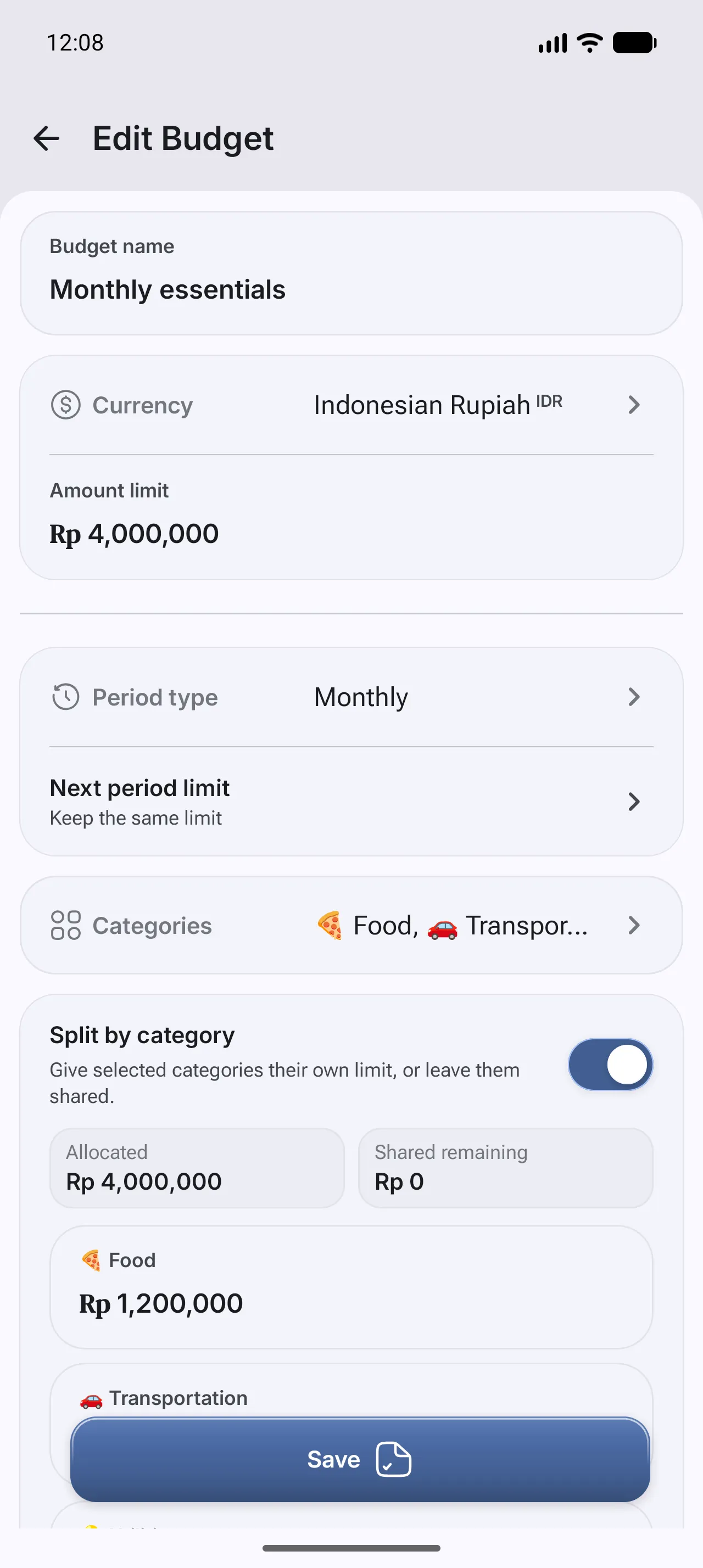
Open the three-dot menu, choose Edit Budget and enter the new Amount limit.
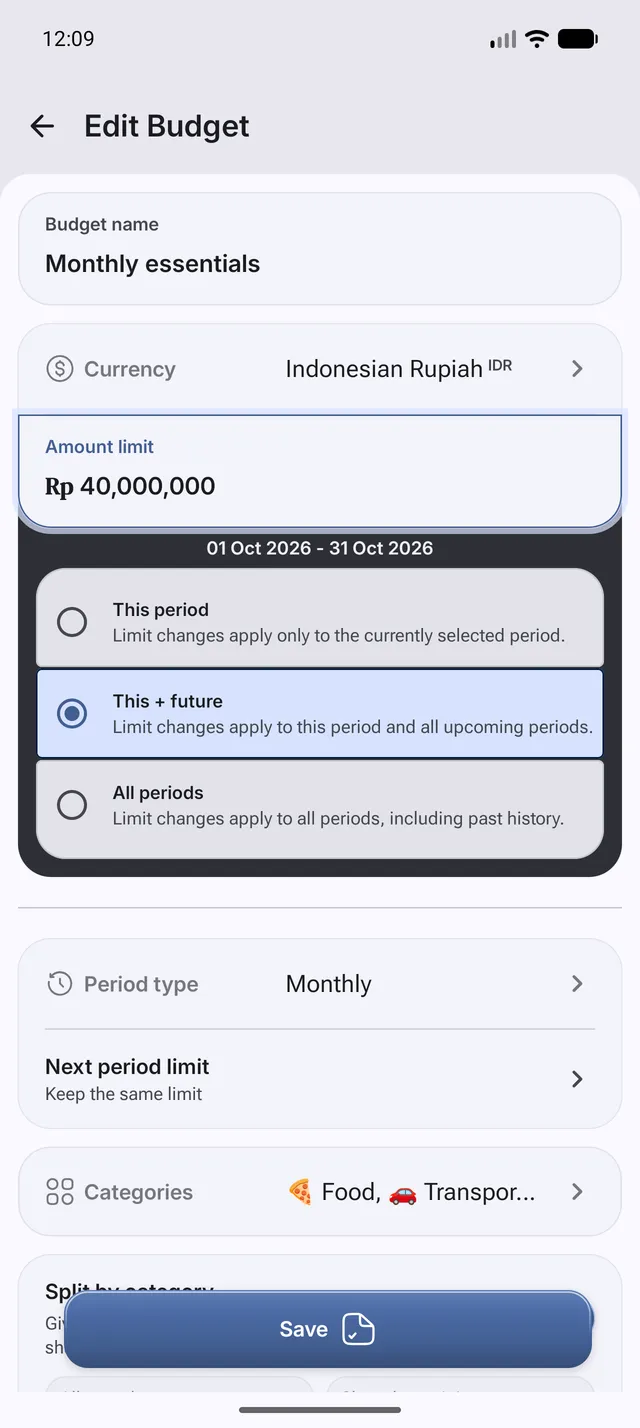
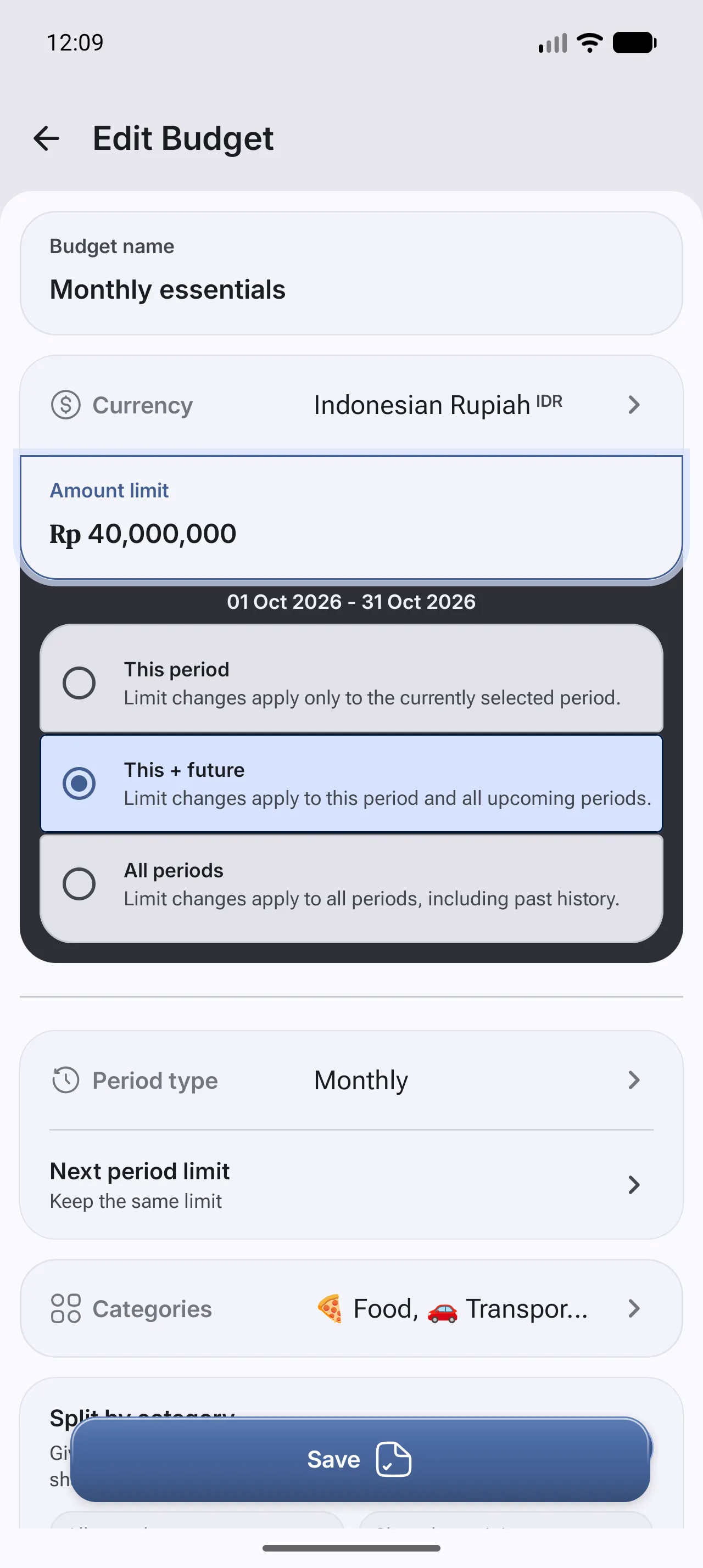
Choose This period
After changing the limit, select This period. This + future also changes upcoming periods. All periods includes past history, so use it only when that is intended.
Save the change
Check the selected dates and category allocations, then tap Save. Return to the budget detail to review the updated limit.