Create a bill or subscription.
Set a due date and track each payment period.
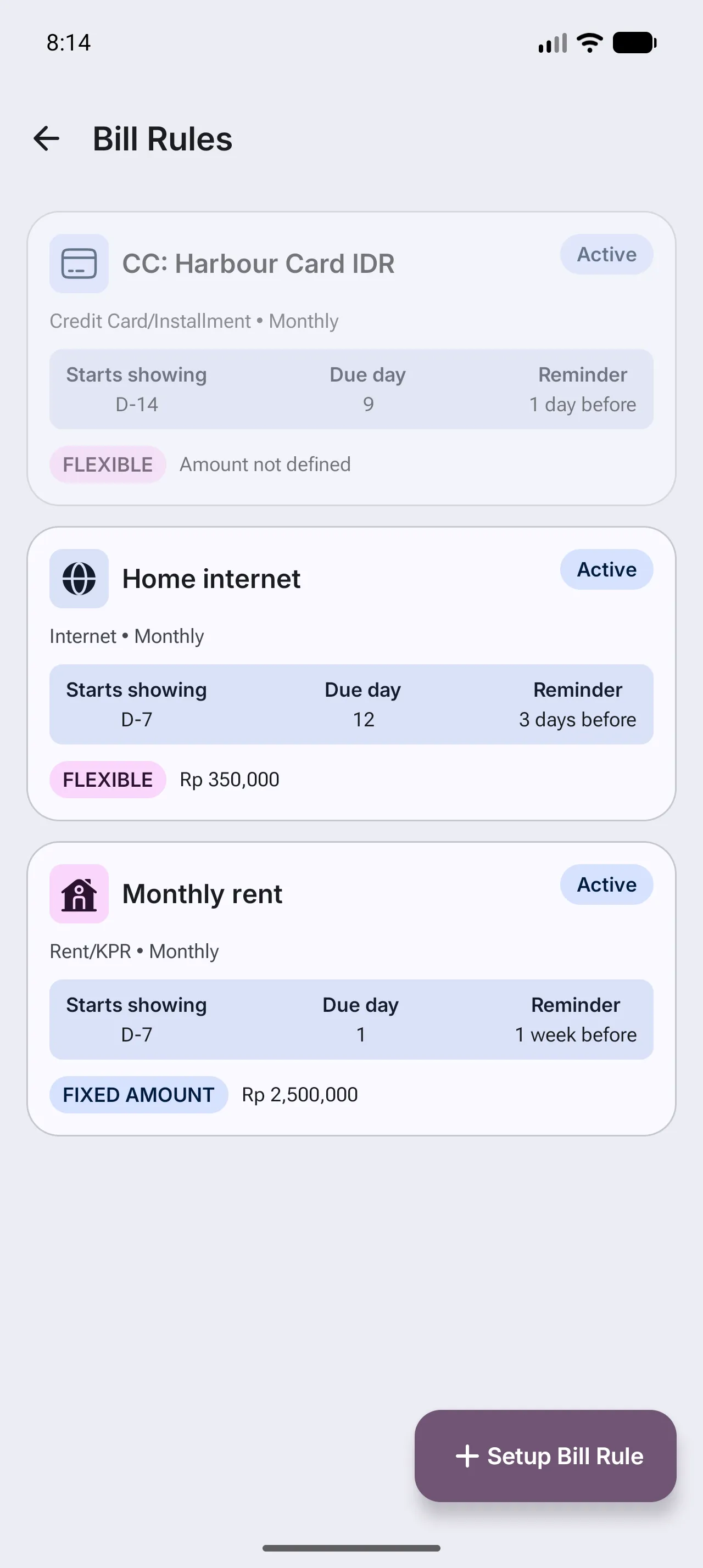
Open Bill Rules
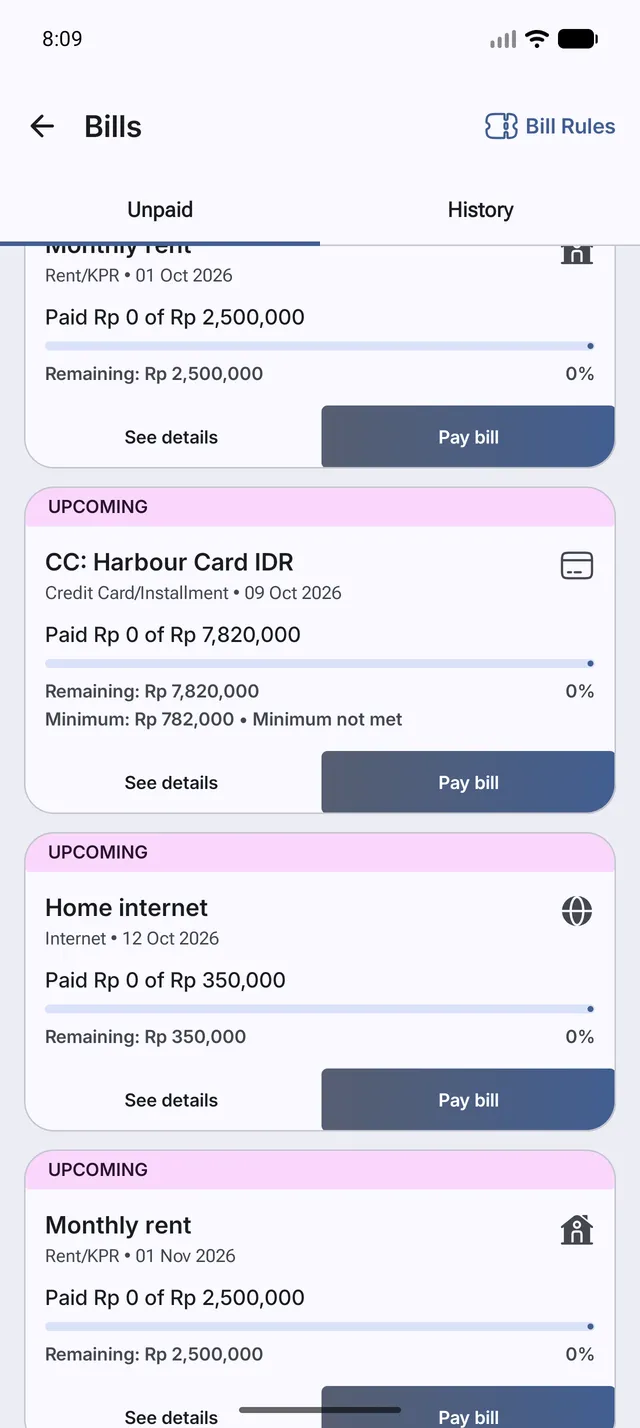
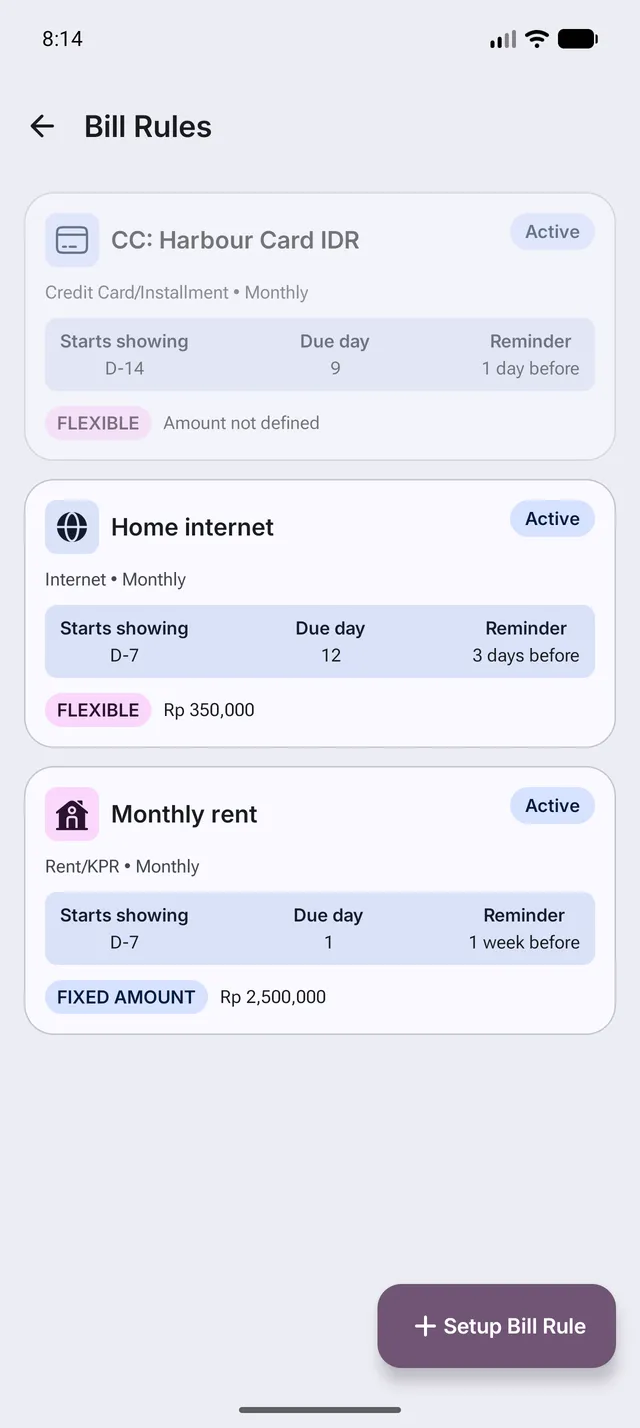
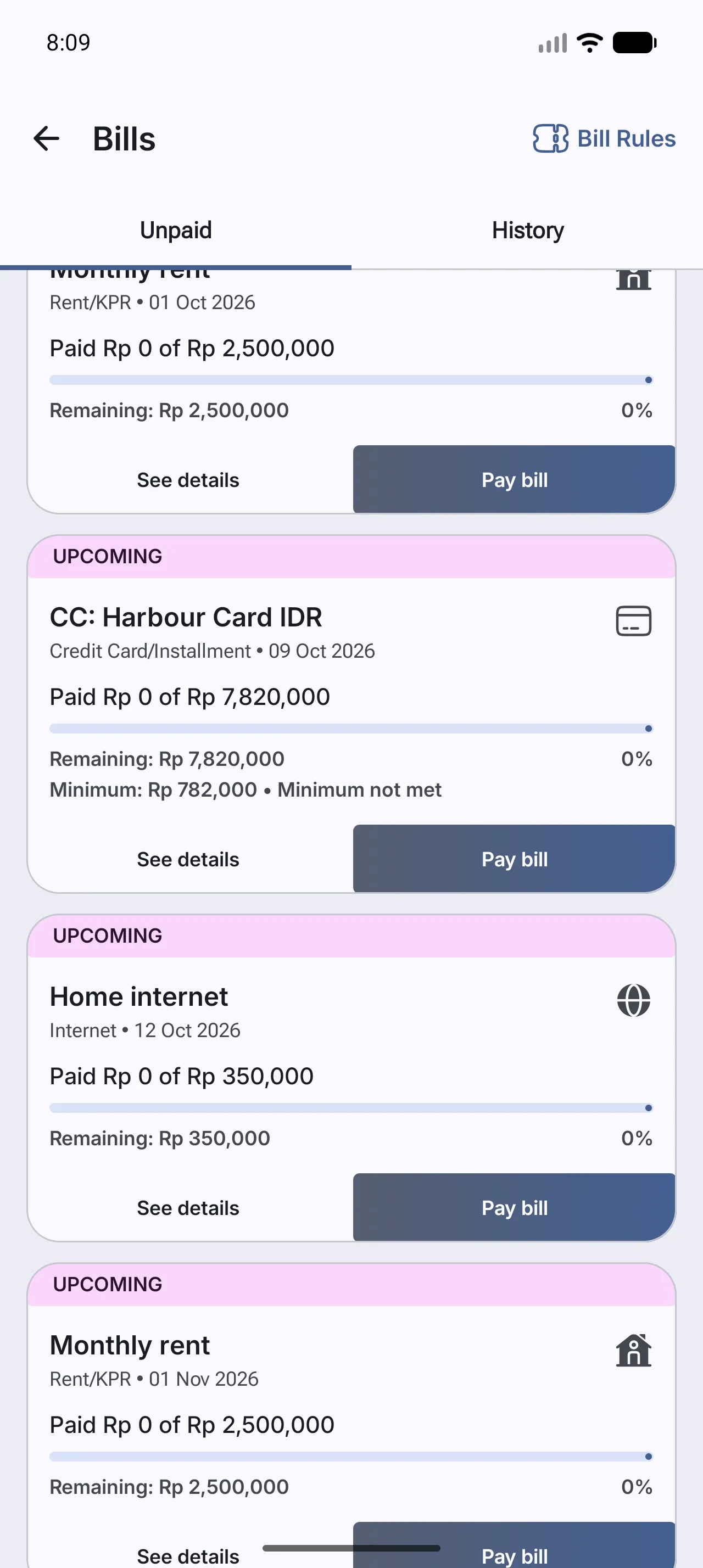
Open Bills from Home, then tap Bill Rules at the top right.
Set up a rule
Tap Setup Bill Rule. A rule creates the bill periods you track; it does not make payments automatically.
Name and classify your bill
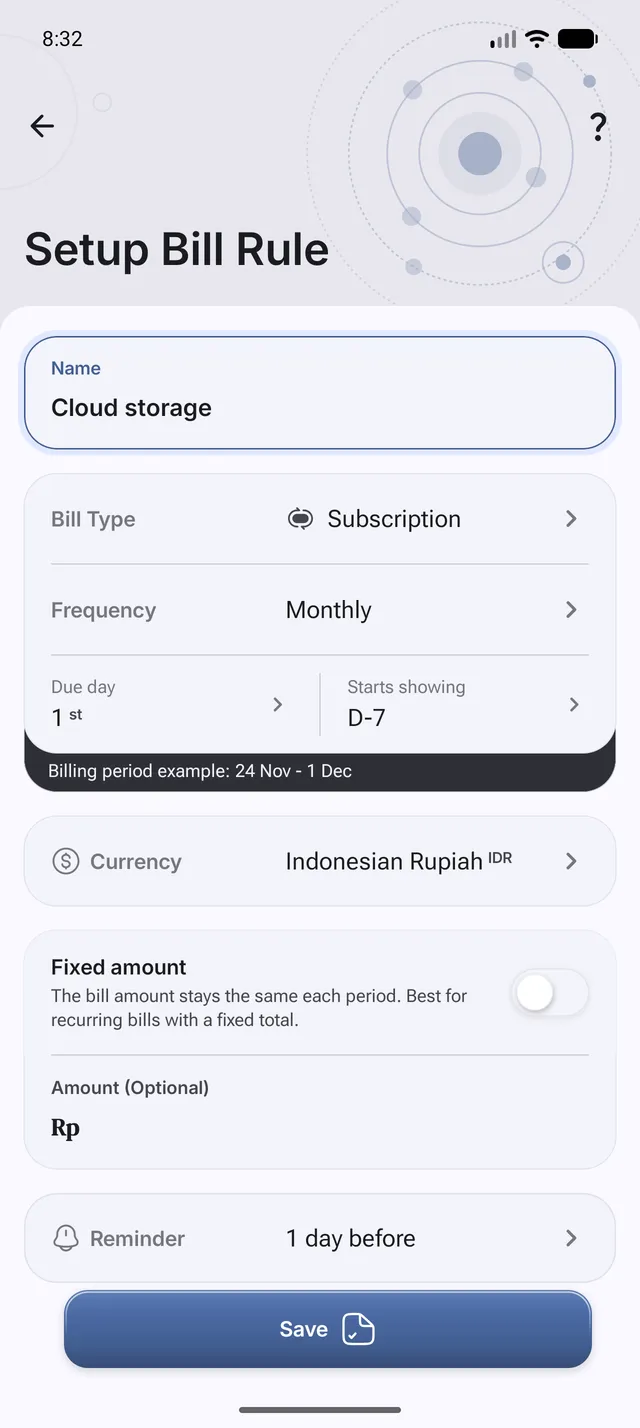
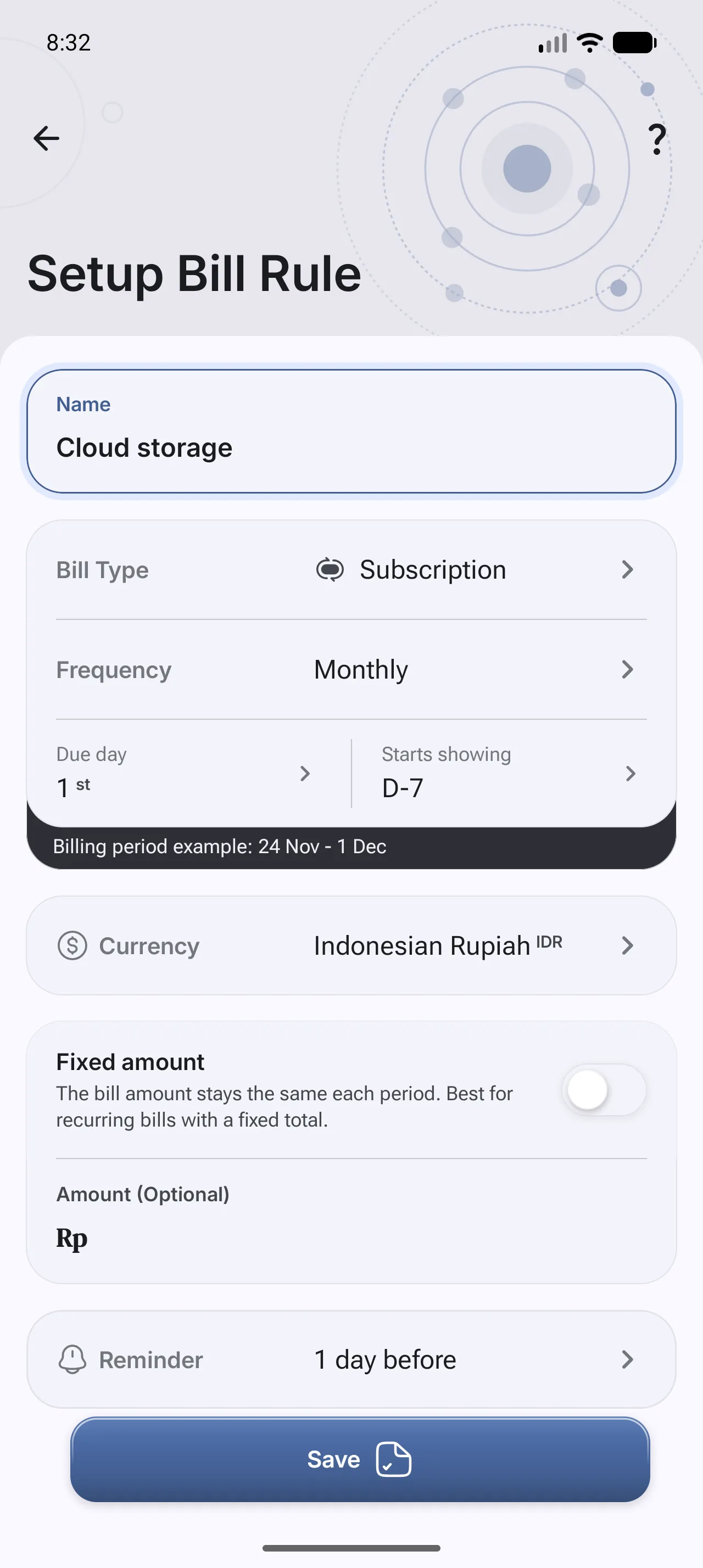
Enter a name you recognise, then choose Bill Type. Select Subscription for a recurring service payment.
Choose the schedule
Choose Monthly or Yearly. Set the Due day; yearly bills also need a month. Starts showing controls how many days before the due date the period opens. Check the billing period example.
Set the amount
Choose Currency. Turn on Fixed amount when every period has the same total, then enter the amount. With Fixed amount off, the amount is optional.
Check and save
Choose when to receive a Reminder, check the rule details, then tap Save. You can record payments later from Bills.