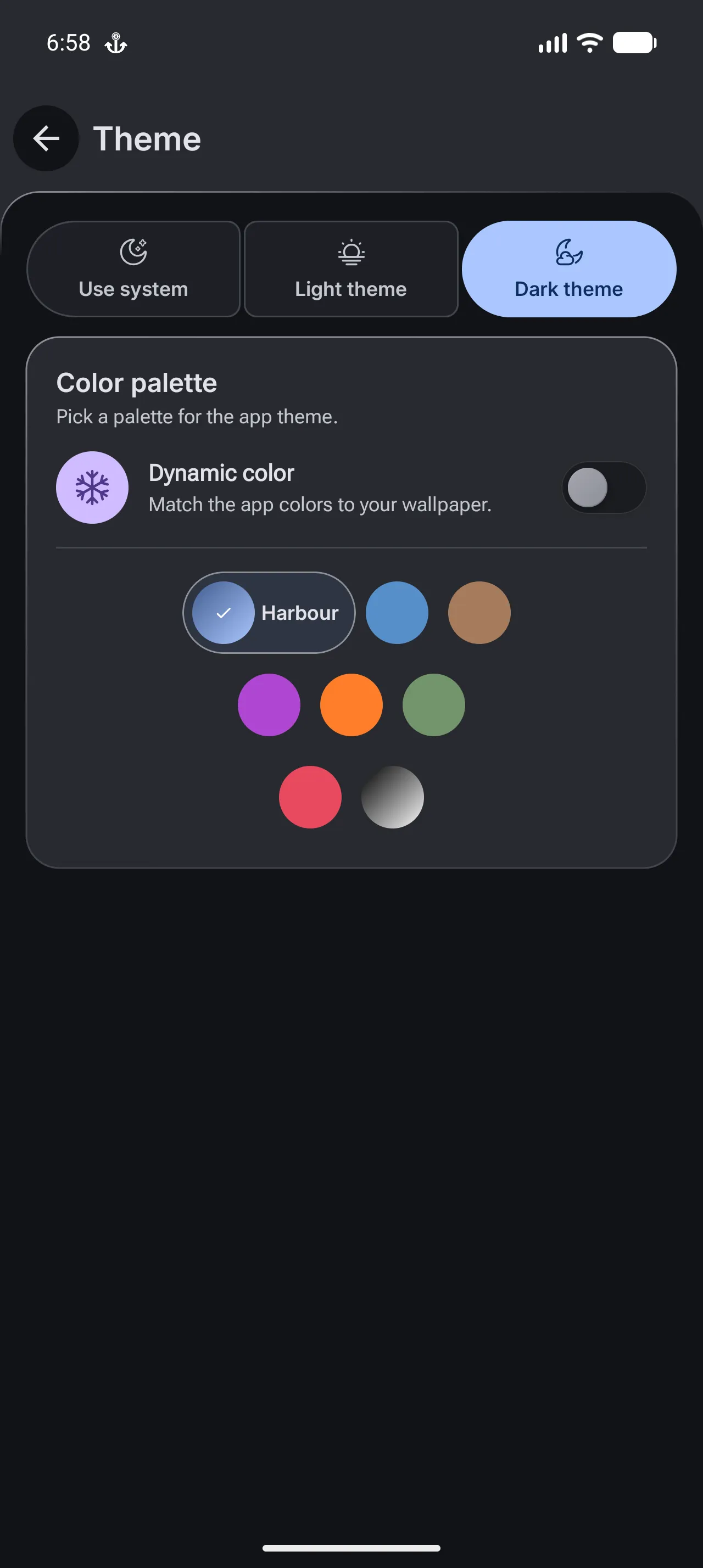
Change colors and theme.
Choose a color palette and try dark mode.
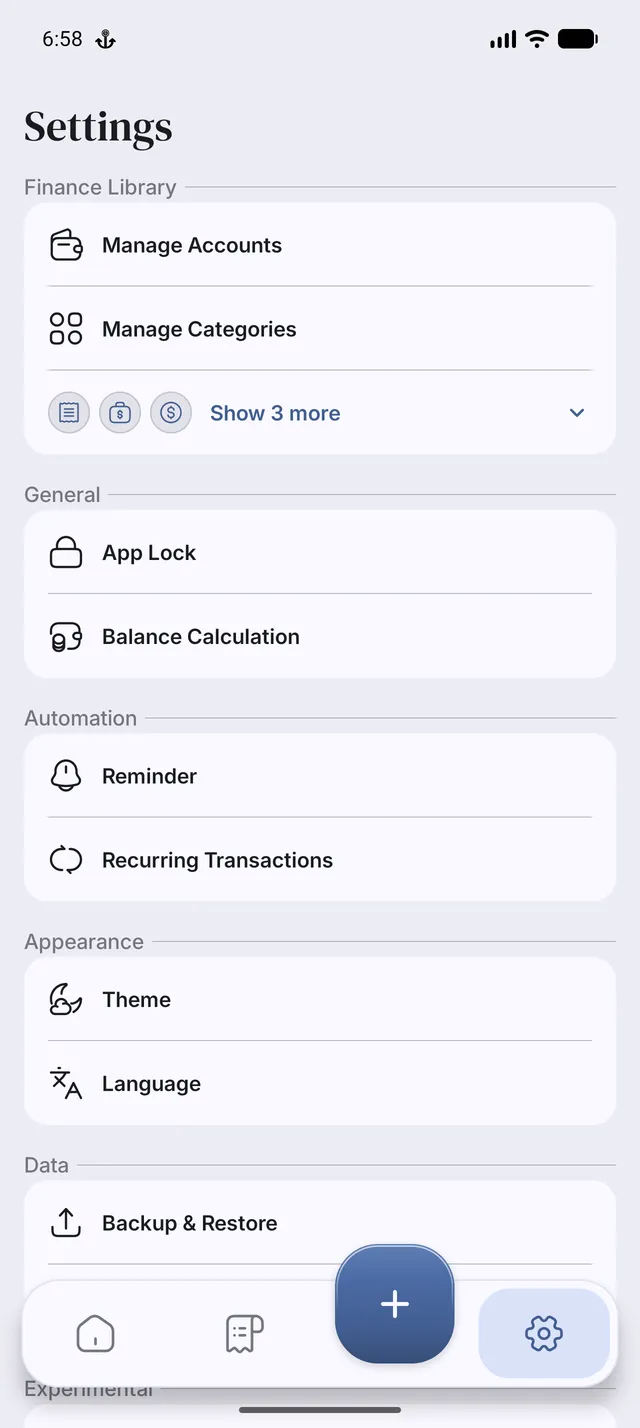
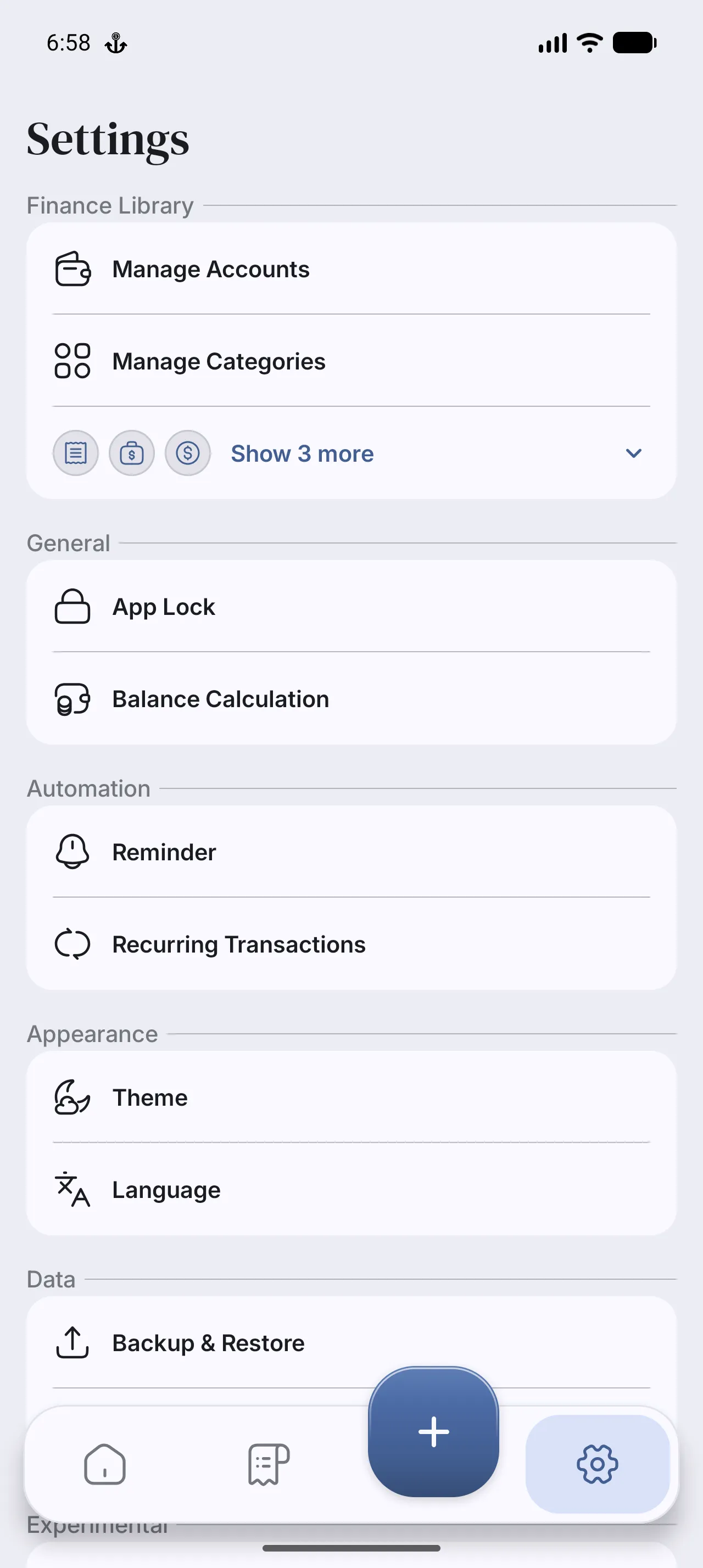
Open Theme
In Settings, find Appearance and tap Theme.
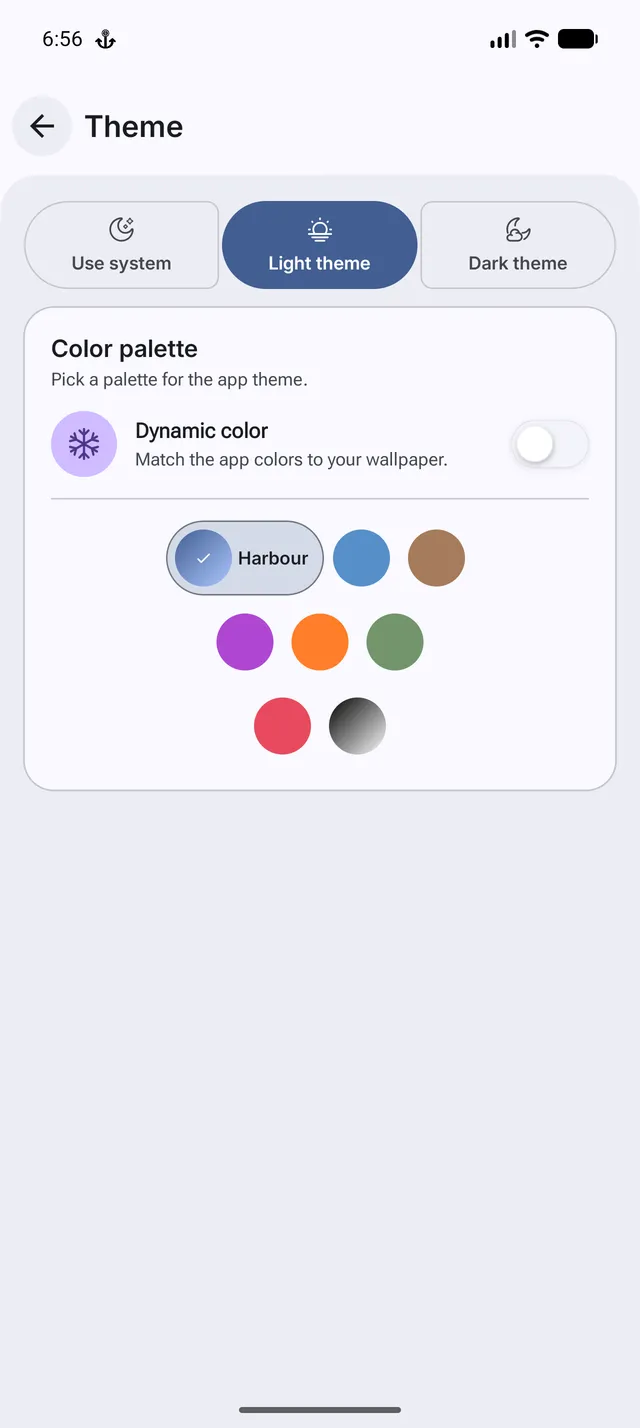
Choose your palette
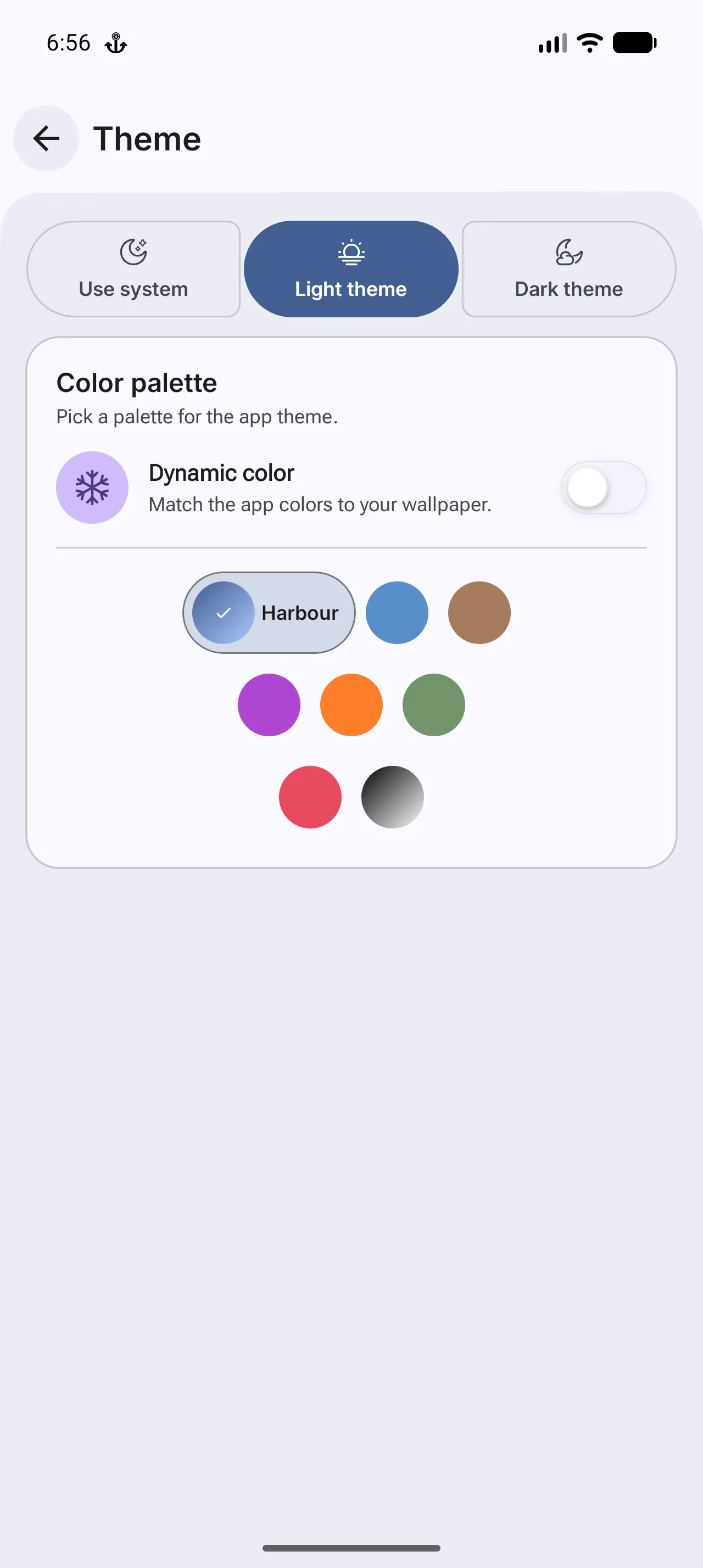
Tap a color in Color palette. Here, we use Harbour. Your choice applies immediately.
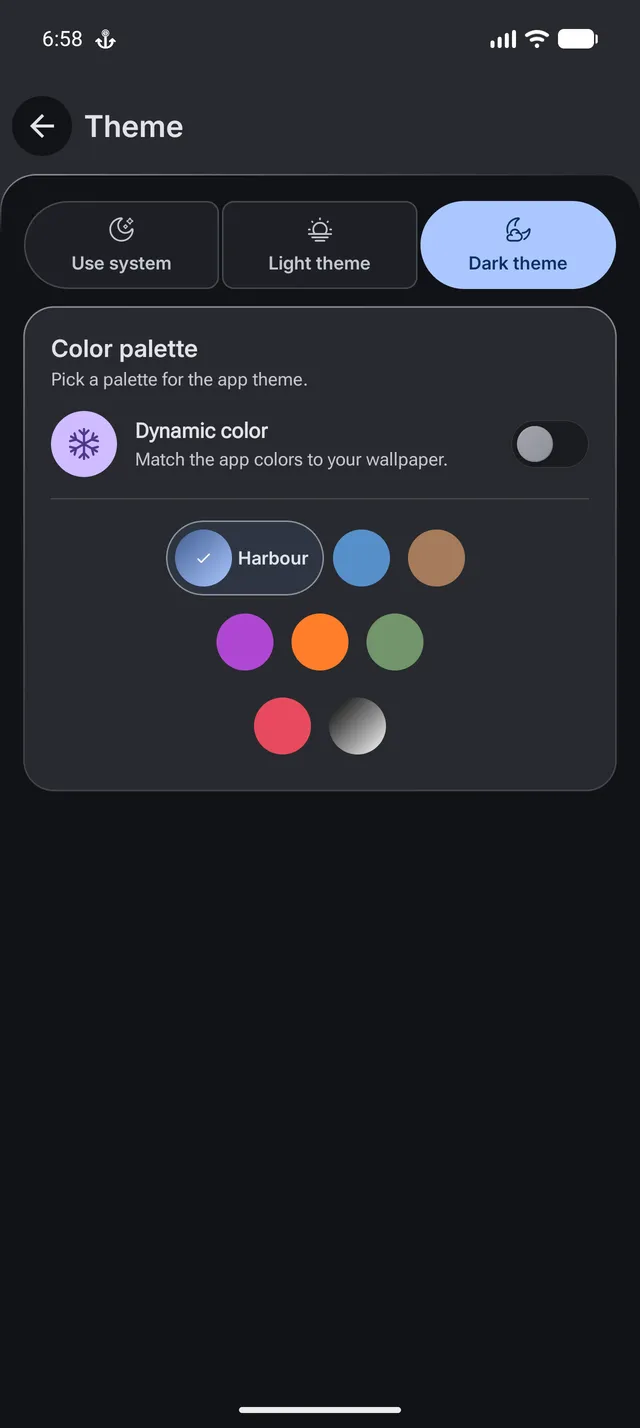
Switch to dark mode
Tap Dark theme. Your selected palette stays with you. Choose Use system instead to follow your device theme.
Review your theme
Your palette now works in dark mode too. Return to Theme whenever you want a different look.